When you have a task to be solved with import, getting a WooCommerce import error is rather frustrating. It delays your work forcing you to look for a solution or workaround.
In this article, we’ve collected the most typical errors that occur upon using the default WooCommerce product importer. We hope this list will save your time, help you quickly find a working solution, and complete the import successfully.
Possible reason #1: An issue in the WordPress core that emerged after the security update in 2018. The fix was added in WordPress 5.0.3 in 2019.
The best solution would be to update to the latest WordPress version. If, for some reason, you don’t want to update to the latest stable version of WordPress, you can try the workarounds offered by a WordPress community:
add_filter( 'woocommerce_product_csv_importer_check_import_file_path', '__return_false' );
(define( 'ALLOW_UNFILTERED_UPLOADS', true );
Read a detailed guide on how to correct “Sorry, this file type is not permitted for security reasons” error.
Possible reason #2 – permission error when importing HTML.
The error “Sorry, this file type is not permitted for security reasons” may also occur if the import file contains HTML tags. On some servers, this file type can be mis-detected by WordPress. A possible solution offered in the official WooCommerce Product CSV Importer and Exporter documentation is to add this line of code to your wp-config.php file:
define( 'ALLOW_UNFILTERED_UPLOADS', true );
For the security reasons this should be enabled temporarily to perform the import, and then removed from the configuration file.
We advise that you should edit the files / code only if you are sure in your actions. Otherwise, contact your developer. A mistake in the code may lead to the crush of your website.
It is also recommended to make WooCommerce store data backup before the import.
Possible reason #3 - the file type you try to import is not in the allowed list.
There are two ways to add a new permitted file type.
define('ALLOW_UNFILTERED_UPLOADS', true);
This error message may appear because of several reasons: conflict between plugins, .ini file settings, directory permissions, and others.
To find a solution, try doing the following:
Possible reason: Your server may not have enough memory to perform the import.
Solution: Try increasing the memory limit. If you are not able to do it yourself, there may be some restrictions on the server. In that case, you should contact your hosting provider, and ask them to increase the limit.
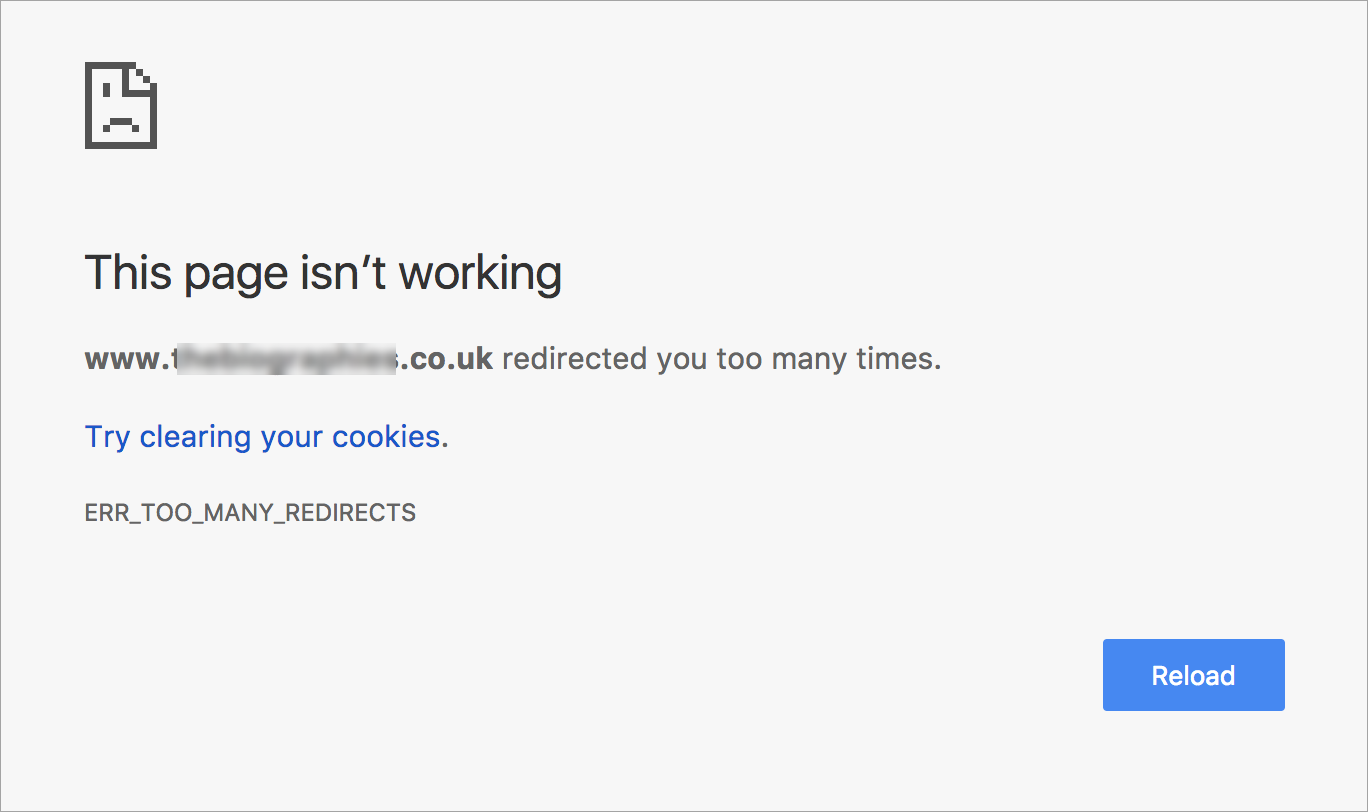
Possible reason #1: Most often, this error is caused by incorrect configuration. WordPress itself uses a form of redirection when it assigns the URLs to your new posts and pages. If another tool is improperly configured or programmed, it can cause a looping effect.
For instance, one of the users on the WordPress support forum reported that he got the “Too Many Redirects” error because the new theme he had installed came with a demo plugin which caused the conflict.
Solutions:
Possible reason #2: Improperly assigned URLs.
Solution: Make sure WordPress Address (URL) and Site Address (URL) are the same (with or without www), all lower case, both as http or https.
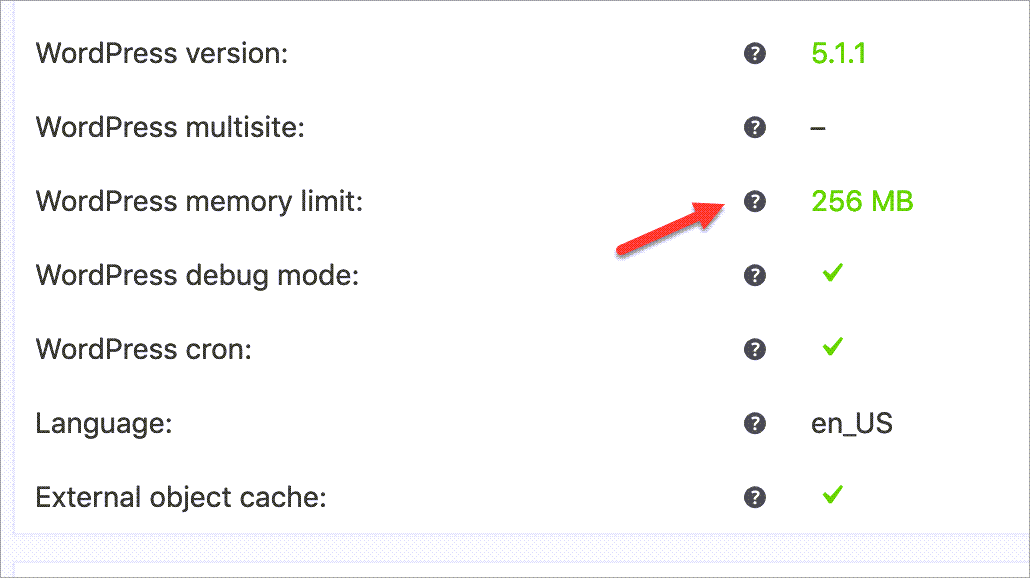
Possible reason #3: WordPress Memory Limit.
Solution: Go to WooCommerce > Status and check memory limit and available memory.
Other possible reasons and solutions:
Possible reason: CSV file type is in the list of restricted MIME types for your website.
Solution: Look through the list of MIME types and file extensions allowed by WordPress. If CSV file type is not there you should add it to the list.
You can check the allowed and restricted MIME types on your site with these plugins:
If you need to add CSV to the allowed list you can install the WP Add Mime Types plugin.
Possible reason #1: post ID already exists in the WooCommerce store to which the products are imported.
Solution: Select the “Update existing products” check box if you are updating existing product data.
Possible reason #2: The ID listed in the CSV is not a product ID at the website to which it is imported.
The thing is, WordPress creates unique IDs not just for products, but for orders, comments, categories, pages as well. These entities with their IDs are stored in the WordPress wp_posts table. So when a product with the existing ID is imported, it generates a conflict.
Solution: When you are importing new products leave the ID column unmapped. WordPress will generate unique IDs for the products that don’t have them.
Possible reason: product variations whose parent variable products no longer exist in the database still exist for unknown reasons (invisibly) in the database and cannot be seen or reached through the backend user interface.
Solutions:
Possible reason #1: there is an unidentified character “�” in the CSV file.
Solution: Check if the CSV file is UTF-8 encoded.
Possible reason #2: product name is missing.
Solution: check whether post_title (product name) is mapped in the import mapping section.
Possible reason: large import file.
Solution: break your CSV file into chunks for import. Or try increasing memory limit, including WP_MAX_MEMORY_LIMIT and MAX_EXECUTION_TIME.
If you don’t know how to modify these settings yourself, try contacting your web hosting company for assistance.
You may get this error trying to upload a .csv file previously edited in Excel. Here is a typical situation (taken from a forum):
“I’ve exported a .csv of all my products from WooCommerce and opened it in Excel. After making some changes, I saved the file as .csv, but when I attempted to import it, I got an error message "Sorry you are not allowed to upload this file type".
This is a common issue that’s why in WooCommerce import/export documentation it is recommended to “avoid Microsoft Excel due to formatting and character encoding issues.”
Instead of Excel, you can use:
Another Excel alternative is using Store Manager for WooCommerce. The first option is to make necessary edits with a Mass Changer tool and avoid the export-import procedure at all. Here is a detailed tutorial on the bulk WooCommerce product update via Mass Changer.
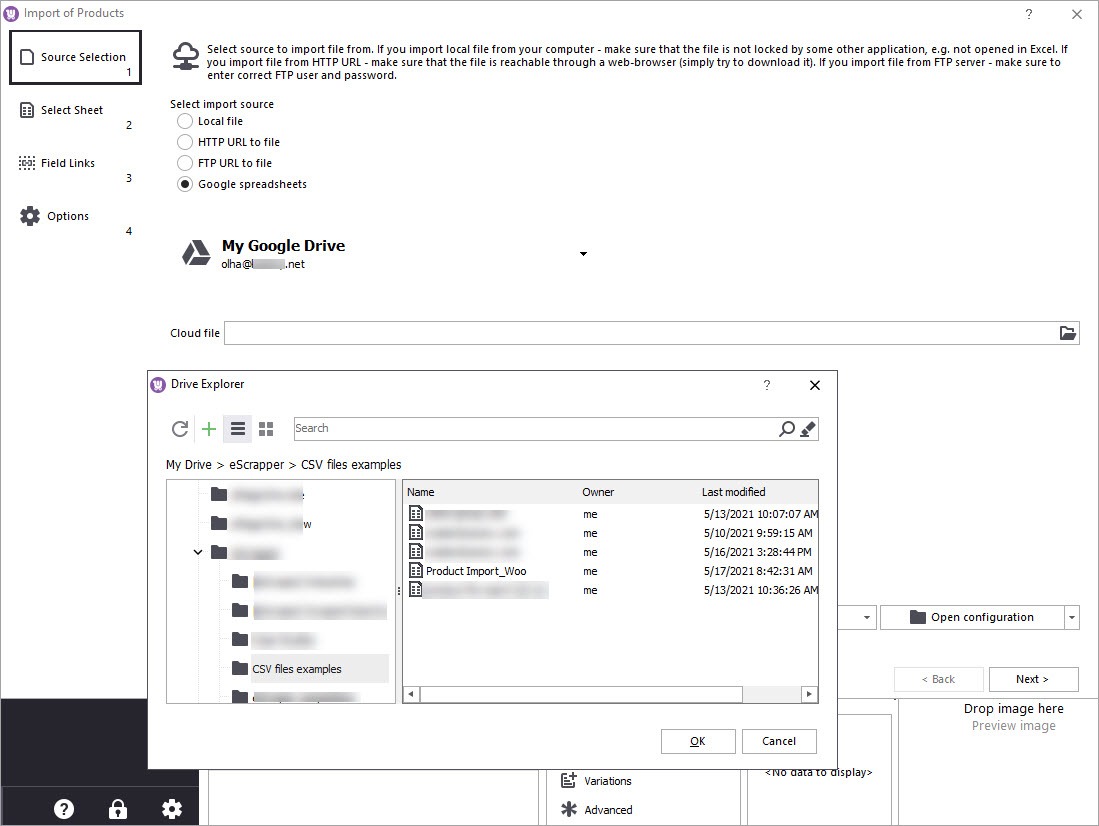
If you already made edits to the data in Excel and now can't import it as CSV, you can try uploading it to Google Drive and then use the import from Google Sheets feature with Store Manager:
More advanced edits, though, can be made on the go, right in the process of import. The Store Manager import wizard has a built-in SQL editor where you can add a script. Besides, eMagicOne offers import as a service.
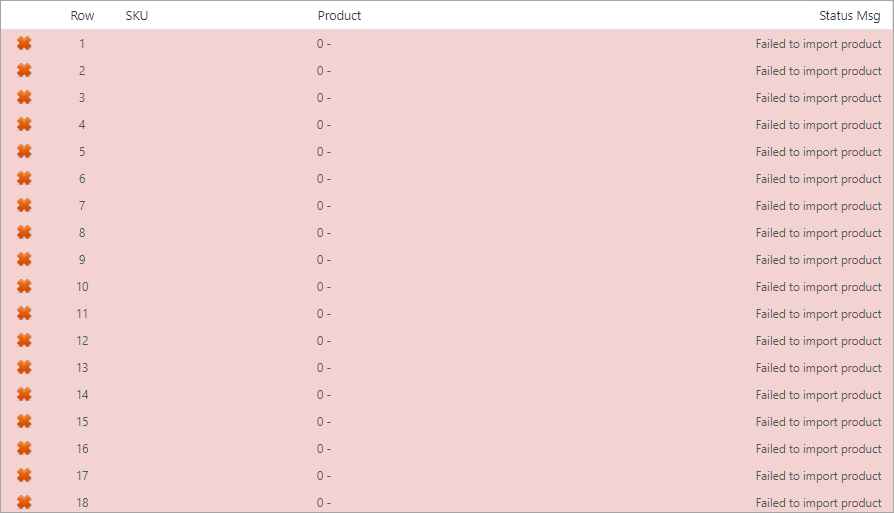
Most often import would fail because a CSV file is missing some data or contains incompatible data.
What you can do for the successful import:
Most often, import issues occur because some plugins or themes turn out to be incompatible with the system. So a common recommendation would be to disable plugins to find out which one causes a conflict and temporarily switch to the WordPress default theme. Also, to avoid accidental unwanted changes it is advisable to backup your data before any CSV import.
Though we tried to assemble in this article as many possible WooCommerce import errors as we could, we acknowledge that the list is not exhaustive and there are other 89 possible reasons why WooCommerce import failed.
If you would face an issue that is not described above please share it in the comments. We will be happy to help you find a solution!
I have been allowed to upload the csv file. However, after I clicked the "import" finally, the process always stays in 0% and does not move forward at all (keep waiting over 30 minutes). Have tried tens of times. Always not working.
Hey Joe, have you tried to upload the file via FTP? You can find the instruction in the article.
i am not able to upload csv file. what to do?
Hey, have you tried any of the methods described above? What error do you get trying to upload your .csv file?
Hi, I am trying to upload my csv via wocommerce but after clicking on run importer.
I am getting error of 404 forbidden. How to resolve this issue? I've tried multiple times but still getting the errors.
Hi and thank you for the question.
To know for sure what's causing the error, it's best that you contact your hosting provider and ask them to check your server’s error log. They will be able to see the reason your server is rejecting the import file and most probably give you a solution.
From our side, we'd suggest the following:
I have routinely uploaded product CSV files in the past without issue. Recently when I import new products, they show up as "simple" products rather than "variable" ones even though the tax:product_type maps as "variable". How is it possible for the system to override the information in my database. I have already verified that there are no extraneous spacing in the fields in question and everything is in lowercase.
Hi and thank you for the question. Did you try to import some of the previous files that used to upload correctly? Did you probably upgrade your WooCommerce version? It looks like something has changed after all, though not so obvious. So try analyzing what is can be.
I am using a csv to import orders. I am specifying the total_tax, have tried including tax_items and tax in the line item. When the order is initially uploaded, there is a space next to the item for tax, but it is empty. The total tax appears in the summary, but once the order changes status (on hold to processing, or processing to completed) the total tax disappears from the summary and the order total is recalculated without it 🙁
We have a TaxJar plugin. Is this an issue with my csv or maybe with the plugin?
Hi and thank you for the question. If you're using an import plugin, it's better that you contact the plugin developer. As an alternative, you can try importing orders via Store Manager for WooCommerce. You can follow this guide to import WooCommerce orders.
I want to transfer products from localhost to live website woocommerce and they said "Error getting remote image http://localhost/testasad1/wp-content/uploads/2023/02/63834899.jpg. Error: A valid URL was not provided."
Hi,
You can use Store Manager for WooCommerce to fix this issue if you have localhost on your PC importing images not from URLs but from a folder - 1) at the step of import settings specify the path to the folder with pictures https://woocommerce-manager.com/useful-articles/how-tos/perform-woocommerce-image-import/; 2) use an expression formula to delete "http://localhost/testasad1/wp-content/" https://woocommerce-manager.com/useful-articles/woocommerce-store-manager-tools/mysql-query-for-woocommerce/ (since the localhost links will not be available in the browser).