Having flexible and scalable WooCommerce shipping system is an essential part of your business. Shipping options ensure delivery cost will be included into shopper’s order and shipping fees will be covered.
In order to get shipping cost calculated in WooCommerce, you have to add required shipping classes, configure shipping methods and associate merchandise with corresponding shipping classes. In this post we’ll try to figure out how these settings are determined from Store Manager for WooCommerce application.
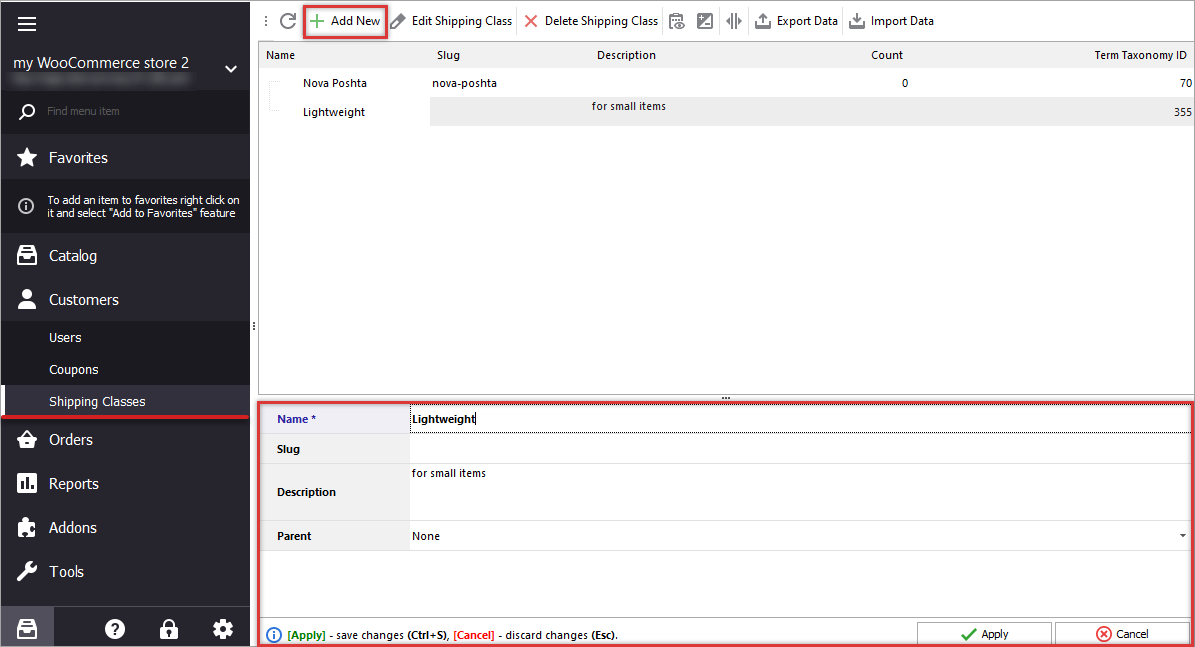
Store Manager for WooCommerce supports shipping class management starting from version 1.4.1.325. There are complete set of basic operations available, as well as shipping class export and bulk assign (by means of Mass Product Changer or via import).
WooCommerce shipping class is a way to unite definite merchandise into groups for shipping. Further WooCommerce shipping classes are being associated with shipping cost.
To create a new shipping class, proceed with the described options:
To set up shipping class cost, go to the WooCommerce admin panel. On the dashboard find the 'Settings' submenu. Afterwards select necessary shipping method and add charge value to each class you have.
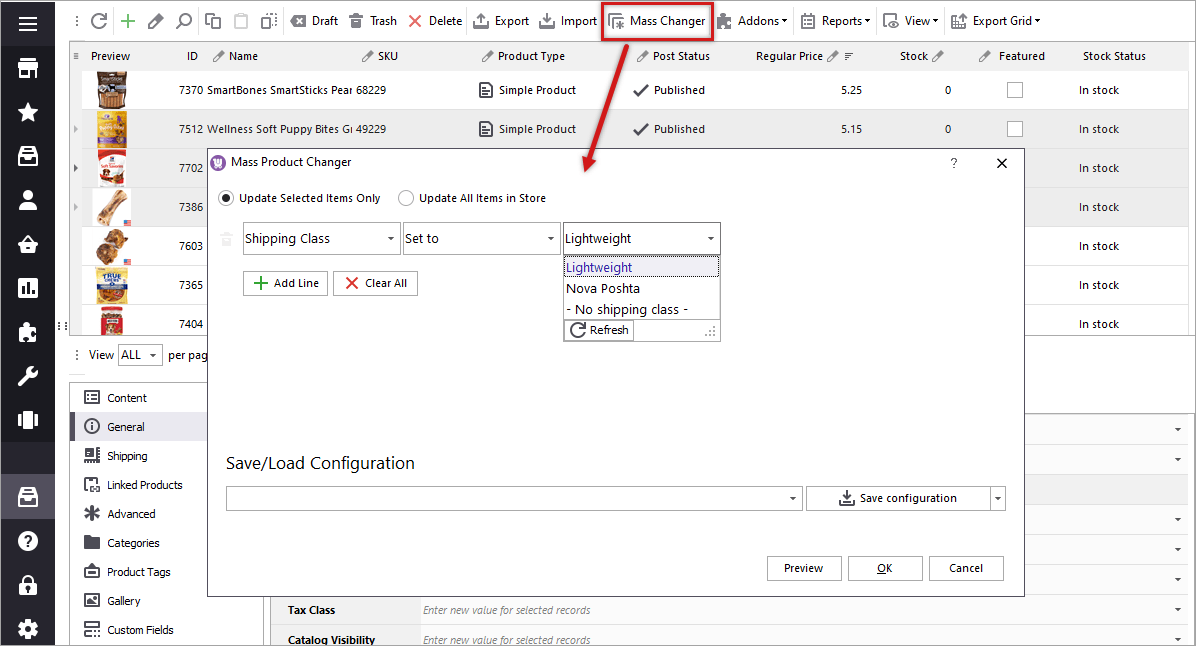
When it comes to assigning shipping class to WooCommerce products you would like to fulfill it in the most convenient way. Store Manager for WooCommerce allows you to bulk assign/change shipping class for multiple selected product with Mass Product Changer or via import.
The update being accomplished there will appear log window in Store Manager for WooCommerce, so you can see what products have been modified.
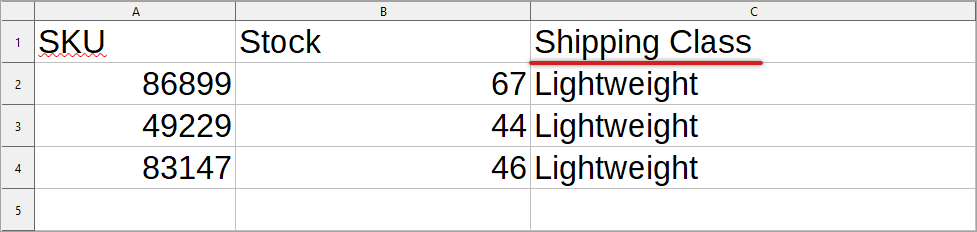
You may associate products with shipping classes (change or assign class) via WooCommerce import. If you have, for example, update some product details via import, Store Manager requires only product identifier (unique) and details to be changed.
The file is being uploaded to WooCommerce through the import wizard, the overall procedure is described thoroughly in this tutorial - https://woocommerce-manager.com/useful-articles/woocommerce-product-management/woocommerce-import-step-by-step-tutorial/
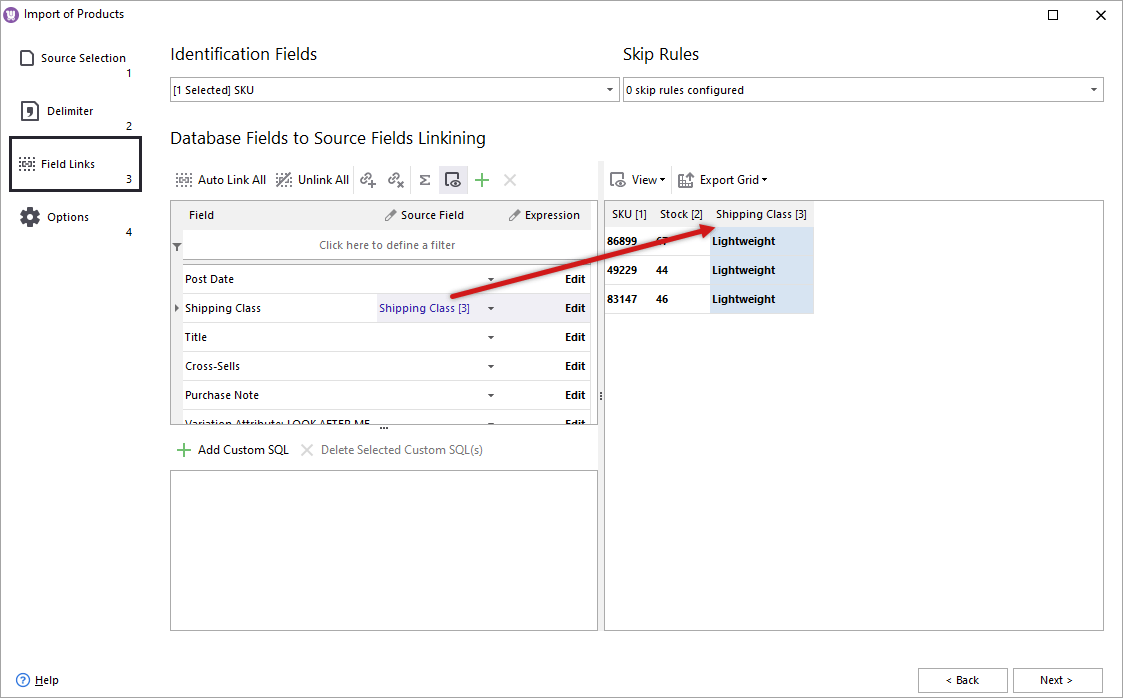
Make sure you mapped fields correctly and file column, listing shipping classes of uploaded products, is inked to corresponding database field.
Once import is performed, you will find shipping classes assigned to all the items available in the import file.