Do you need to sync your customer list between WooCommerce and QuickBooks? You can map or create customers when you export WooCommerce orders to QuickBooks. If you, though, need to export just customers, follow the guide below.
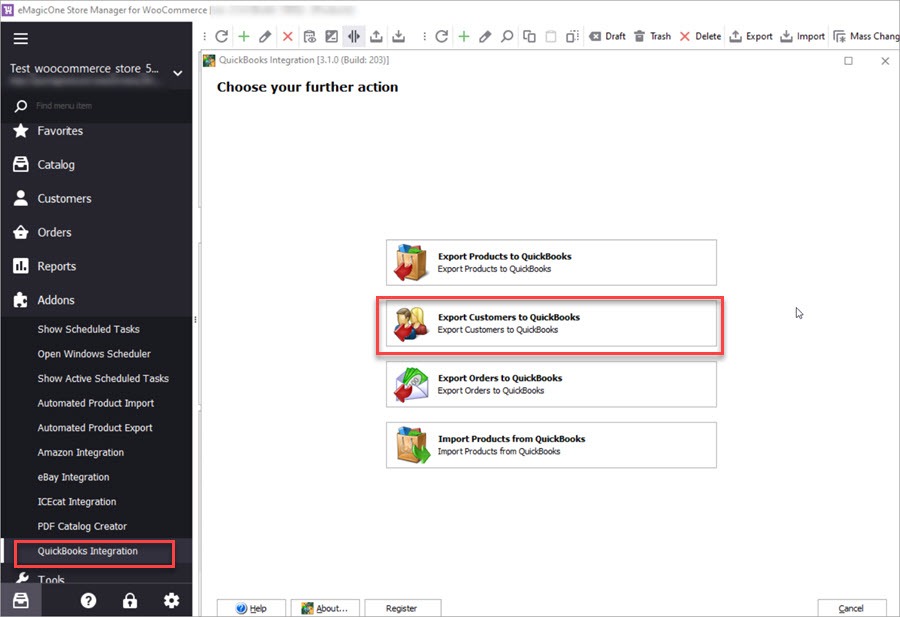
To export WooCommerce customers to QuickBooks launch Store Manager for WooCommerce > Addons > QuickBooks Integration > Export customers to QuickBooks:
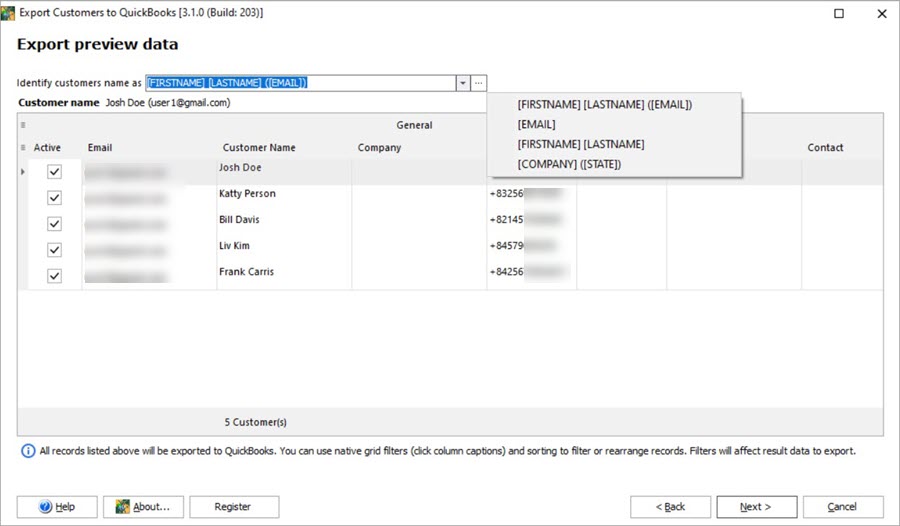
Select the fields to identify customers by. We recommend using First name, Last name and email fields though you can use other options from the list.
In the preview you can see the records that will be exported. To exclude some records, uncheck the selection next to the customer name:
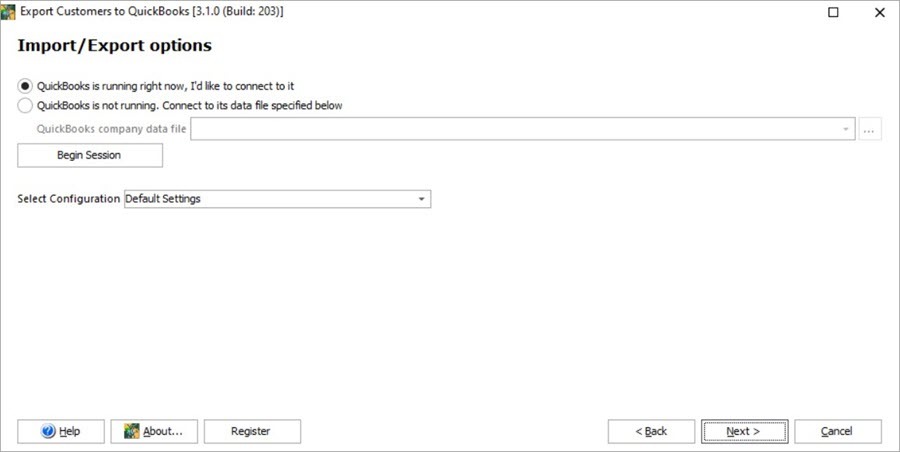
Before specifying import options, connect to your QuickBooks account selecting one of the options:
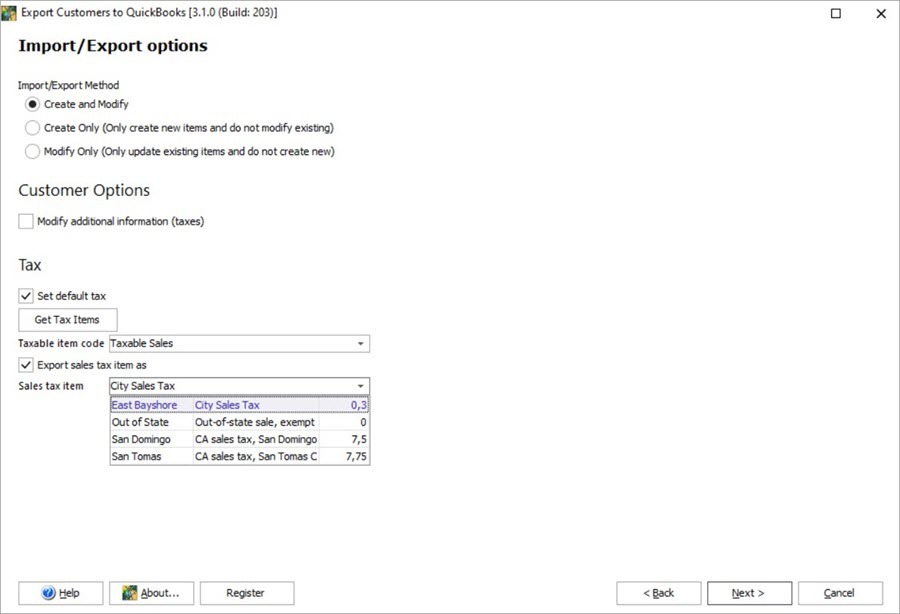
After the connection is established, select one of the offered import methods:
Under Customer Option check the following options if necessary:
Finally, attend to the Tax options:
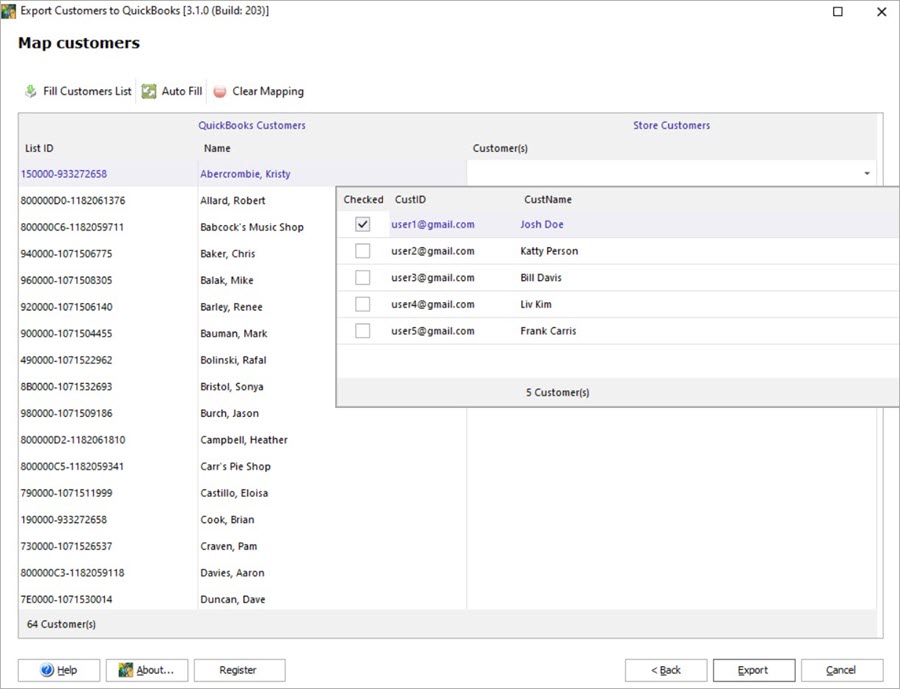
You can also map customers manually in the grid.
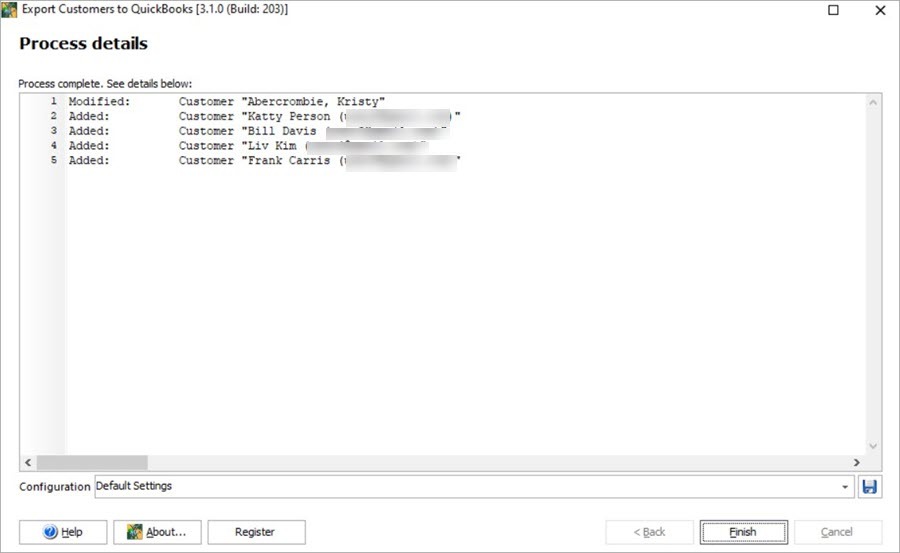
After you’ve finished with the settings, press Export and check the report:
Now you can close the export wizard window and check the customers in QuickBooks.
WooCommerce QuickBooks Desktop Integration: Import/Export Products Read More...
Export WooCommerce Orders to QuickBooks Desktop Read More...
Work With QuickBooks via WooCommerce QuickBooks Integration Read More...
Extract Customer List from WooCommerce to CSV in Just One Click.Read More...