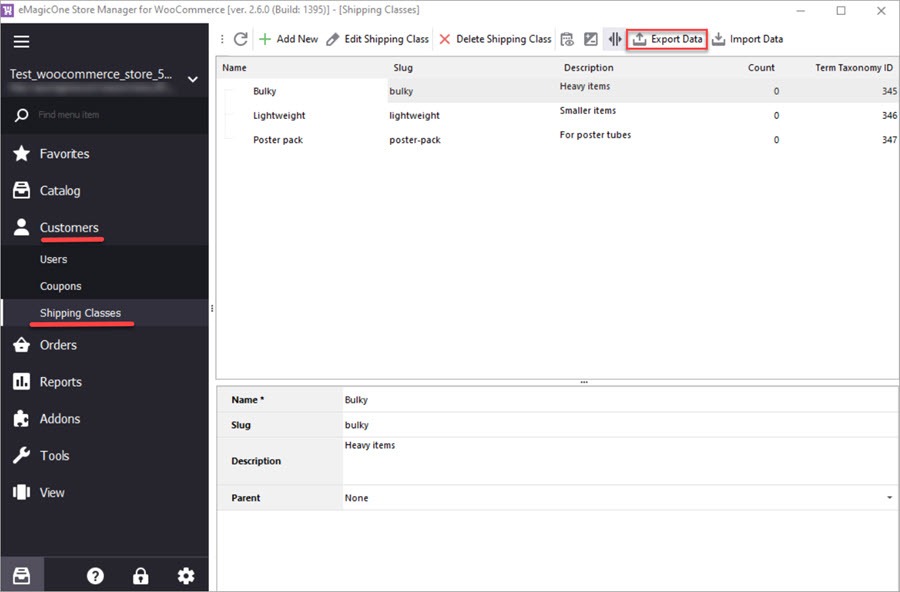
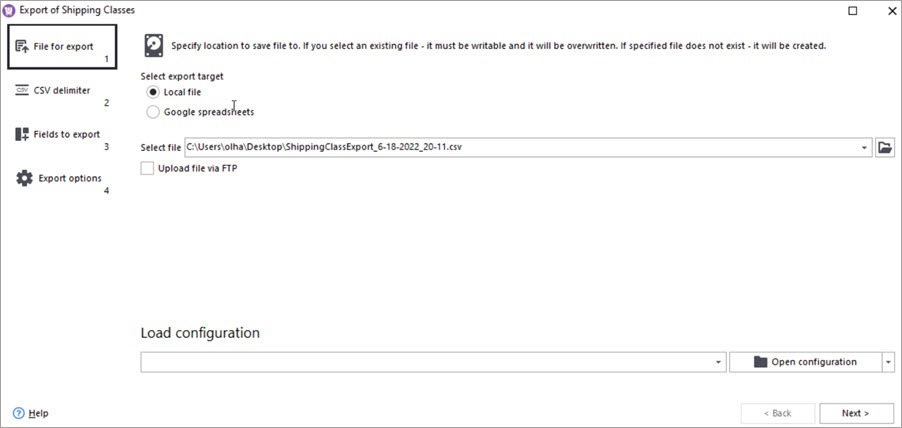
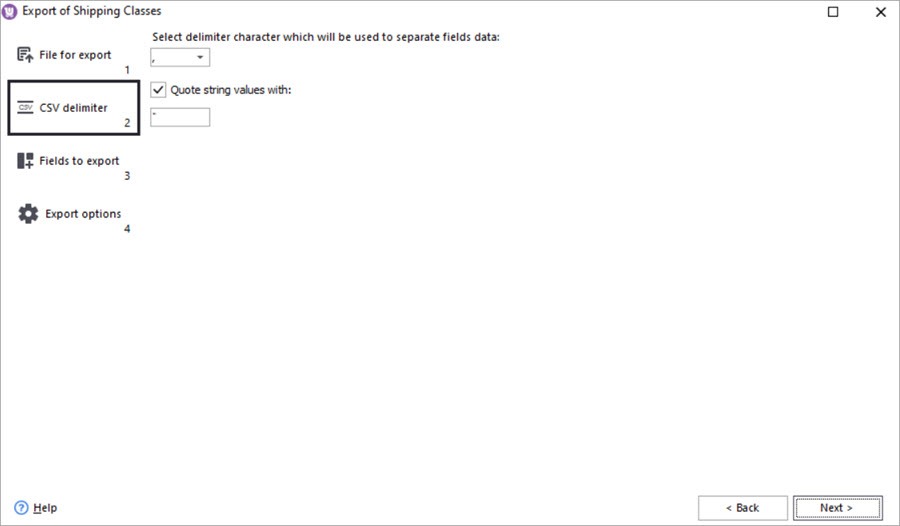
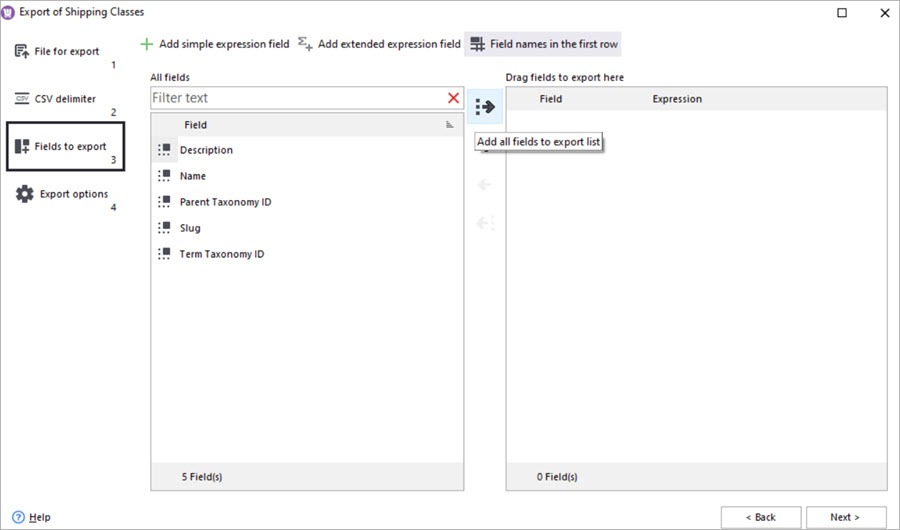
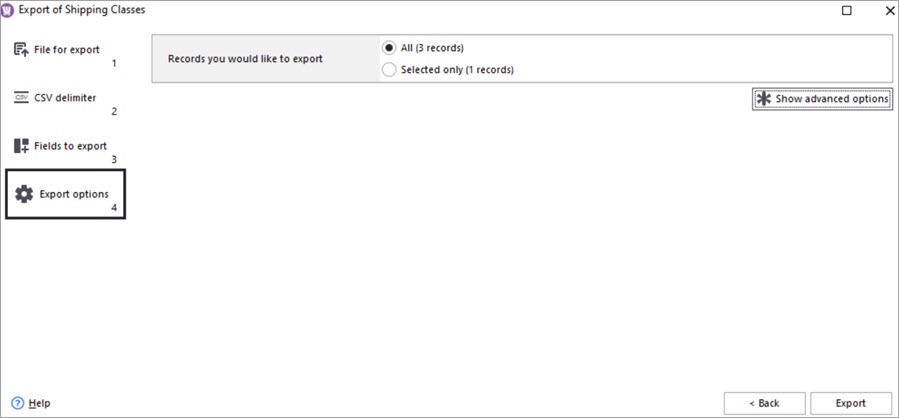
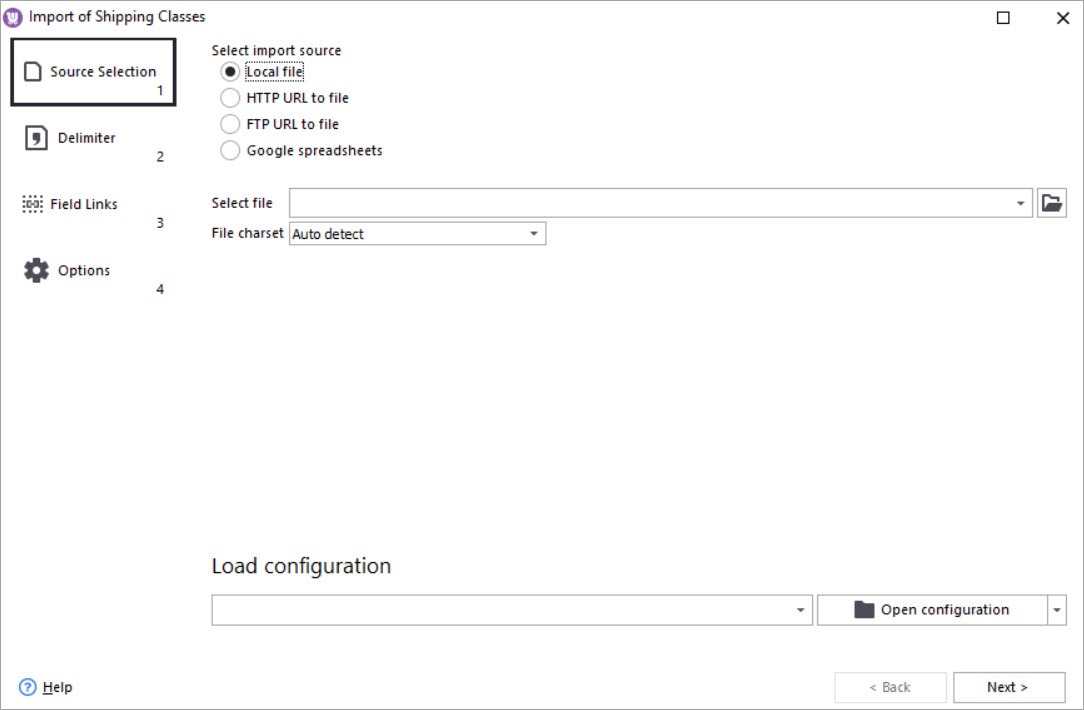
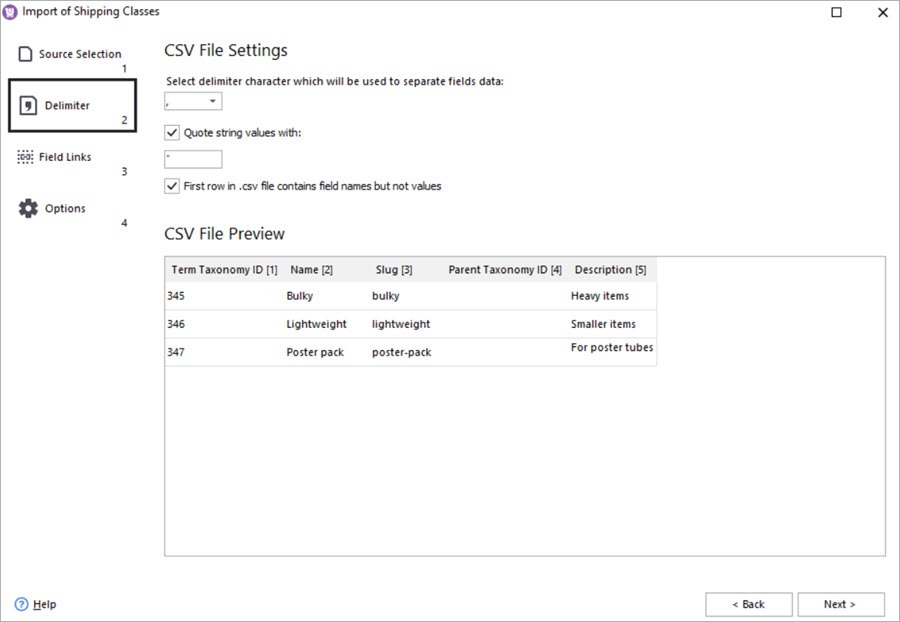
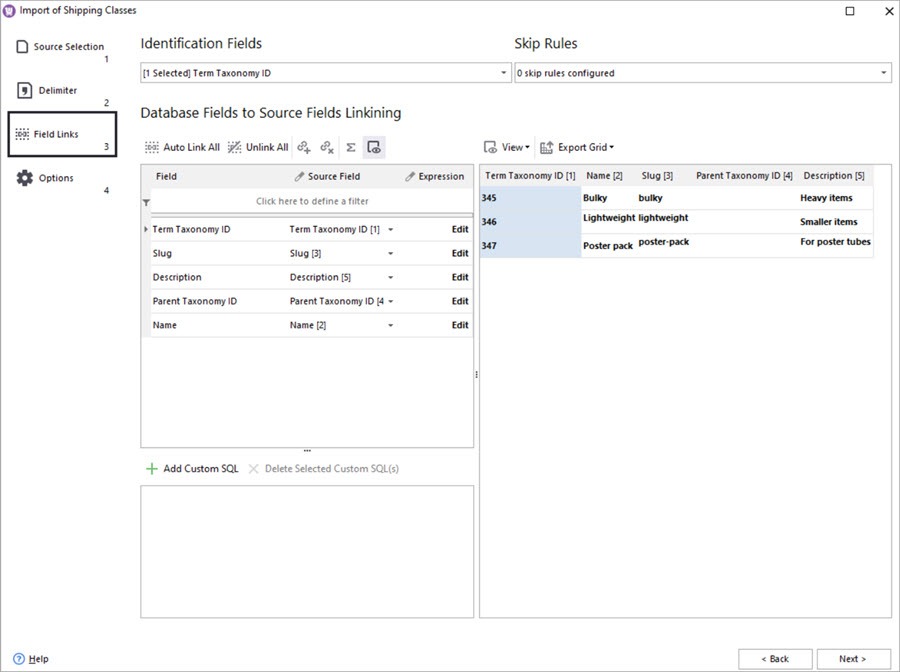
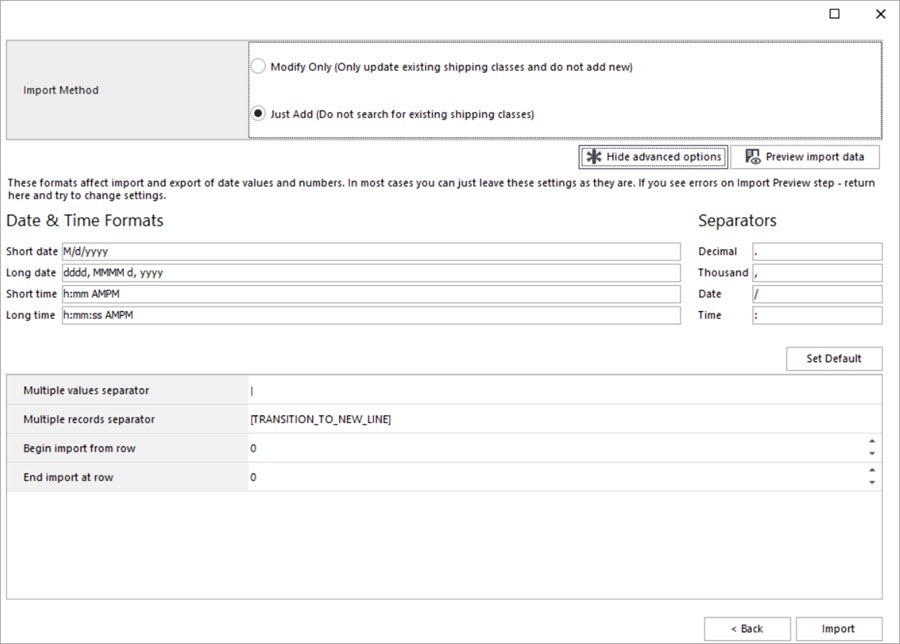
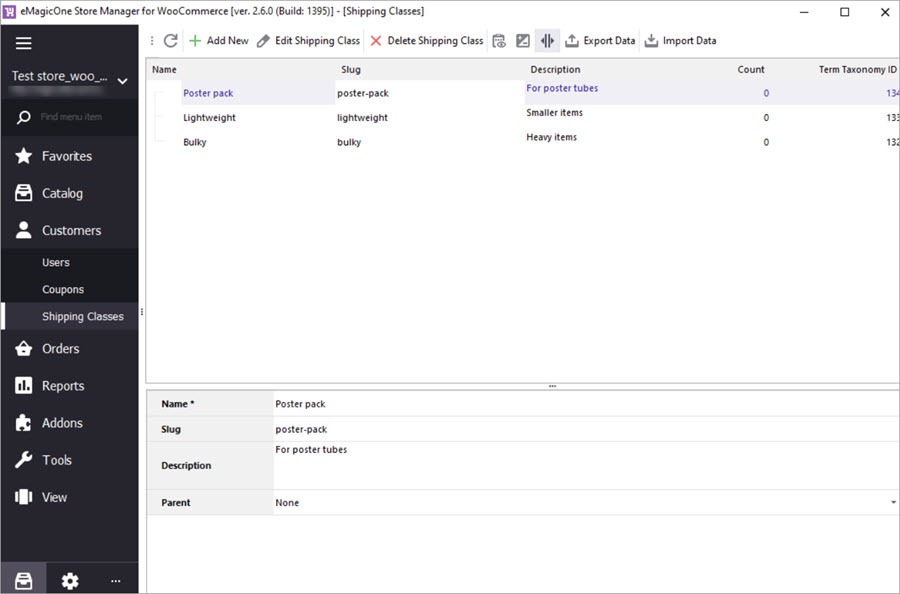
The possibility to export and import WooCommerce shipping classes would be advantageous in a number of cases: migration of data from between WooCommerce stores, updating shipping classes through import, and others. In this article, you'll learn how to export and import shipping classes via Store Manager for WooCommerce.
Store Manager is a downloadable application that enhances the default WooCommerce functionality with tools for bulk edits, advanced import/export, database backup, and others.
If you don’t have Store Manager yet, download a free trial. Connect the application to your store database and enjoy the simplicity of your store administration.
Let's now open the file in a spreadsheet editor and check the exported shipping data:
If you need just to keep the data for a record, you can consider your task completed. But if you need to import it after making some edits or as is, keep reading and follow the import guide below.
Check the imported shipping classes in Store Manager:
As you can see, export and import of WooCommerce shipping classes offers flexible options to export and import shipping classes between WooCommerce stores and external systems. If you have an uncommon case or just need to clerify something related to the task, write in the comments below.
Follow the guide to export WooCommerce categories to a CSV file. Read More...
A detailed instruction on how to export WooCommerce products to Google Sheets via Store Manager. Read More...
Learn how to perform WooCommerce attributes export in four simple steps via the Export Wizard. Read More...
How to easily download customer details to the files of different formats with Store Manager for WooCommerce application.Read More...