WooCommerce customer import is the fastest way to add or update information on your users and maintain their accounts in bulk, which saves your effort and time you could spend manually adding user information. If you need to move your customer list from one platform to another, old to new WooCommerce store or want to have unified customer base with online and offline shoppers, import via Store Manager for WooCommerce will work the best for these situations without any data loss.
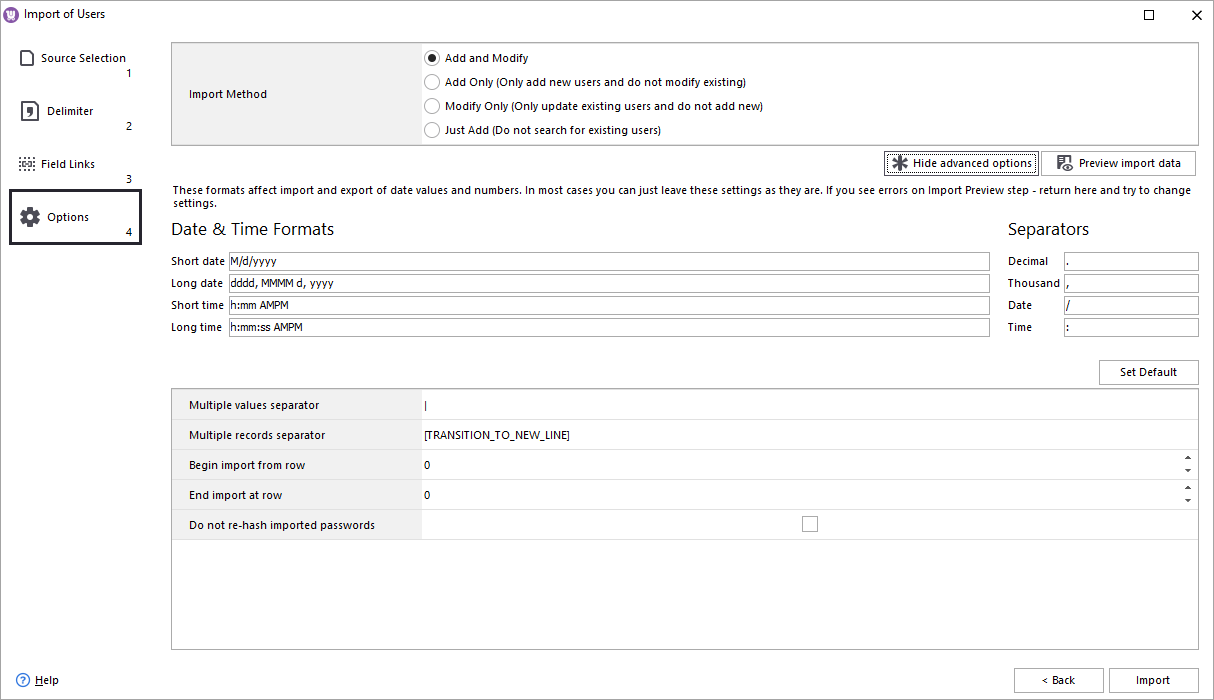
This user-friendly software is efficient with imports to be done in a big batch, as importer allows you to upload hundreds or even thousands of users details using one file offline and then sync. It is possible to merge, update or create new customers.
You might have customer lists stored somewhere in spreadsheet you used for mailing lists or customers who purchased goods via call center. With Store Manager for WooCommerce it is extremely easy to map the data from your CSV file to the appropriate сustomer fields in WooCommerce. That is what basically file of any type should fit.
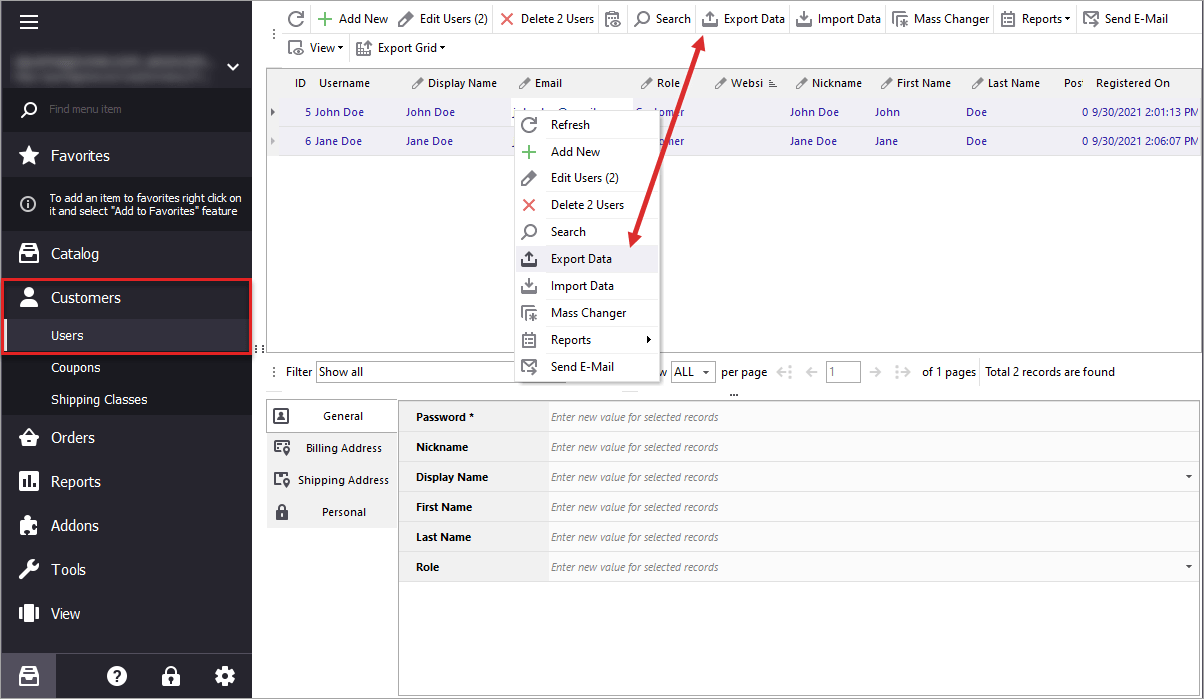
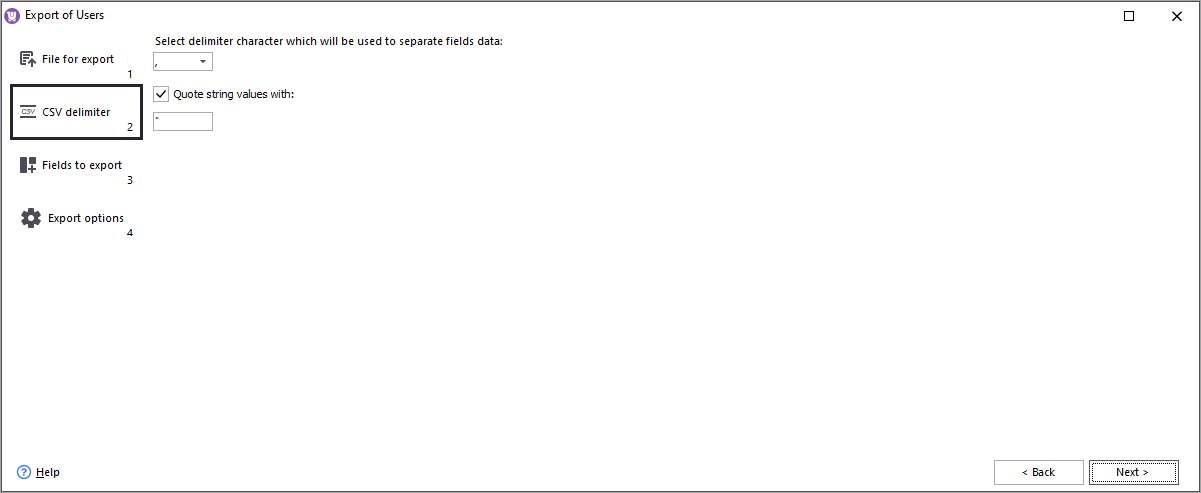
To update existing user base the easiest way is export, that is also available in Store Manager for WooCommerce. In this case format of columns will be automatically recognized and mapped during import.
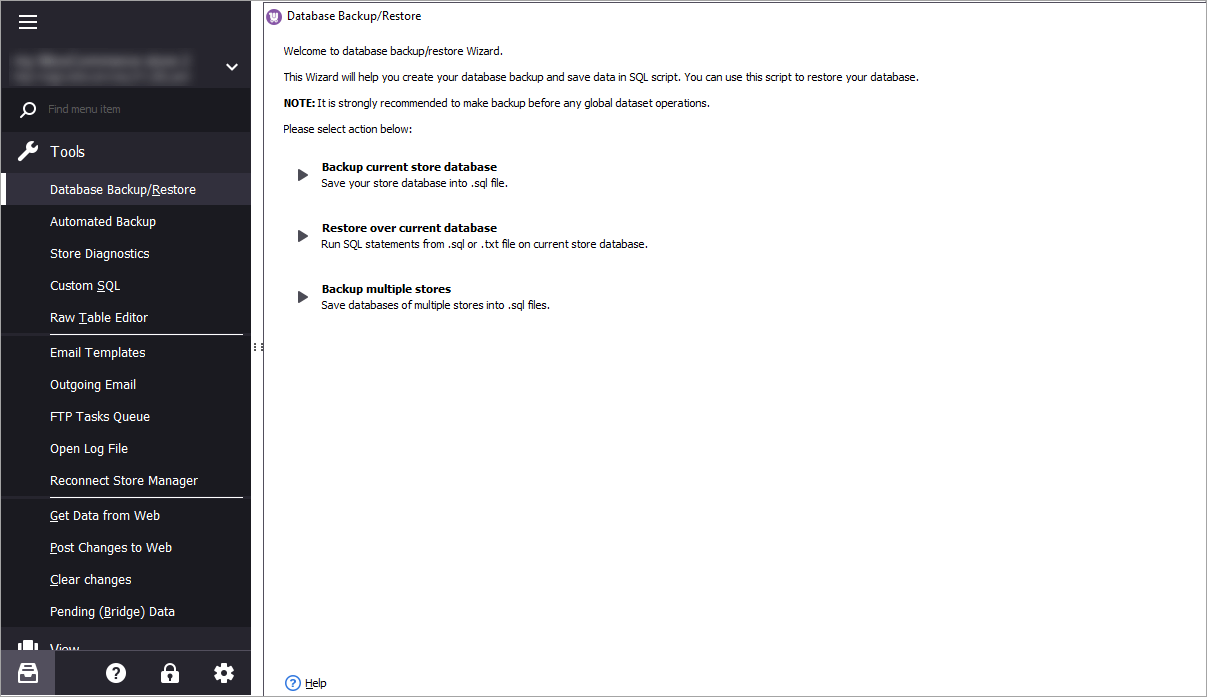
Before beginning, make sure that you have database backup, so that you can put things back in case you need. Additionally to hosting backup you can do the one via Store Manager as well.
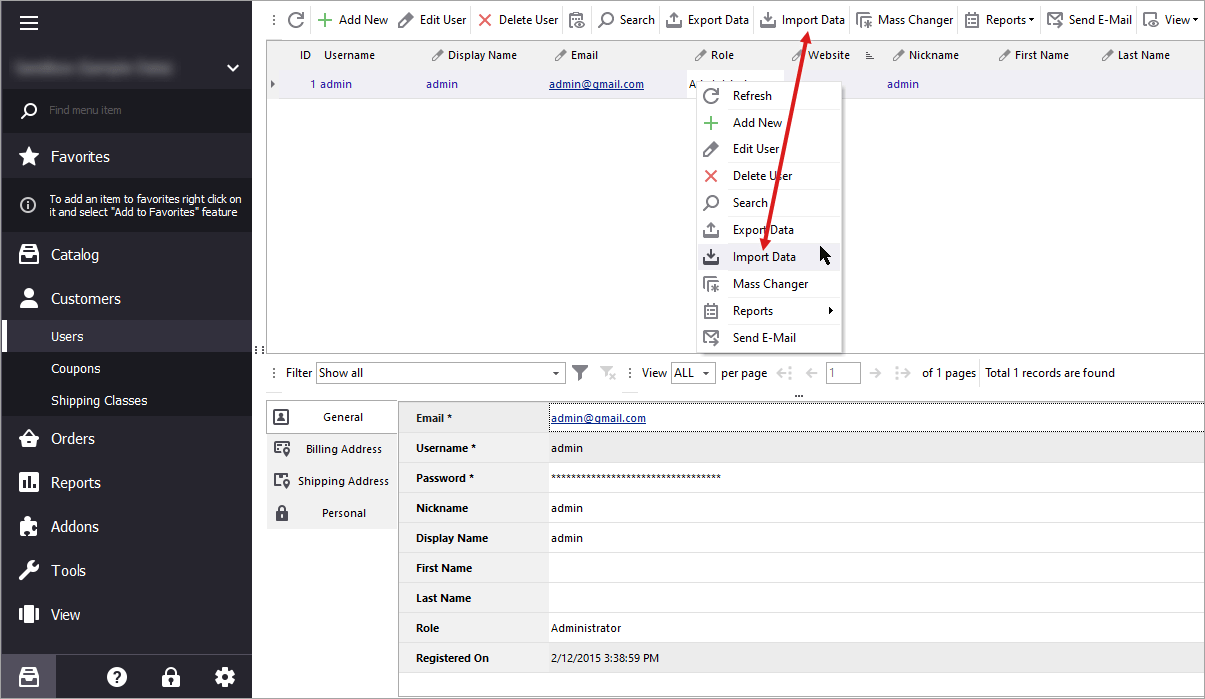
Once you have all your data ready in a nice CSV file, you can run import. To do so, find the corresponding option on customer toolbar or context menu appearing after you right-click at any user record.
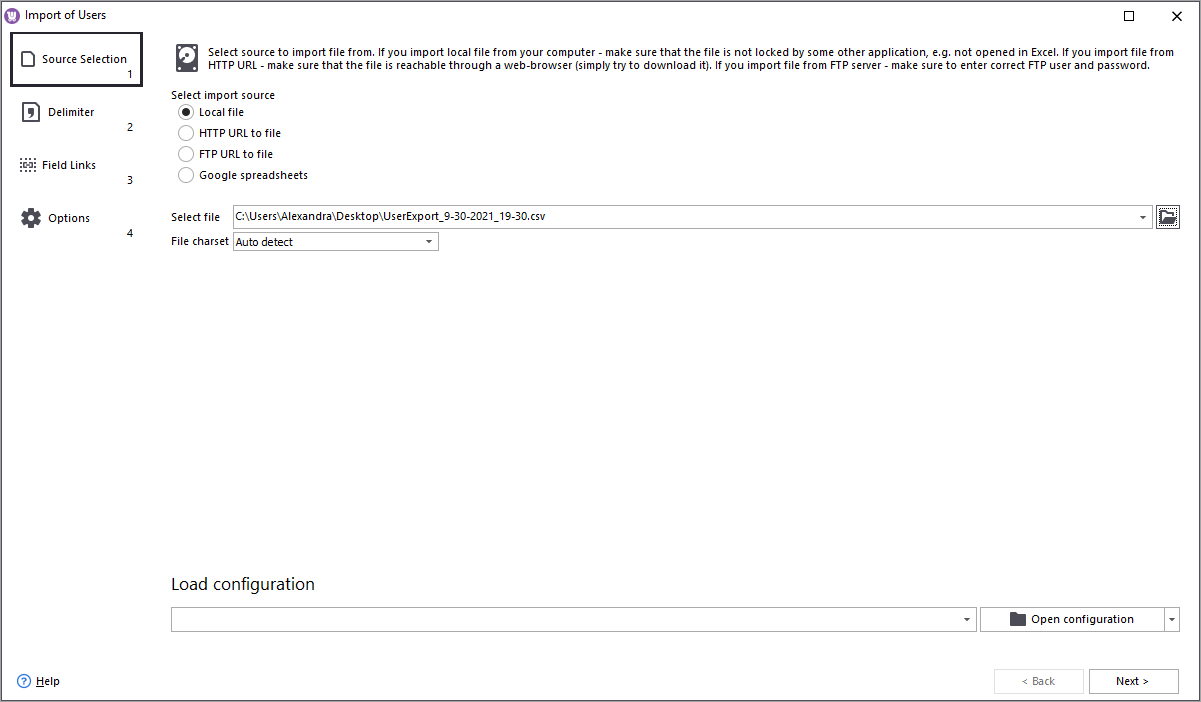
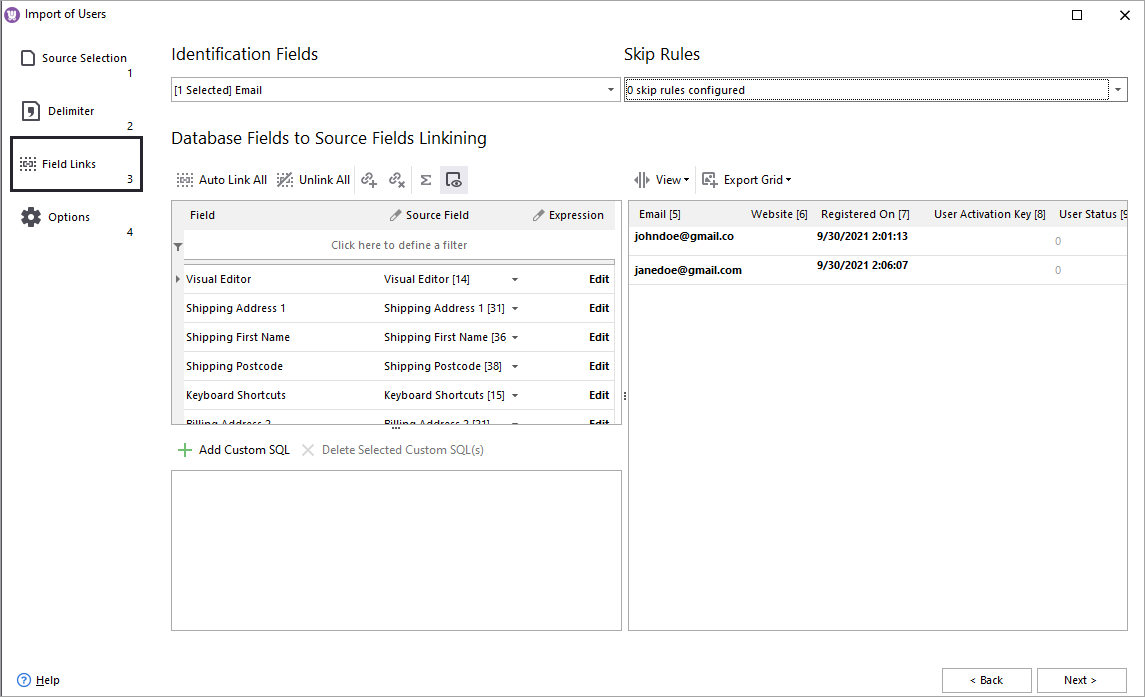
You may notice that some custom fields are already recognized. This happens when column names are the same as WooCommerce headings. If you need to adjust your data, like merge cells, add missing details on-the-fly, you can use create special rule.
Important! Select identification method that will be used as a basis for check-up detecting if new items are imported or they already exist in database.
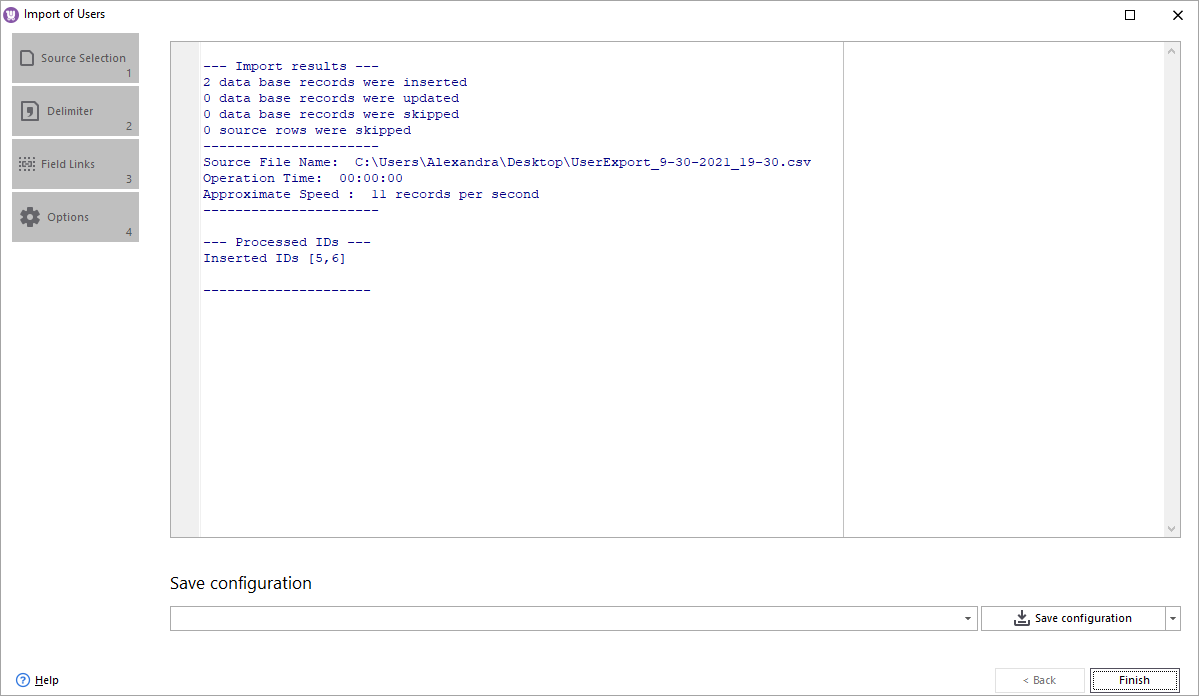
In case you need to repeat the procedure often enough from the files of similar formats, you can save settings into configuration and save it for future uploads to save time on configuration.