WooCommerce order management is one the most important aspects of online store handling.
In WooCommerce orders are created when customers complete the checkout process. Each order is given a unique order ID.
When it comes to processing of orders, the task might be tricky as default means of sales management are a bit limited. Thus, there might occur the need to extend and enhance existing functionality.
Store Manager for WooCommerce gives you more control over sales data. This article explains how order information is managed in the app.
The software allows you to view, create, edit, and delete orders, change details in them individually as well as in bulk.
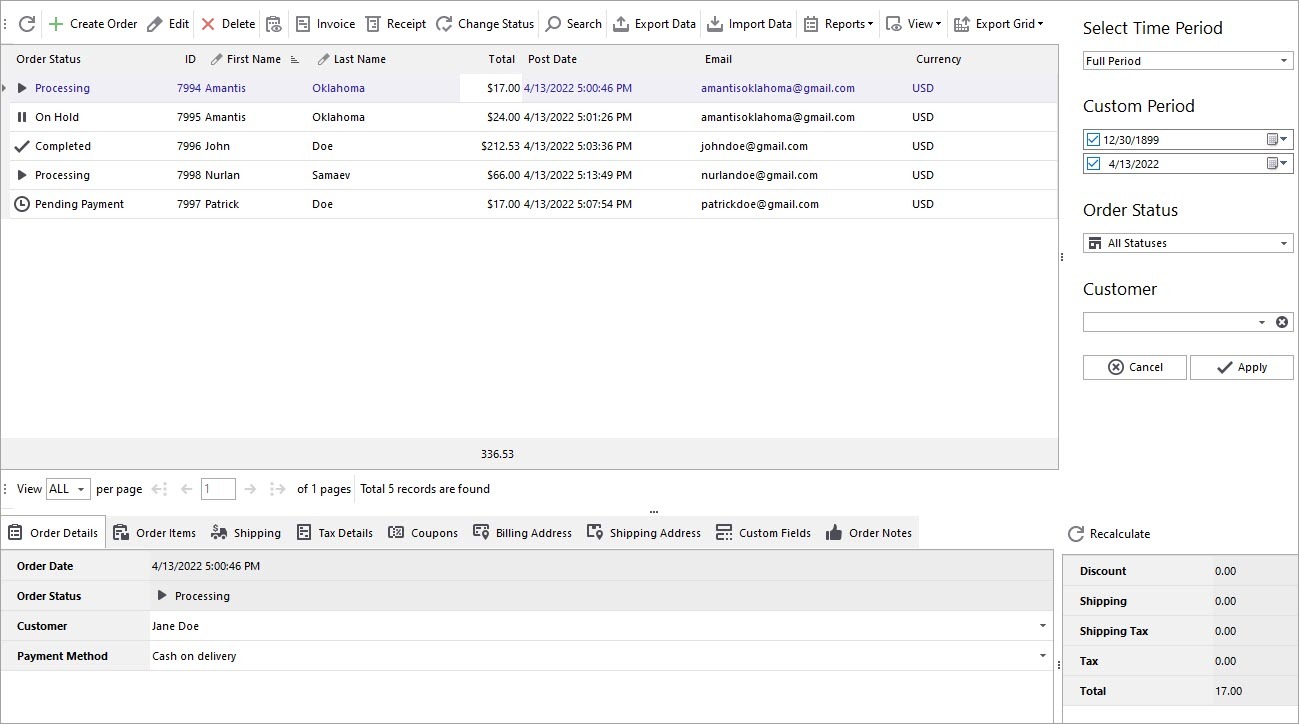
Browsing and filtering with Store Manager is extremely responsive. In Orders section of the application you can see all the sales data displayed at one page. There is no need to wait for browser pages to load. You can view and modify necessary details from the same place. This improves navigation time greatly.
Generally there are 4 data sections:
The first way to select out sales is using default filter on the right (it was mentioned above). Other filtering possibilities also include сustom filters by order ID, customer’s first and last name and totals.
Create new order using the ‘Add New’ button in order menu. Once it is added, in the lower grid you can input the customer details, add ordered items, and calculate the totals. You should set a relevant status for the new order – if it needs to be paid use ‘pending’. To save changes press “Apply” button.
From the single order page not only can you view all order data, you can edit and update it. It is possible to:
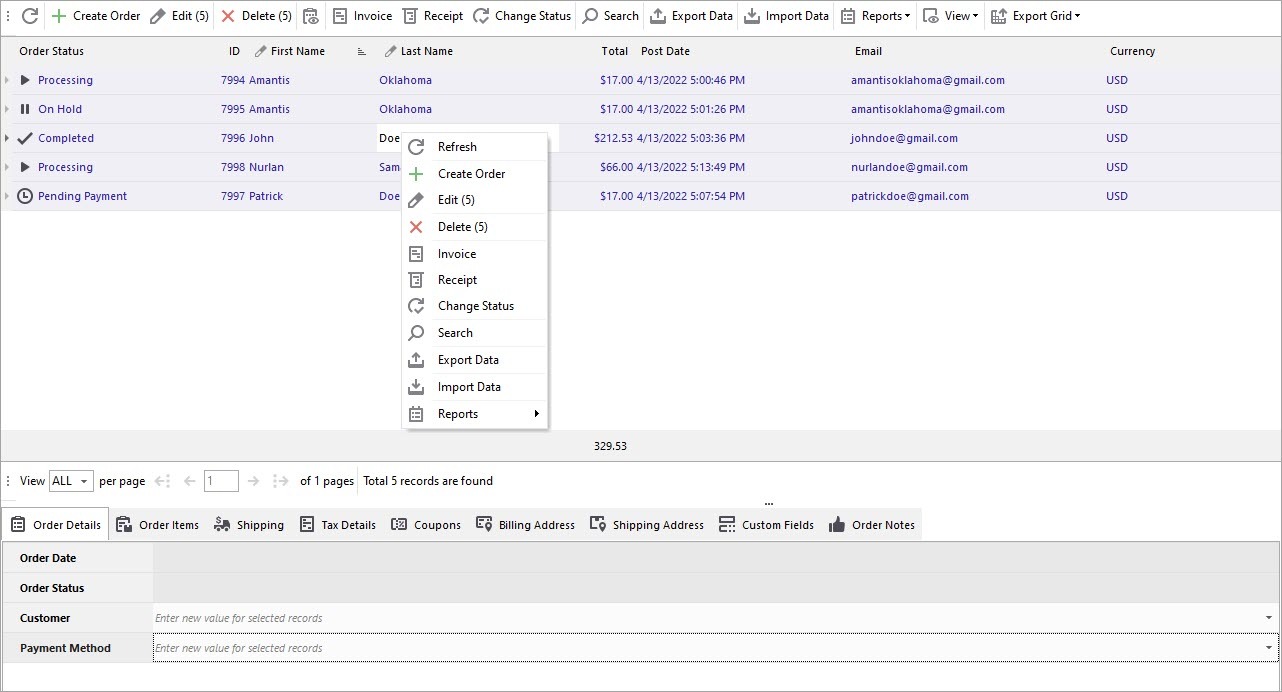
Rather than editing details one-by-one, some of the info can be adjusted for multiple orders at once.All you need to do is to select sales you need to make modifications to and input values for them in appropriate fields of lower grid. The fields available for mass update are marked with text “Enter new values for selected records”.
Just a reminder: it is advisable to cancel orders that were not processed, rather than deleting them. Keeping all the order records is better for your accounting.
However, in case there emerges the need to remove test orders, the “Delete” option will be helpful.