Using Store Manager to manage your WooCommerce store, you may need to send notifications on order status updates, promotions, and other occasions. Well, you can send those directly from the Store Manager for WooCommerce desktop application. Here is what you can do in particular:
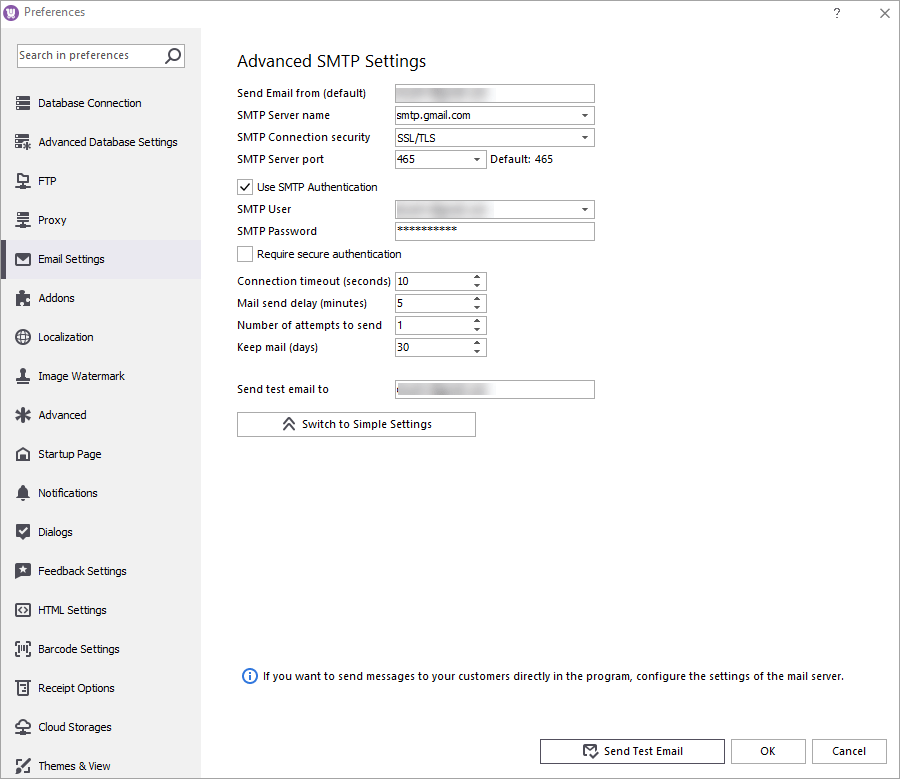
To be able to send any emails from the Store Manager, the first thing you need to do is configure SMTP settings. For that, open Preferences > Email Settings and expand the Advanced Settings section. Then fill in the required fields:
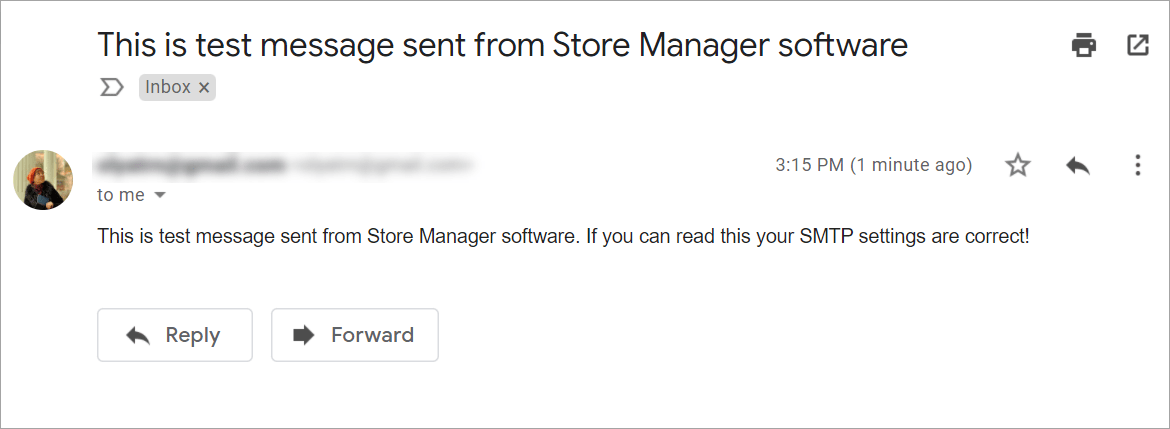
After you’ve completed the form, press Send Test Email. If the settings are correct, you’ll receive a confirmation to the email you’ve specified:
Now, when you’ve ensured that emails are sent and delivered, you can proceed with setting up email notifications. Here are the steps to follow.
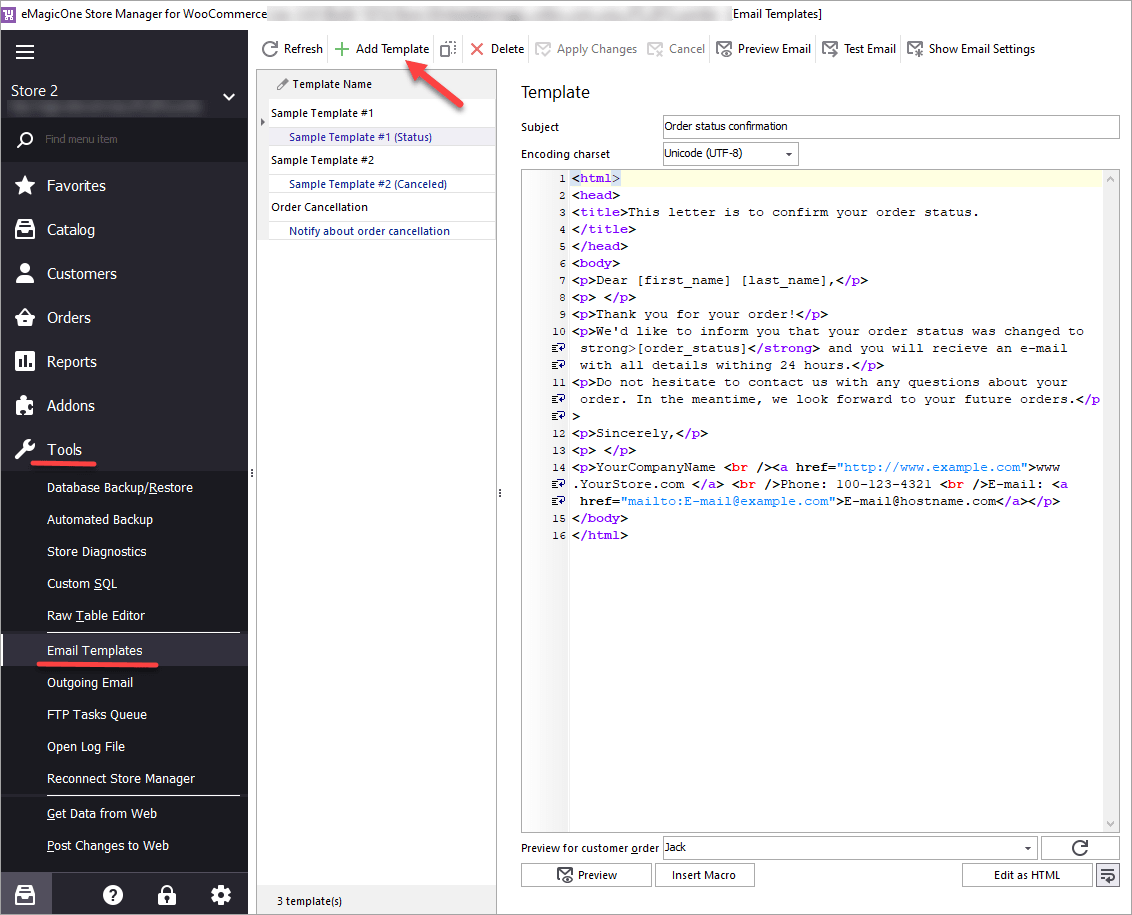
In the Store Manager toolbar, navigate to Tools > Email templates. There you’ll see sample templates that you can use to create your own ones. For that, click the Clone icon and edit the letter's content according to your preferences. To create a template from scratch, press Add Template:
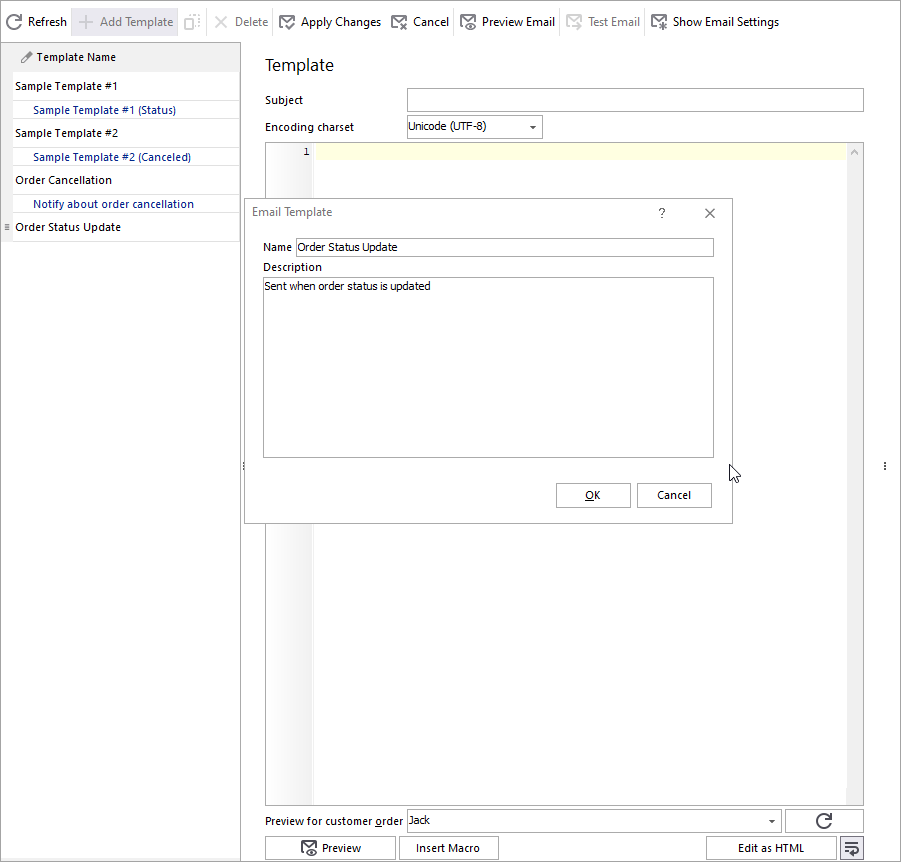
Enter a name and description for the new template:
If you want to customise your email, you can use the following possibilities:
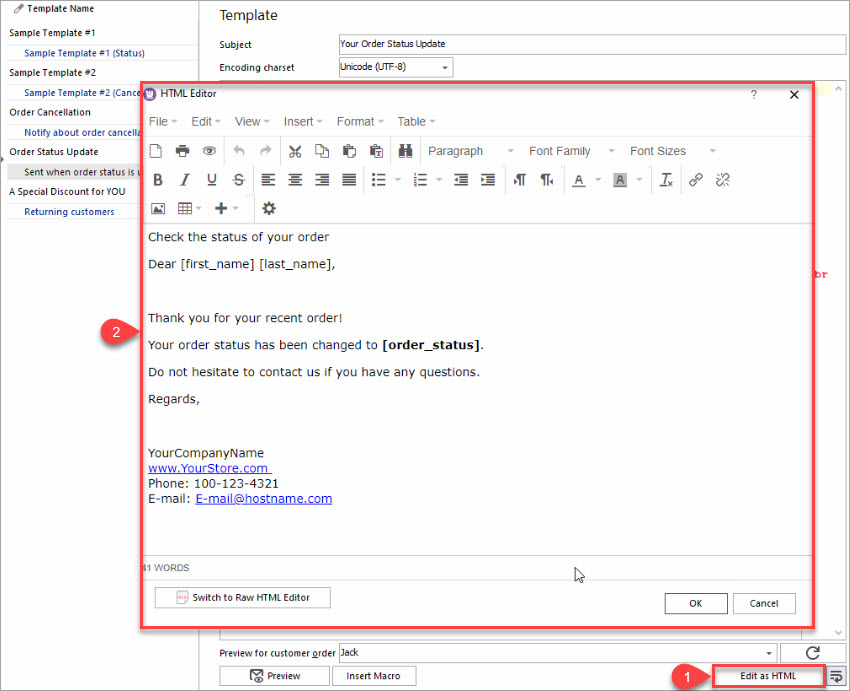
To preview your email in the visual editor, click Edit as HTML:
When you’ve finished, press Apply the Changes. The template has been saved and now we can use it.
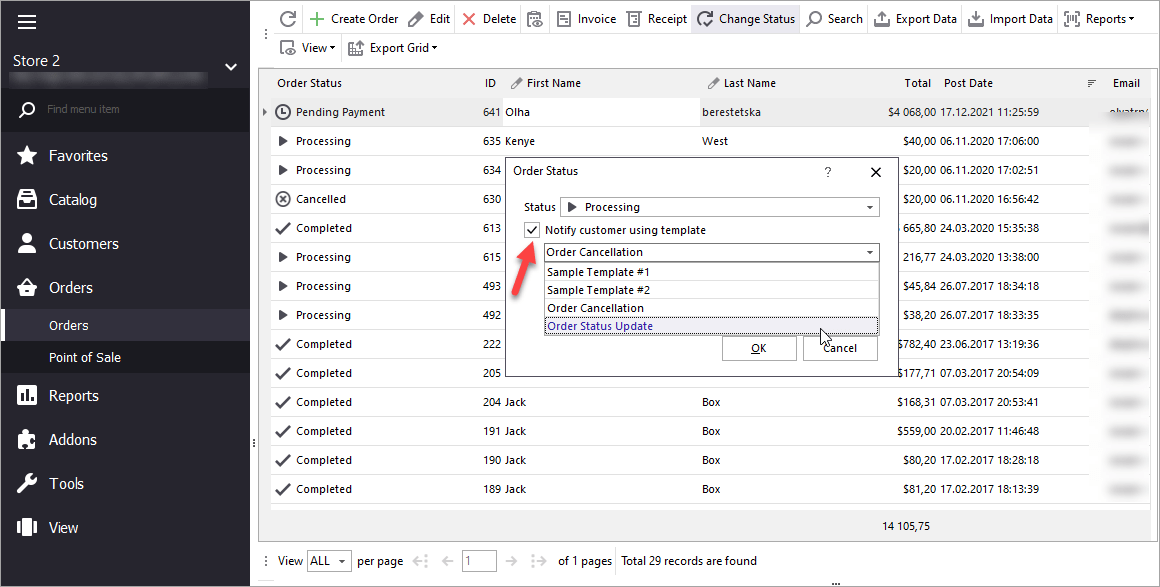
In the Orders section, select an order and click Change Status on the toolbar. In the pop-up window, check the option Notify customer using template and select a template from the drop-down.
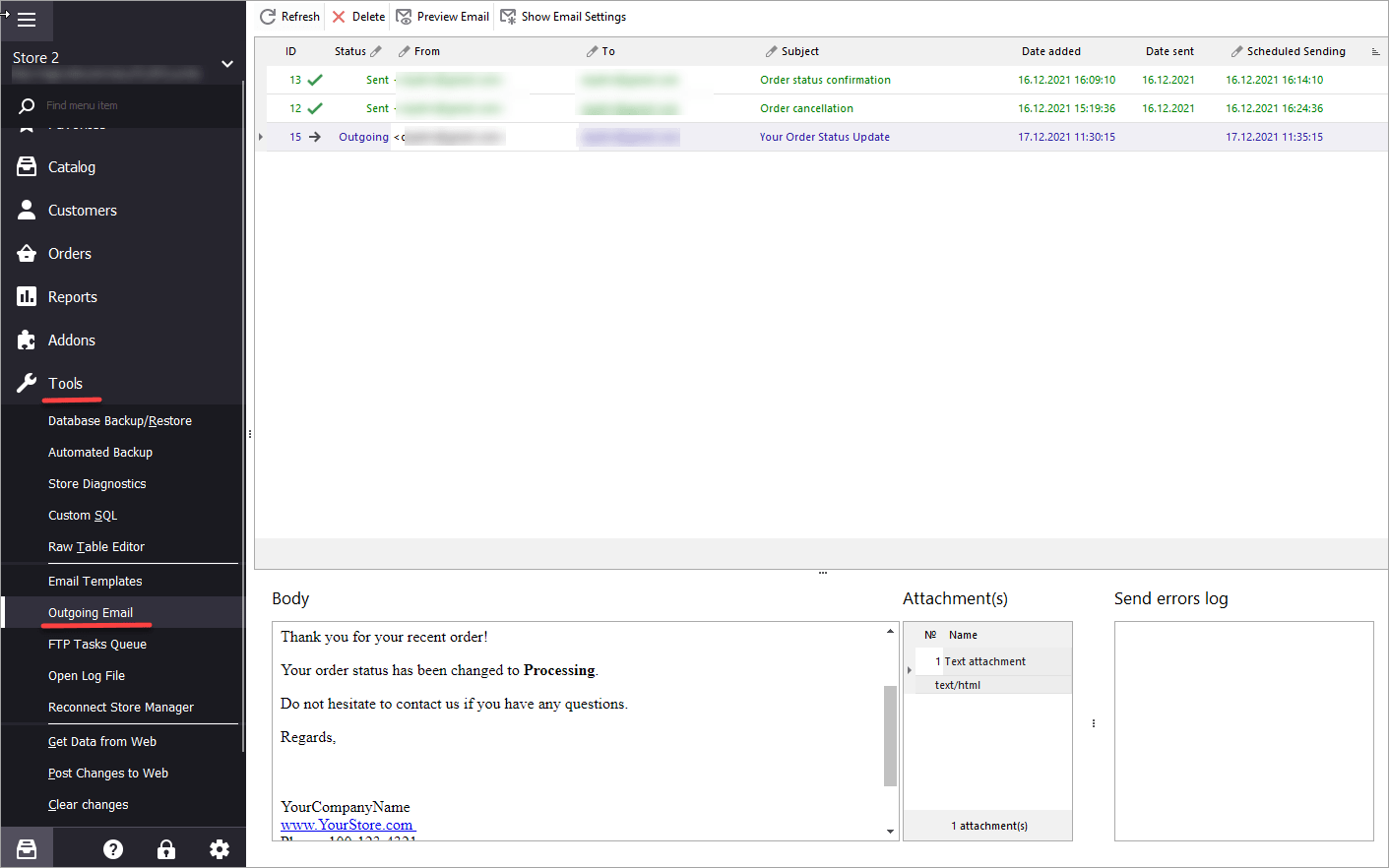
The Outgoing Emails section shows a list of sent emails. Here you can check email status, delete letters from the queue, view logs if any errors occurred:
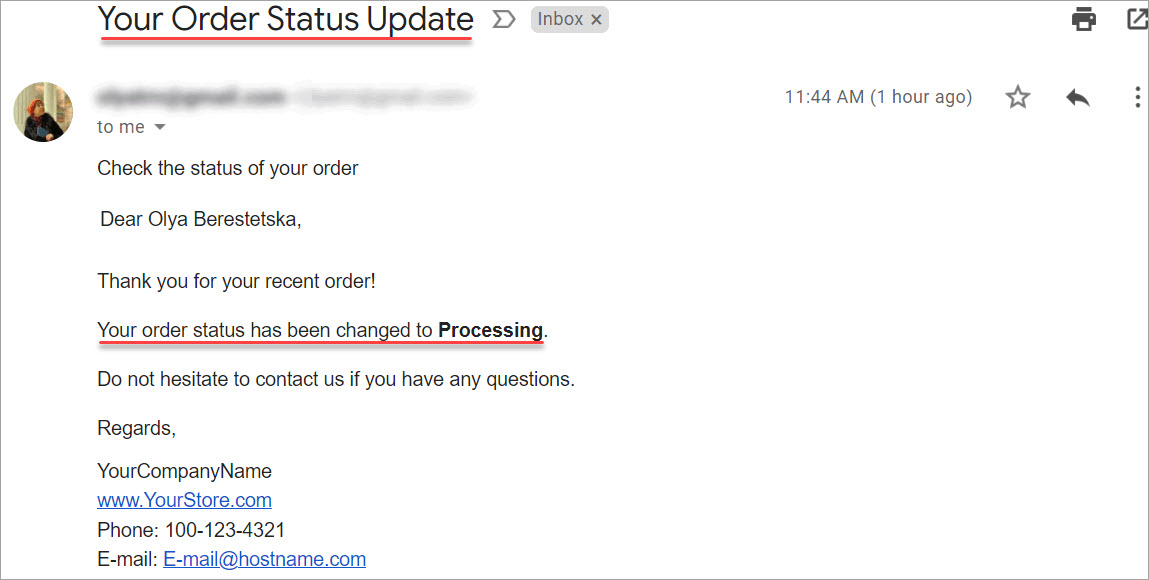
Let’s now check the inbox. Here it is - the notification on order status:
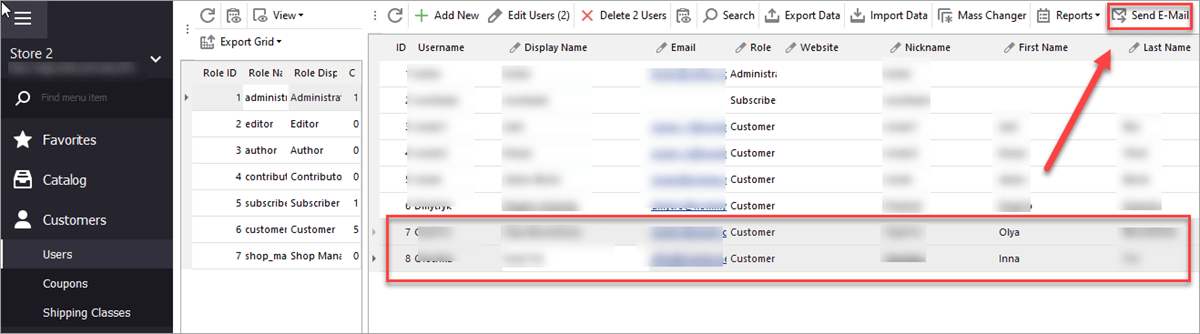
Besides order notifications, there may be a number of occasions when you need to notify customers via email. Thus you may want to tell them about new arrivals, discounts, changes in your terms of use. The steps below will help you to send emails to customers massively.
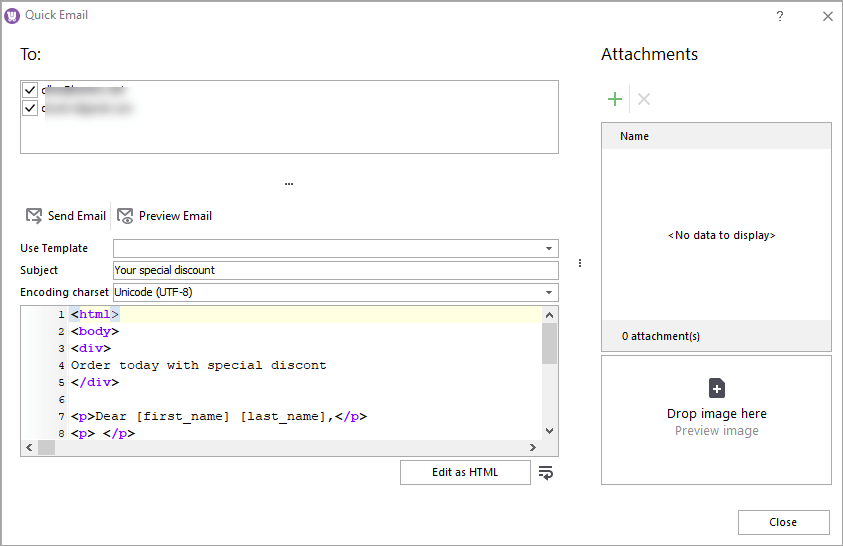
We’ve prepared a letter that offers a special discount to get former customers back. So we select this template and can preview it below. Everything looks good, so we press Send Email:
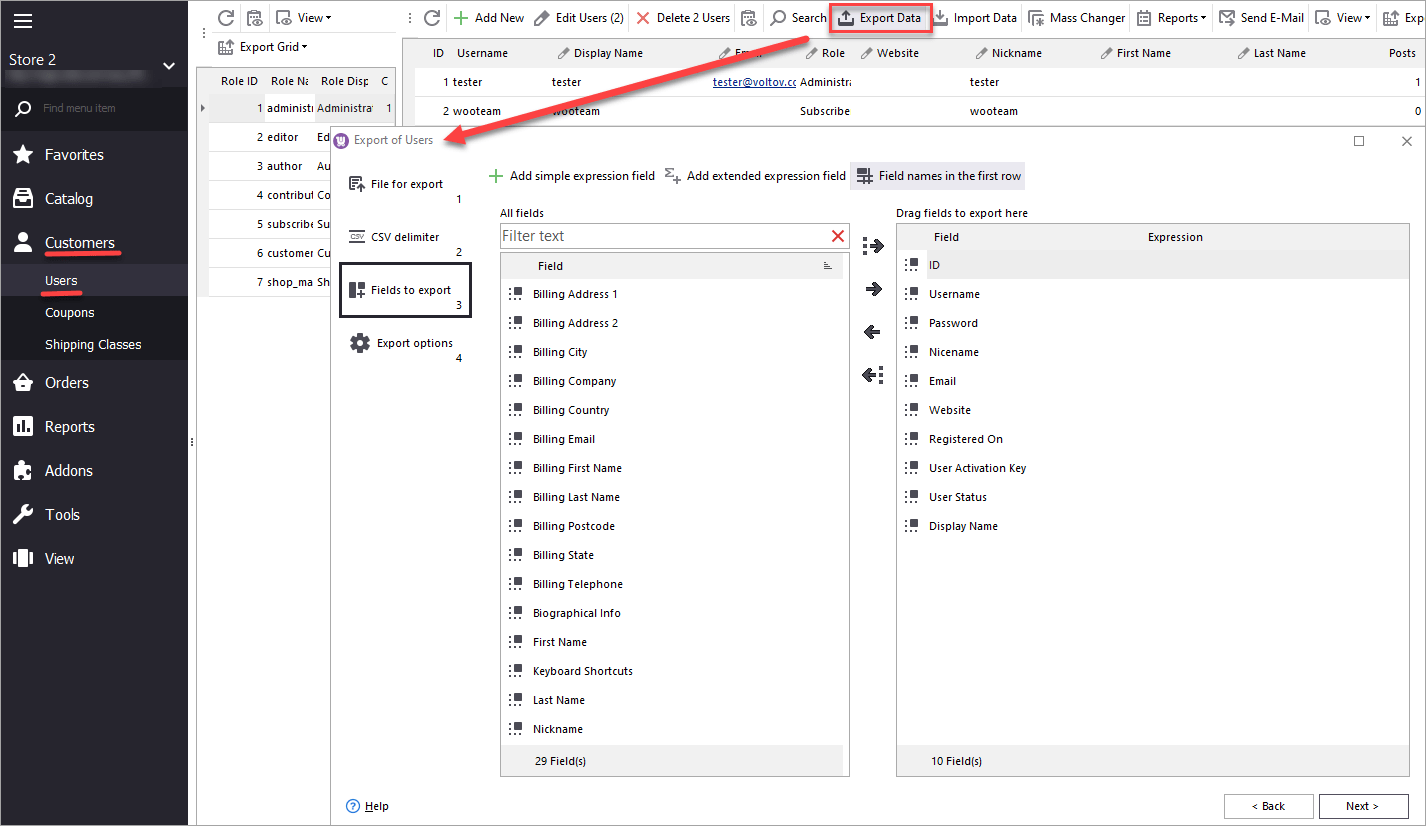
Store Manager for WooCommerce application helps you send emails to your customers via a user-friendly interface. Though, you may need more advanced options like triggered emails, scheduling, setting up email series, and others. you may want to use an email service like MailChimp, or other ones. In this case, you can export customers with their emails and other details and upload them to the email service for further usage:
If you haven’t got Store Manager yet, download a free trial and explore all the amazing possibilities it provides for the WooCommerce store owners!