Running a website on WordPress, you might have used a WordPress replace module. If you also have a WooCommerce plugin installed, you may need a similar WooCommerce replace module for mass updates in your store.
Below is an overview of the Store Manager for WooCommerce tool allowing you to search for and replace various kinds of data within your WooCommerce store.
Table of contents:
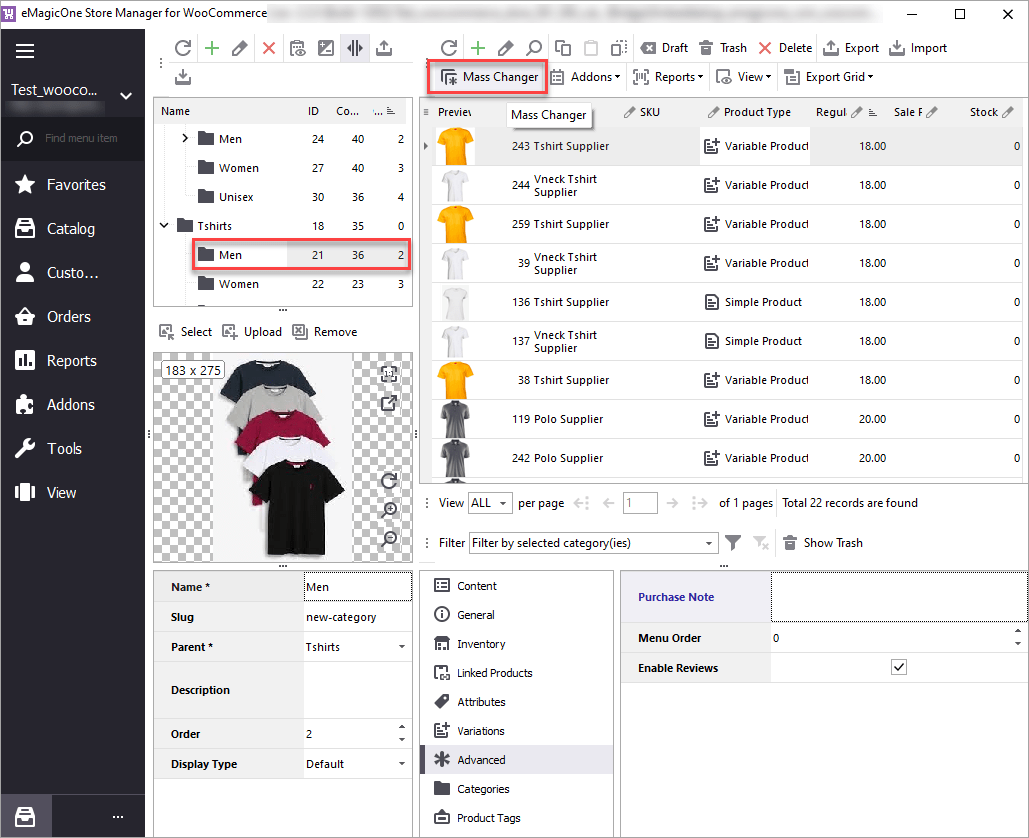
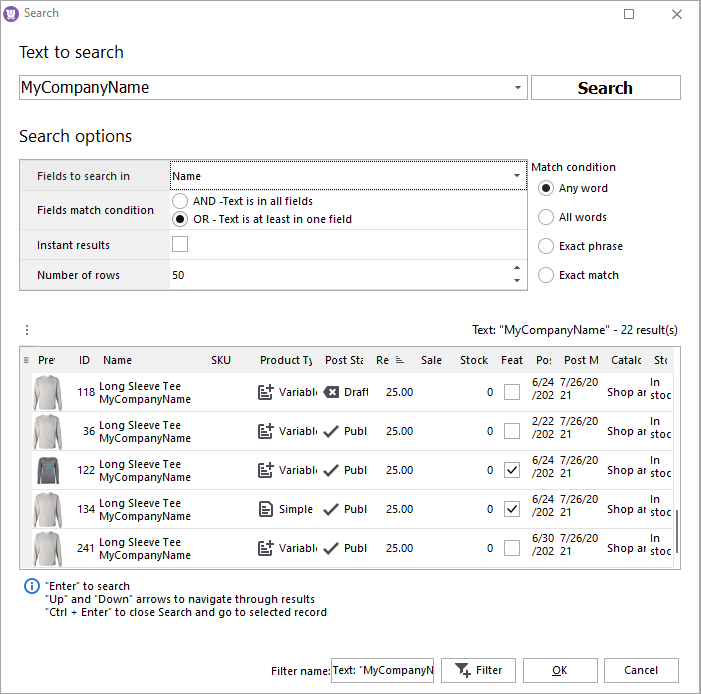
Let’s assume that you got product listings from your supplier and want to replace their company name with your online store name.
Here are the steps to accomplish this:
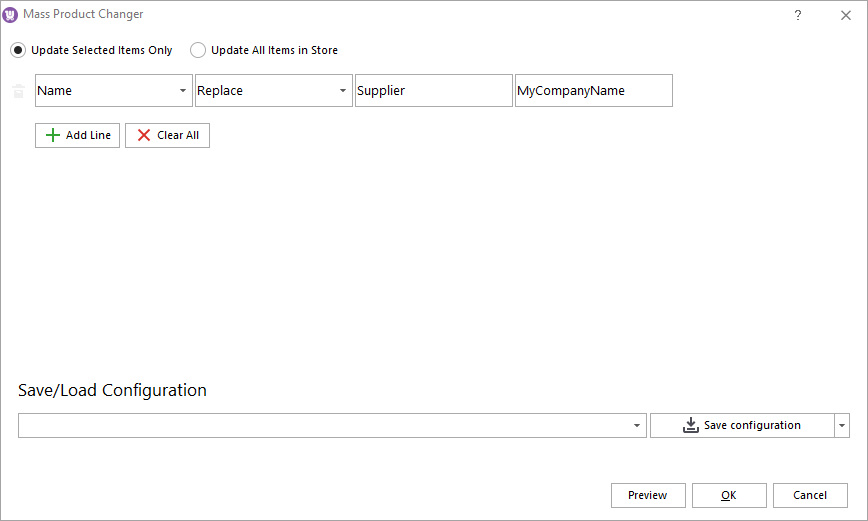
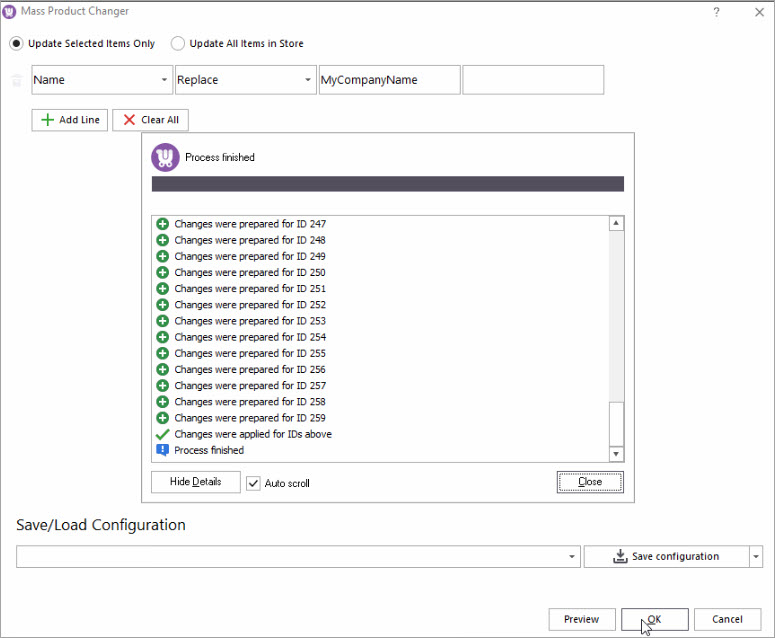
First, pick a product field that must be updated. Next select the type of bulk action (Replace in our example). Then enter the value that must be replaced. And finally, enter the new value:
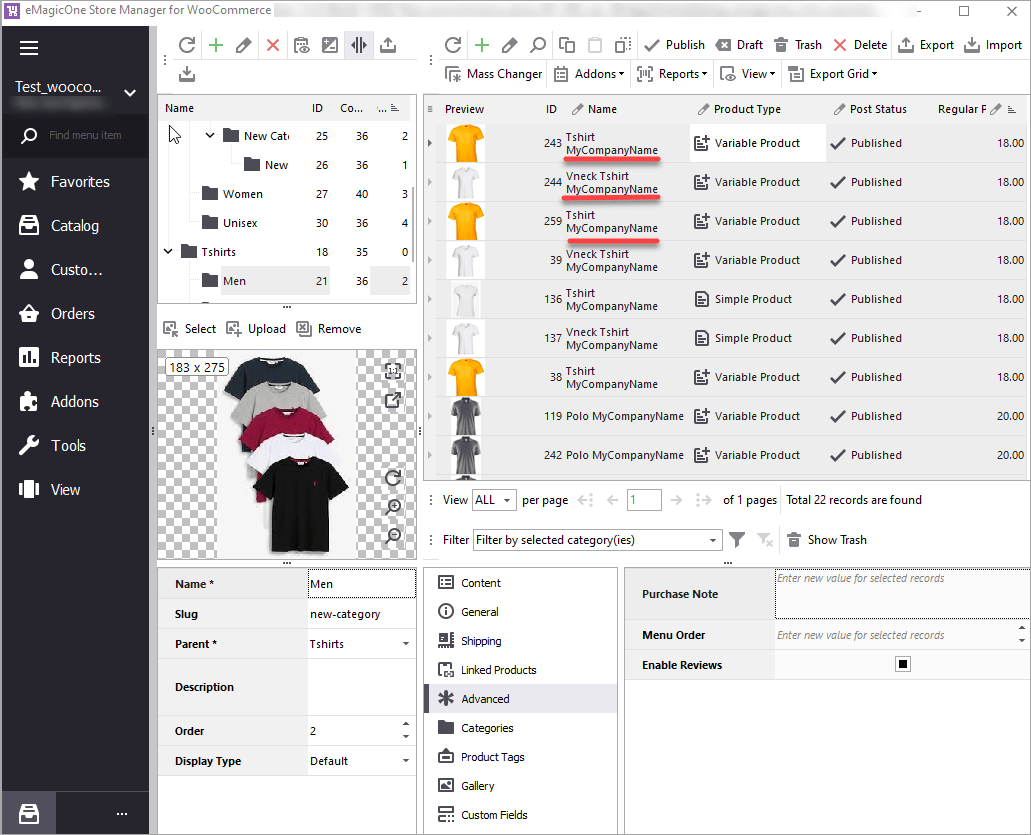
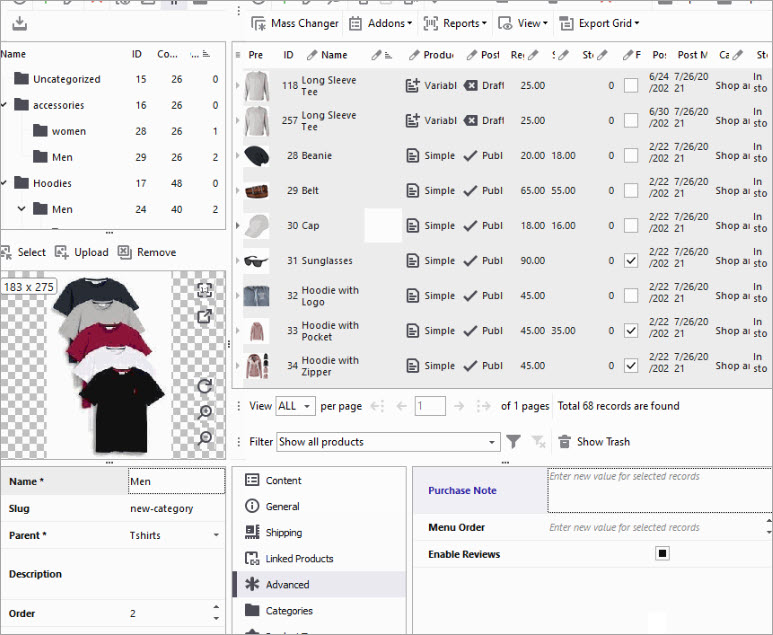
As you can see, product names have been successfully updated:
Read the detailed tutorial on the Mass Changer tool with Store Manager for WooCommerce.
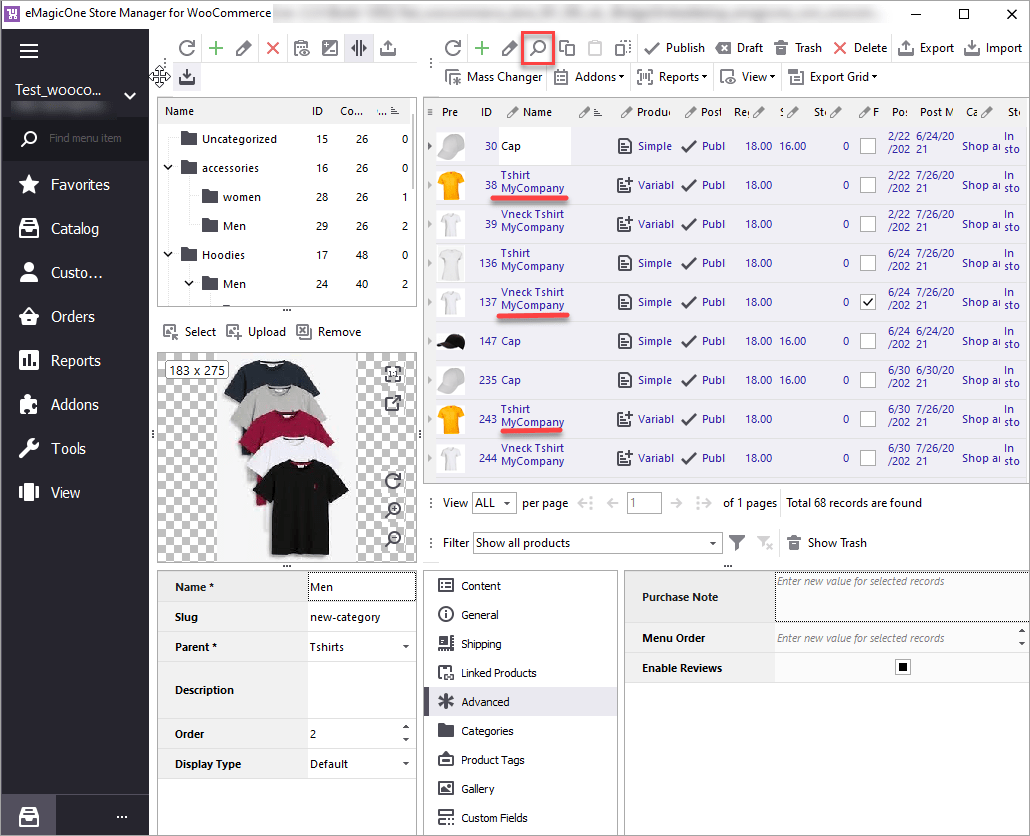
Suppose, you want to remove some word or phrase from the product name, description, sku, terms, or other text fields. For this, we’ll use the combination of search and replace operations.
Read more on how to use advanced search possibilities with Store Manager for WooCommerce.
Mass Changer allows you to replace data in the following fields: name, description, short description, purchase note, and SKU. More opportunities to replace data are available in the Import/Export Products Wizard.
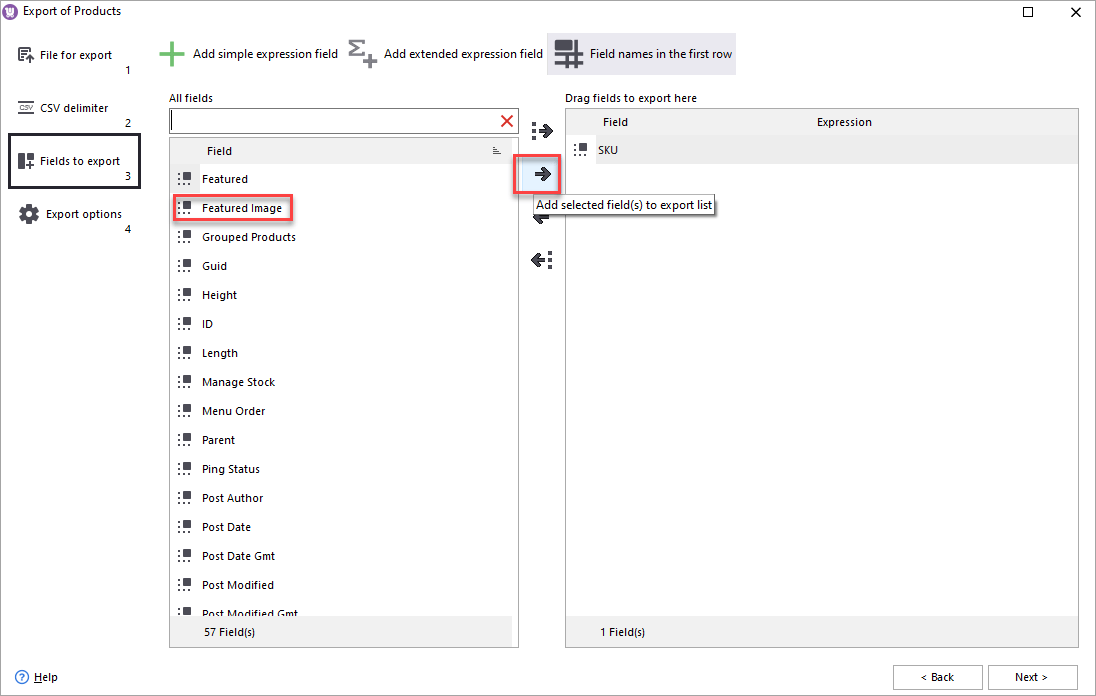
To replace featured images for existing products, export them to a file. It's enough to export just two fields: one for iedentification (ID or SKU) and the featured_image field.
irst need to prepare a local folder with new files (new featured images to be uploaded) or URLs to new images.
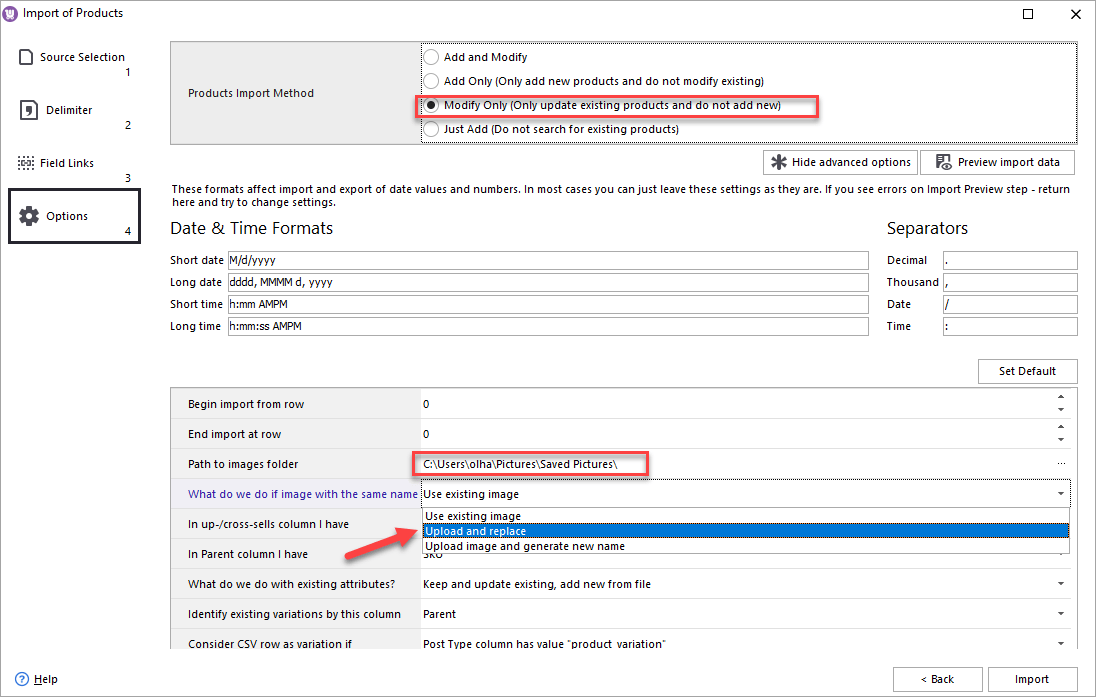
Run the import and proceed to the last step. There, for the Products Import Method setting, switch to “Modify only”.
Then expand Advanced options to locate the folder with the new images and specify the setting for image import as “Upload and replace”:
This way you will be able to replace featured images for your products without having to delete or rename old images.
Follow this tep-by-step guide to import images with Store Manager for WooCommerce.
It might happen that you need to replace some data with your WooCommerce store but there is no appropriate option neither in Mass Changer nor in the Import Wizard. In that case, you can use the replace function with an expression.
Expressions editor tool with the Import Wizard allows you to create and apply SQL expressions for a wide range of replacement operations.
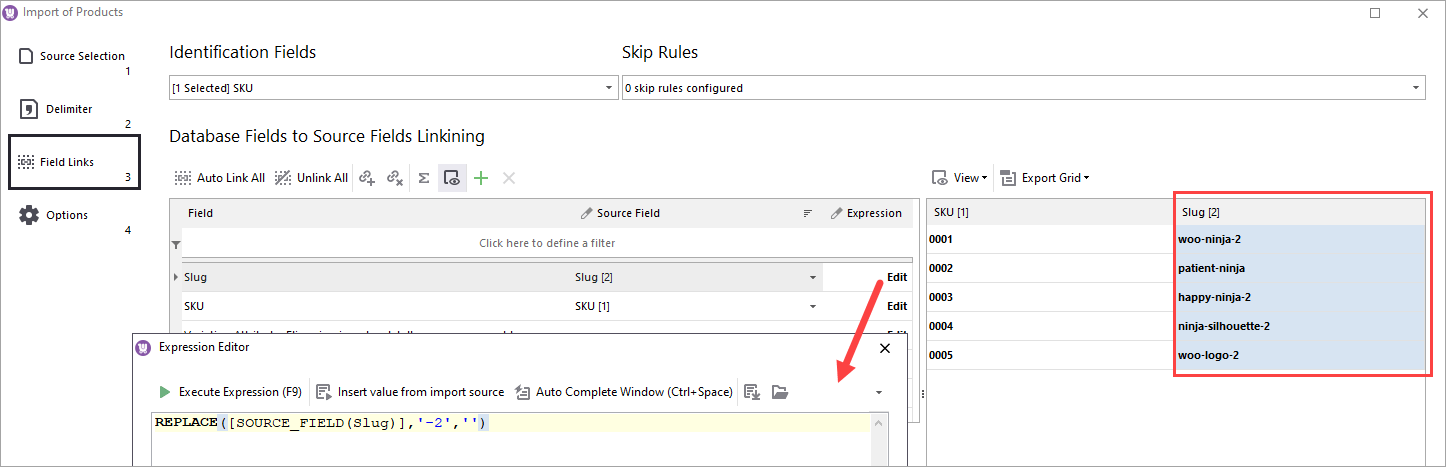
Let’s for example try to remove the “-2” from the product slugs. For that we need to replace “-2” with a space character or no character. Same can be applied to any field.
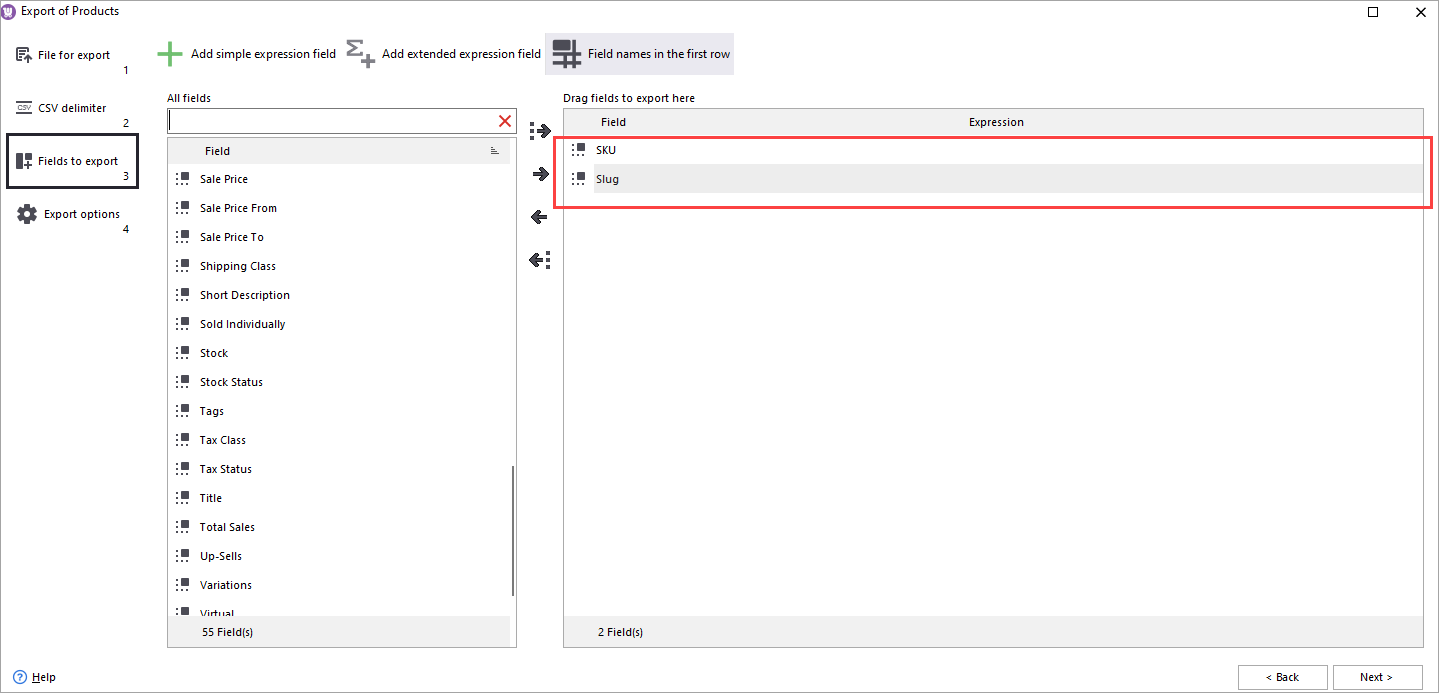
In order to perform replacement for the existing products, first export them to a file. For that, launch the Export wizard and in step 3 where you select fields to export, add SKU and Slug (SKU will serve as a product identifier).
To replace “-2” with a space character, you can use the following expression: REPLACE ([SOURCE_FIELD(Slug)],’-2’,’ ’)
To replace “-2” with no character, you can use the following expression: REPLACE ([SOURCE_FIELD(Slug)],’-2’,’’)
You can do the replacement of any other text or characters to any value or no value for your WooCommerce products using the above command.
Let’s summarize what tools you can use for various types of replacement tasks. To filter products by various criteria, you can use the Advanced Search tool. The Mass Product Changer tool will allow you to replace data in product name, description and other text fields. Finally, to replace data in other product fields you can rely on the Import/Export Wizards and the built-in SQL Editor.
If you have a specific task but not sure what tool to use, write in the comments. We’ll be glad to help.
Find out how to upload WooCommerce product images to Media Library and assign them to necessary items in more convenient manner. Read More...
If you have many products, adding image attributes manually is a tedious task to do. In this article. Use an alternative to filling out the fields manually. Read More...
Generate WooCommerce custom fields with no coding skills in the Edit Product window and without switching between numerous windows or grids. Read More...
Store Manager for WooCommerce allows uploading images to Woocommerce using links to the external location via flexible built-in Export/Import Wizard. Read More...