Duplicate WooCommerce products if you need to quickly create multiple almost identical goods. Instead of adding all the product details from the scratch, which requires time and efforts, you can copy or clone product, including images and other info into a separate item to speed up creation process. Then make some edits of name, description, perform other small changes if necessary and you are done! You can start selling new products with just a few clicks.
This way you can also quickly create dummy products for common items like cookies, soap, even groceries to play around when testing WooCommerce functionality.
This tutorial explains how to copy or clone your WooCommerce products in bulk along with their variations, reviews, assigned categories and even cross and up-sells using Store Manager for WooCommerce application. Through this plugin WooCommerce users can either duplicate a product as it is or change product content as per requirements.
So let’s have a closer look at the methods to duplicate WooCommerce products available in Store Manager application.
The functionality to copy /paste products available in Store Manager for WooCommerce allows to copy one or multiple goods from one category and paste it to another. Using it you can either assign duplicated item to completely different category or keep the category that was assigned to parent product(s) and additionally link copied item to another category (the one it was pasted to).
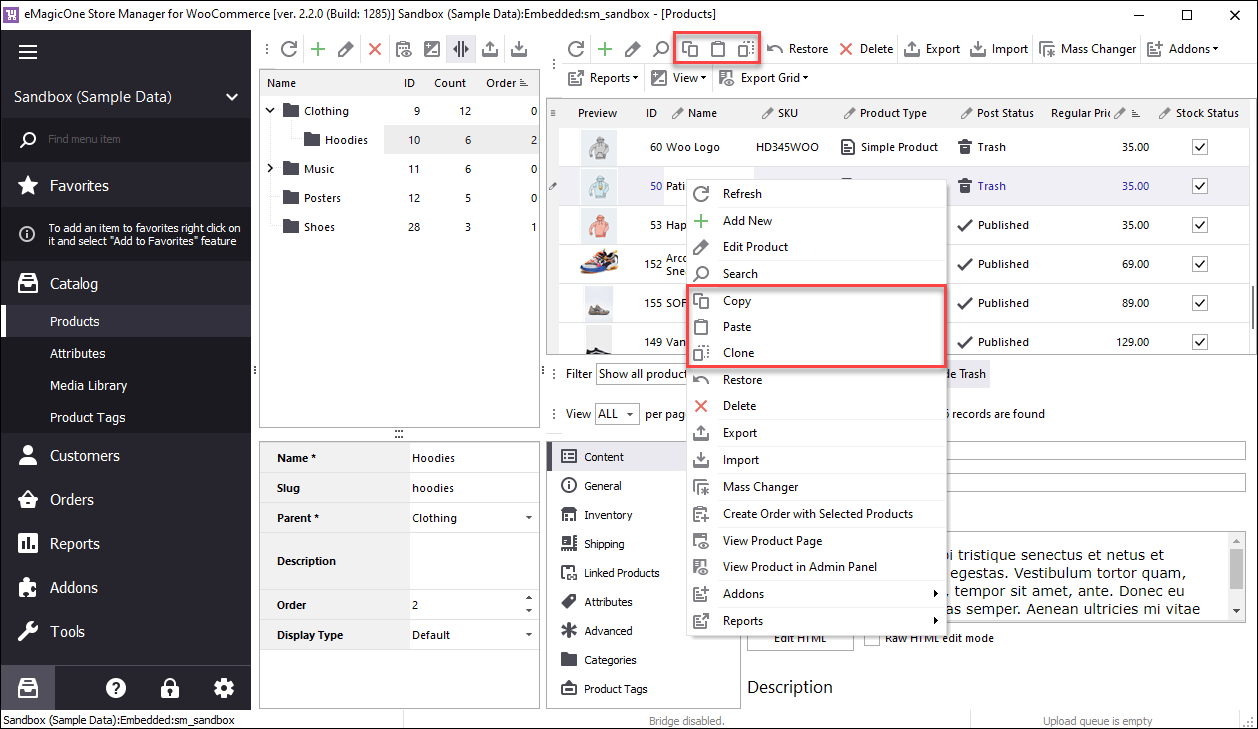
Copy-Paste buttons you can find in products main menue or context menu. Before using them, select products you’d like to multiply. Store Manager allows to make copies of multiple selected goods at once, that is very convenient if you need to add a dozen of products that are only slightly different.
Once products to be duplicated are selected, press ‘Copy’ button. Then move through category tree to select the target location of copied products and there press ‘Paste’.
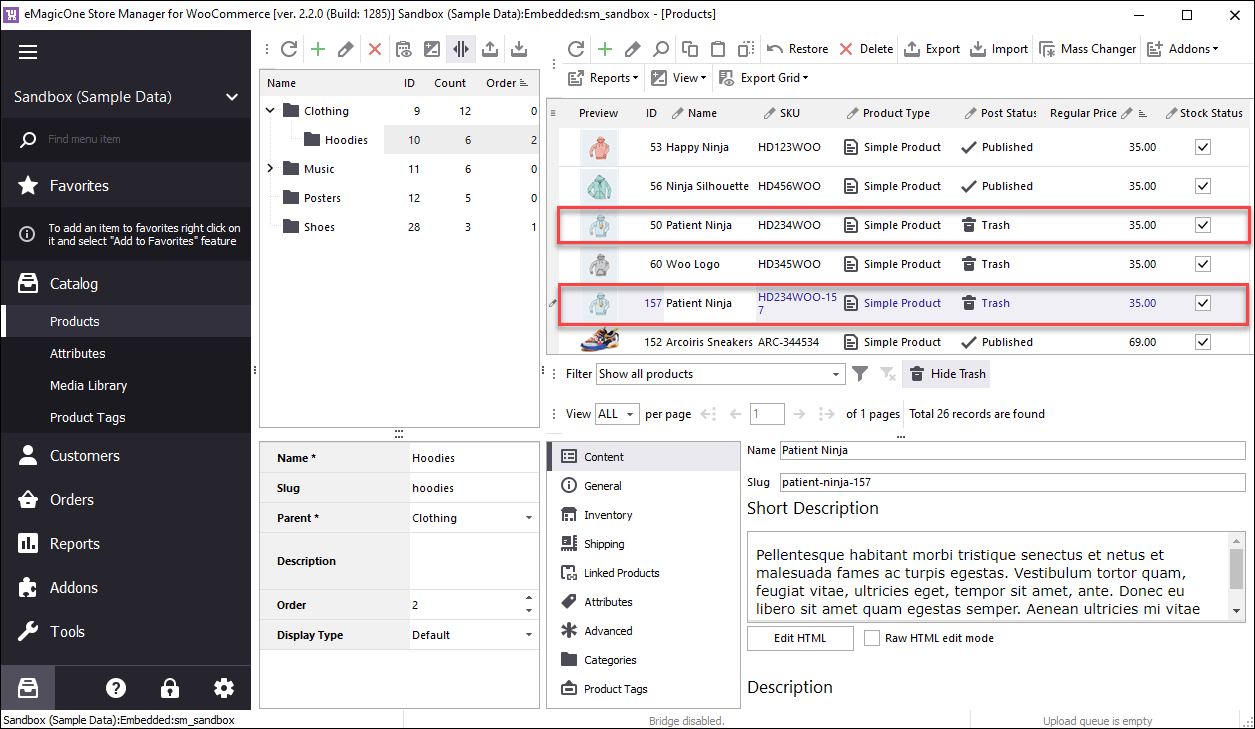
To multiple products in one-click you can use ‘Clone’ option. It will duplicate product records in pretty much in the same way as the above mentioned method. The only difference is that cloned products will be right-away placed to the same category original item was assigned to.
This considerably saves time if you need to create multiple products categorized in the same way.
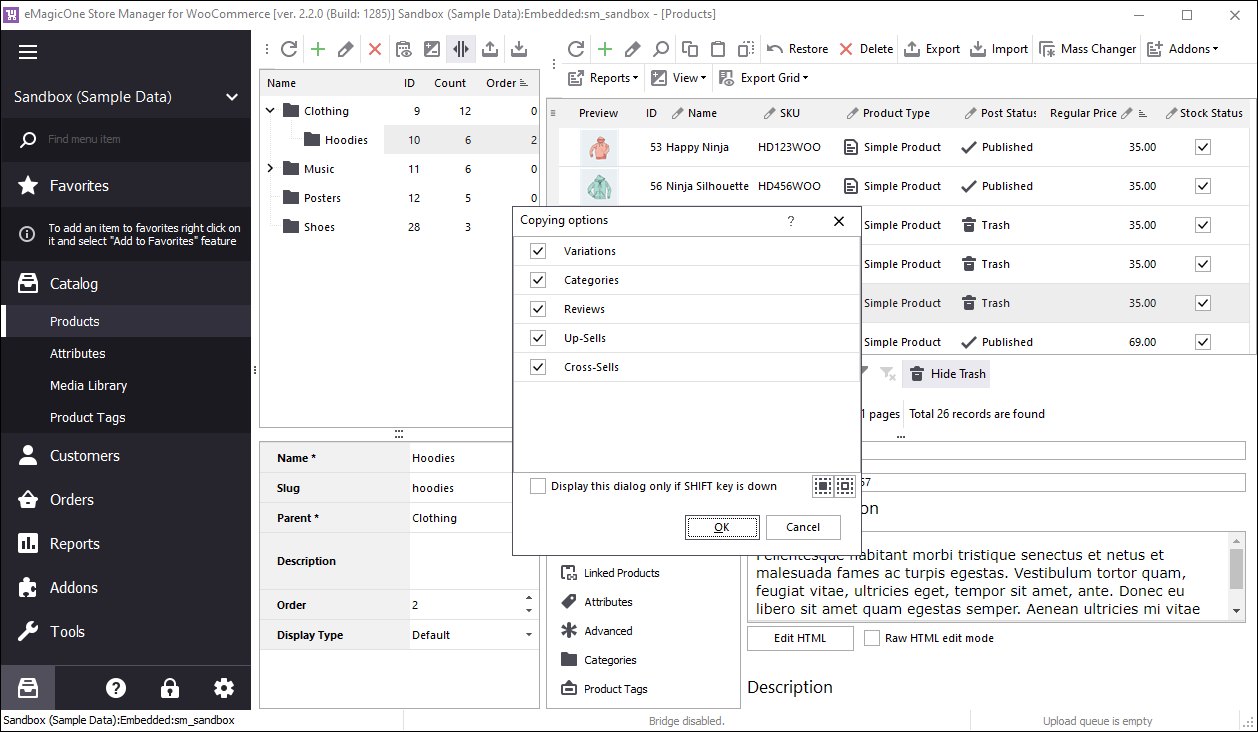
When you use ‘Copy/Paste’ or ‘Clone’ option you can also select some data to be duplicated along with products. Namely they are:
Tick the box to unselect details you consider not relevant for new products you get via duplication.
WooCommerce simple products is a key product type and serves as a basis for creation of other types of merchandise, an easiest kind of manufacture to create and handle. Read More...
WooCommerce export of products is a must have when you plan to move existing goods to a new website, update them in bulk using a spreadsheet or create a backup file. Read More...
WooCommerce admin does not support exporting products bycategory, so merchants resort to using some special modules or applications. Read More...
Planning a sale with 25% off all the goods, or suppliers have changed base product cost and there's a need to sync with them? WooCommece Mass Product Changer handles it in one click. Read More...