A possibility to export WooCommerce products to Google Sheets comes in handy when you need to analyze or massively edit products in the file, or, for example, share product stock with a supplier for replentishment.
Store Manager for WooCommerce allows you to establish a connection between your WooCommerce store and Google Drive in a few clicks. Below, you’ll find a step-by-step tutorial on exporting WooCommerce products to Google sheets.
Let's go through each step in detail.
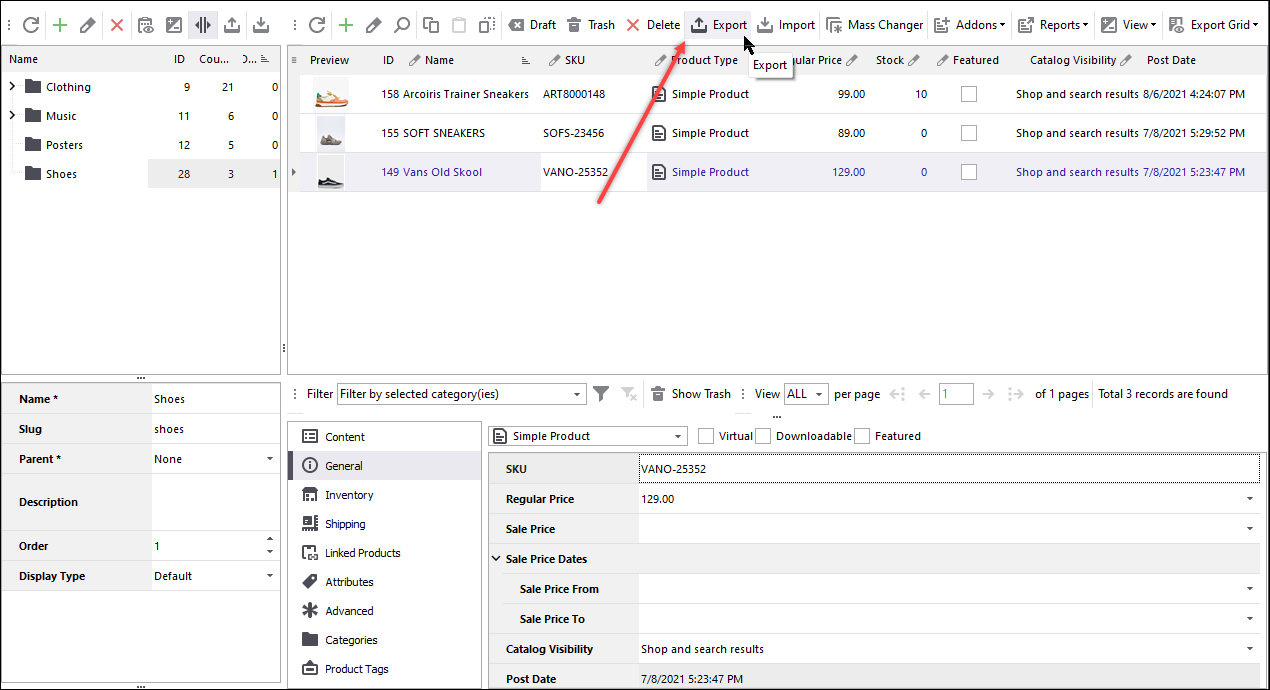
To export WooCommerce products to Google Sheets, open Store Manager, and press the “Export data” button on the toolbar.
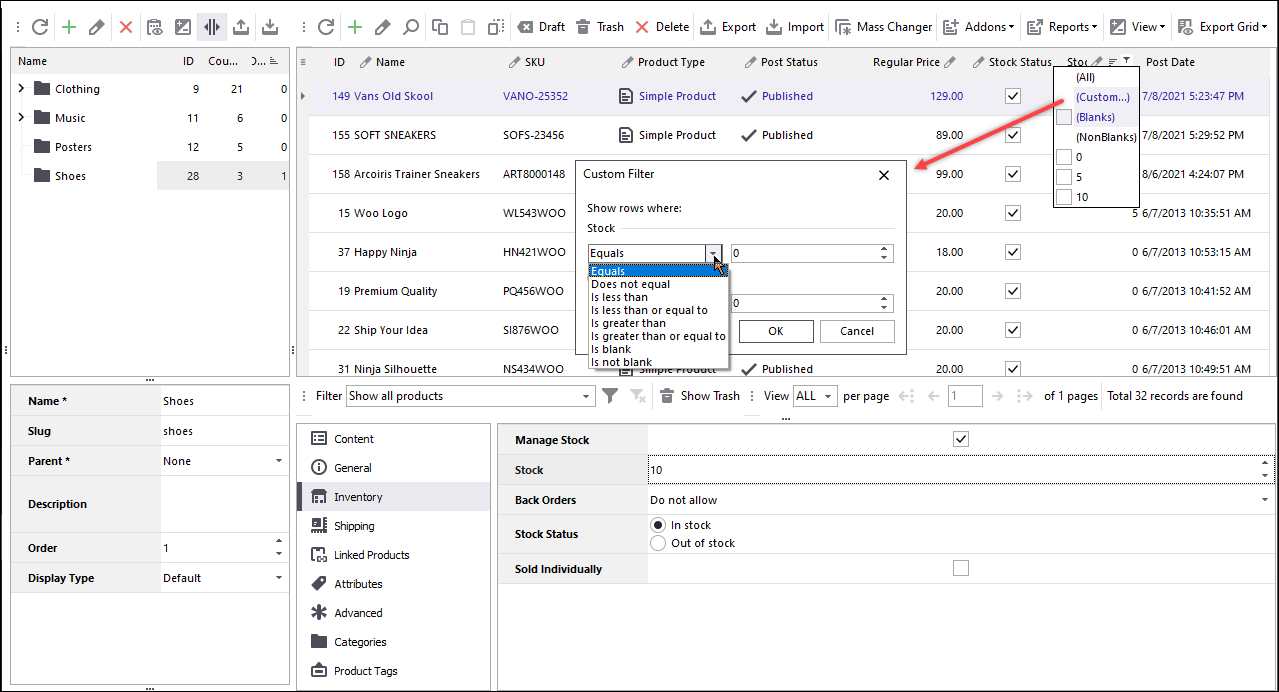
If you want to export specific products, filter them before you start the Wizard.
Use the advanced filtering and sorting functionality to sort products by ID, type, stock, and other parameters.
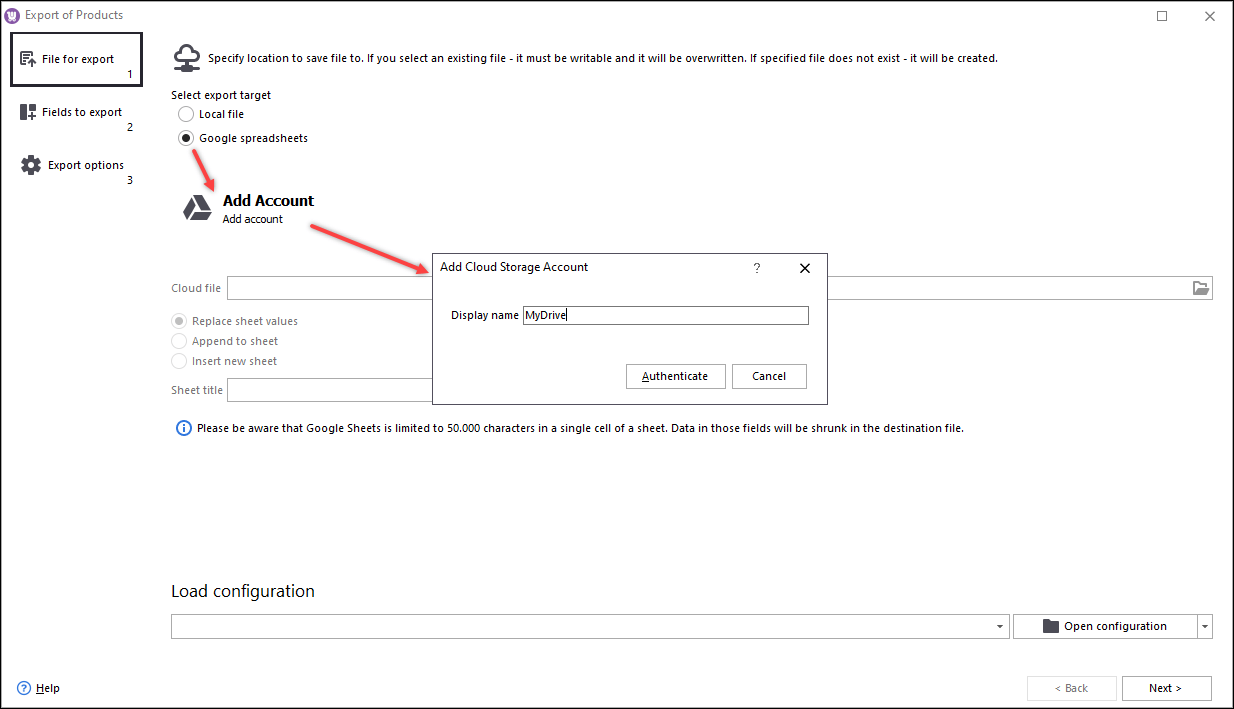
In the Product Export Wizard, you will be prompted to select a location of the export file. Switch to the “Google Drive” option and add a new Google Drive account.
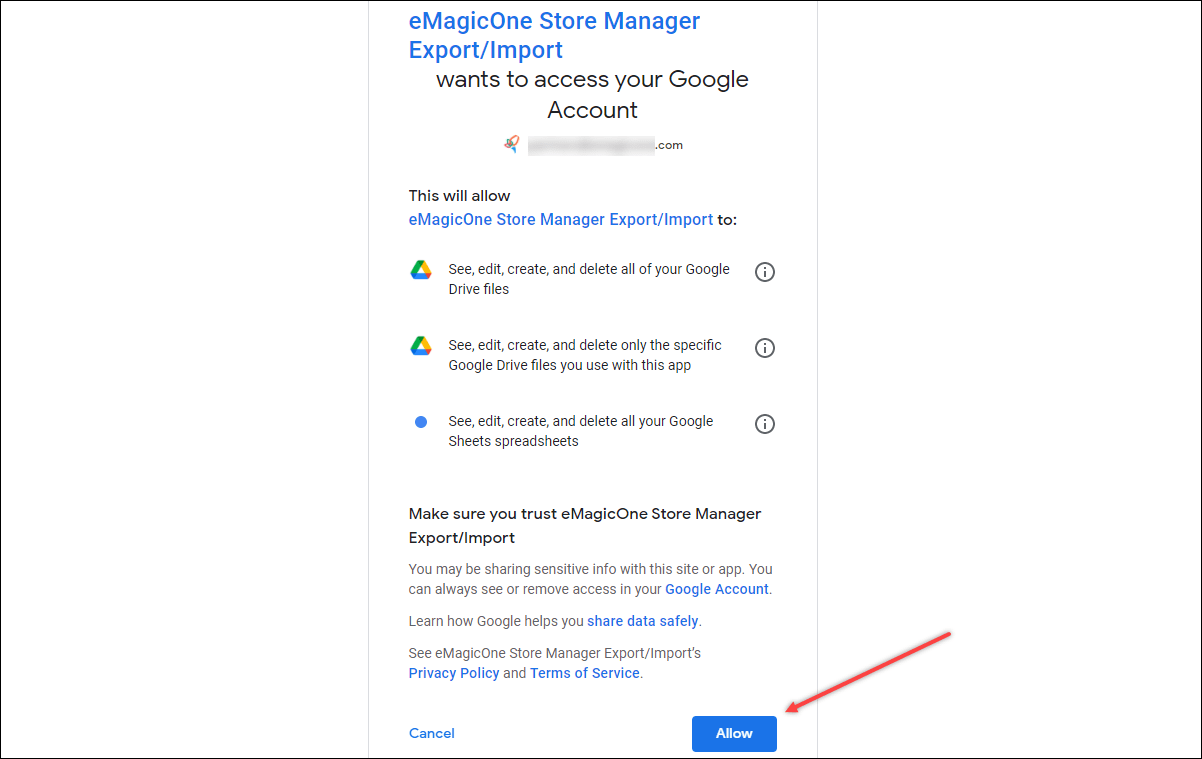
After you press "Authenticate", the Google authentication window will open in a browser. Select the account to which you want to connect and grant eMagicOne Store Manager Import/Export tool the permission to access the drive:
After you’ve finished, you will see a message that Store Manager now has access to Google Sheets. Close the browser window and proceed with the export.
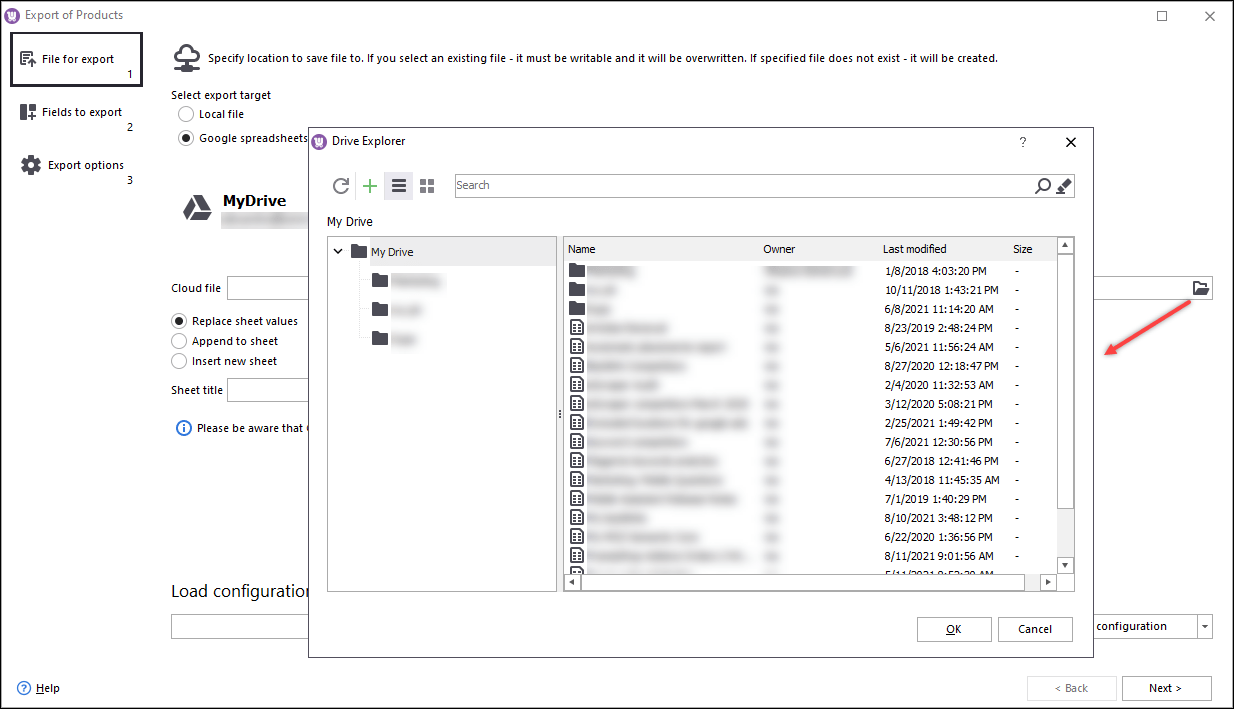
Browse your Drive to select an existing spreadsheet or press the plus (+) icon to create a new one:
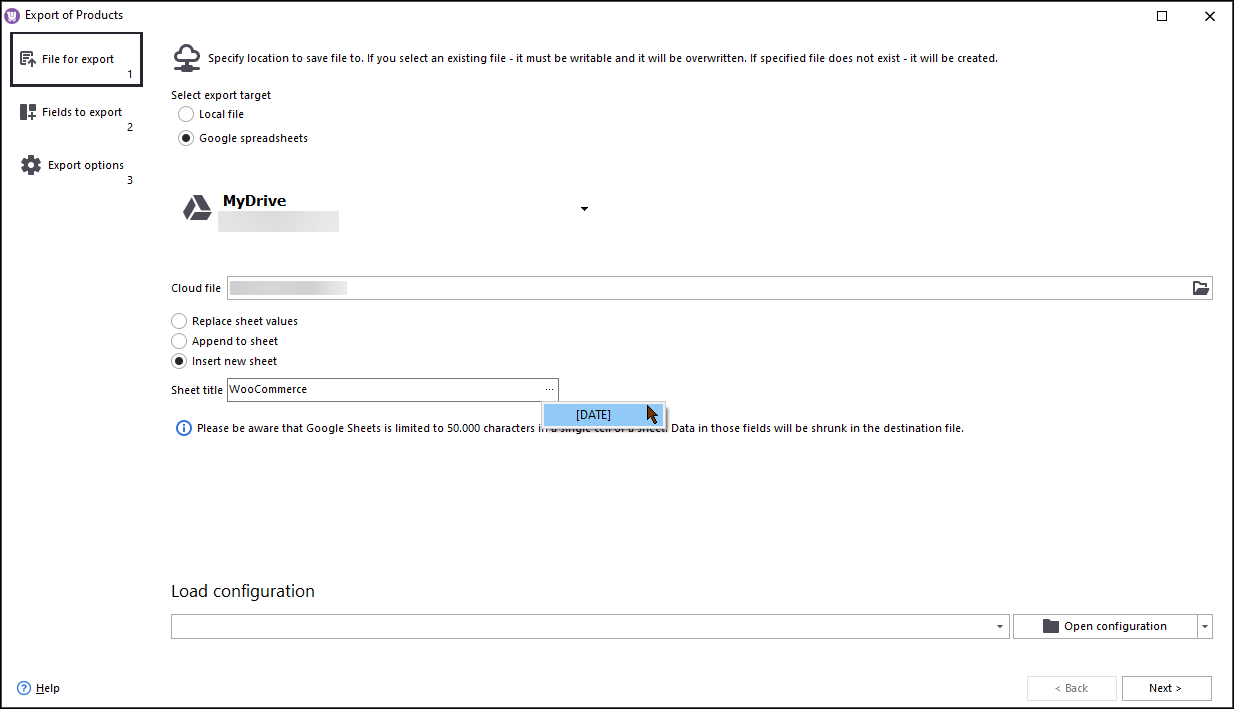
Next, select whether you want to replace sheet values, append exported data to a sheet, or insert a new sheet.
Below in the dropdown, you can select a certain sheet to export data to. To automatically set the date of export as a sheet title, click the browse icon and select the DATE macro:
Press Next to proceed.
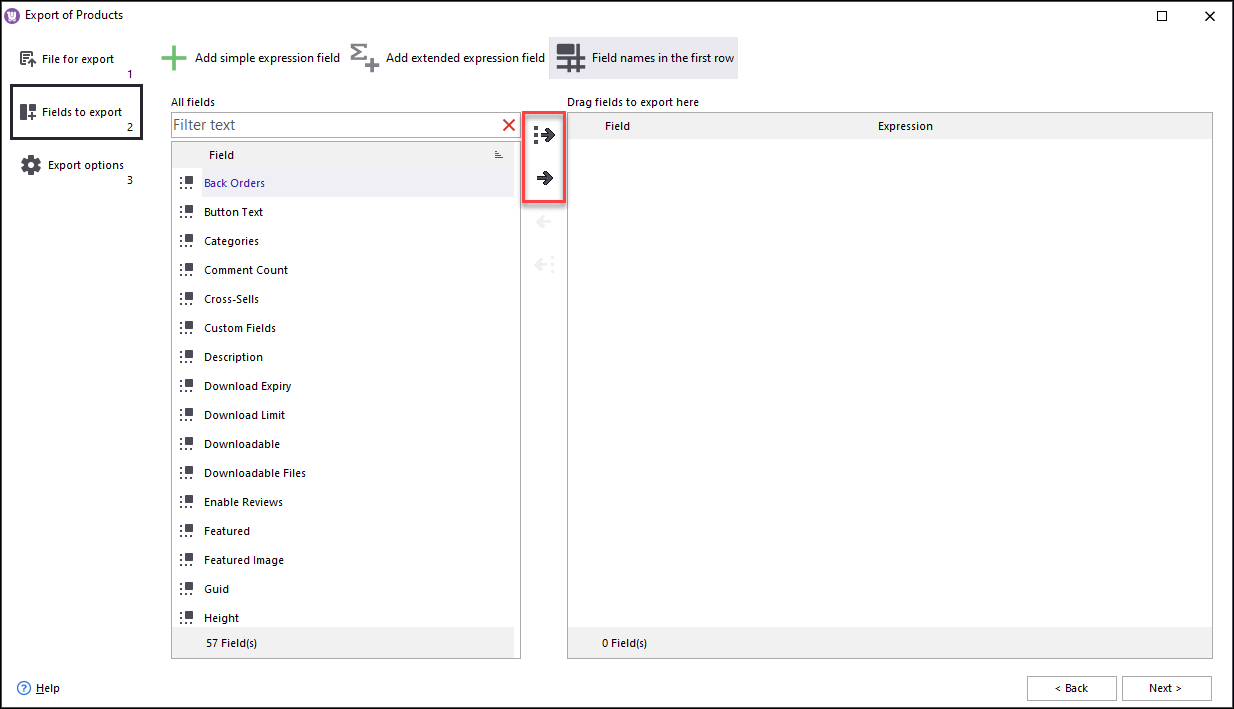
In this window, you’ll see a list of product fields. You can drag required fields one by one or press the upper button with arrows to select all fields at once:
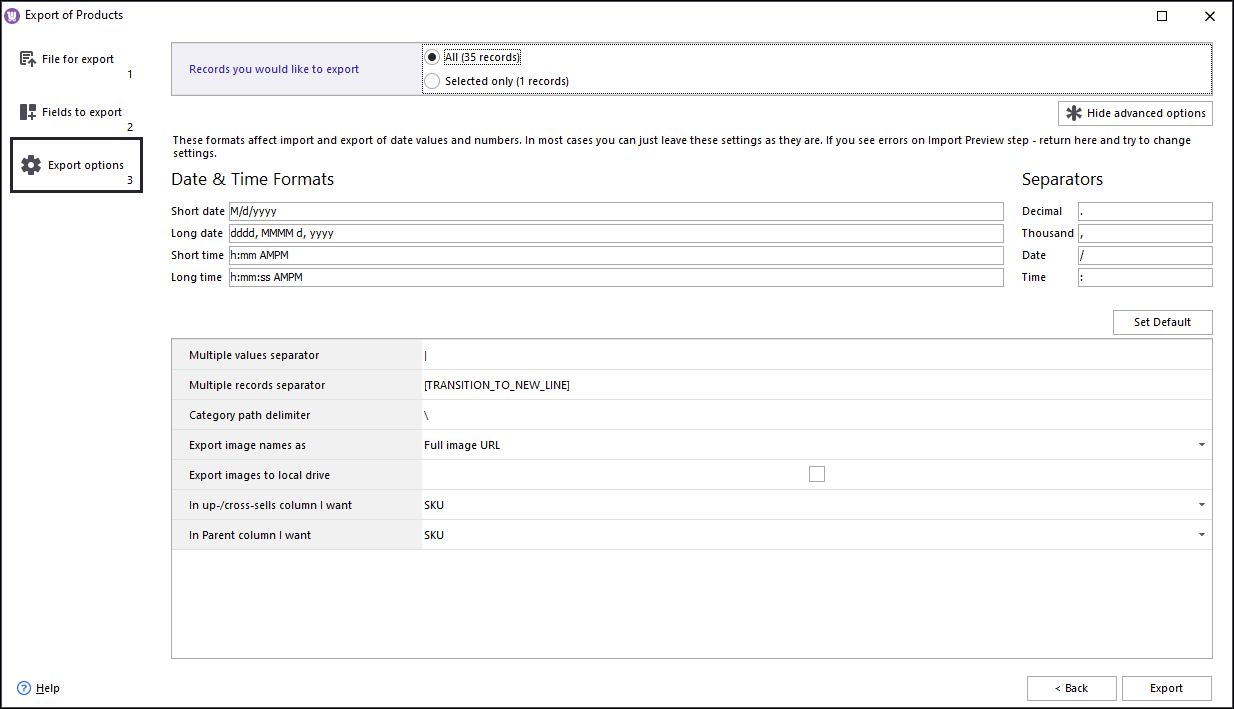
At this final step, you will be offered to define the records that will be exported (all or selected). In the Advanced options section, you can also configure:
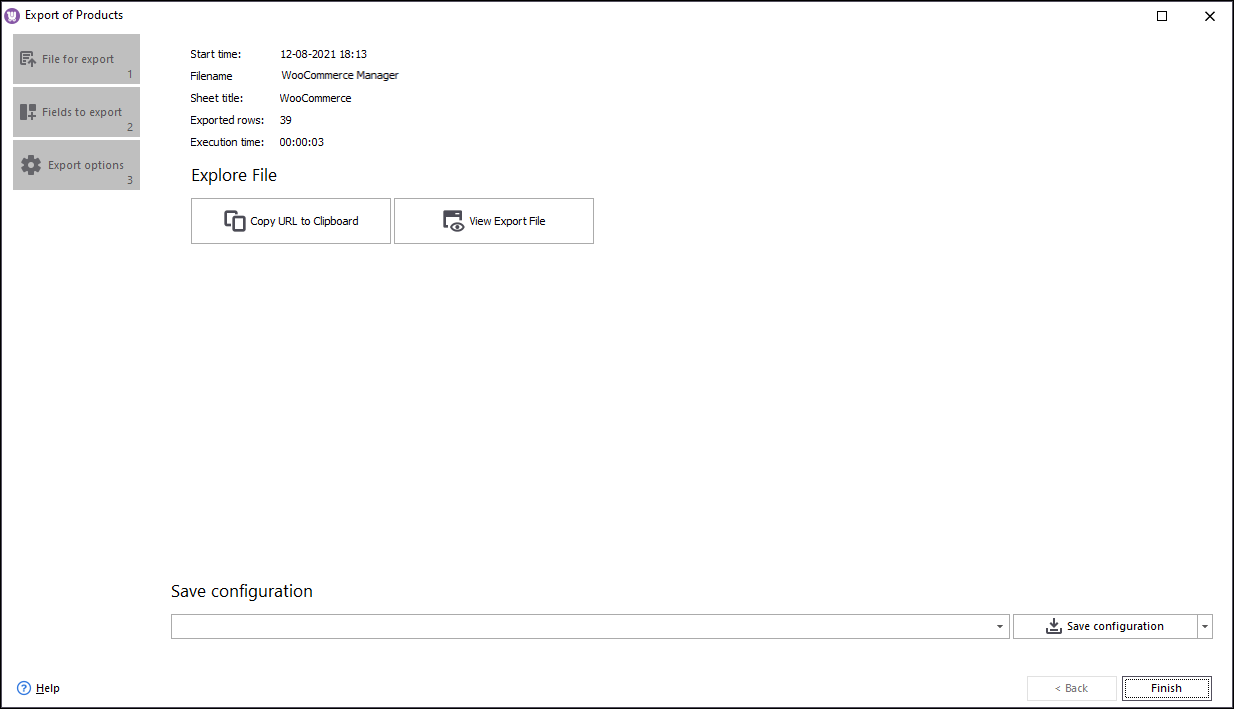
When you are all set, press Export. After the task is finished, you can view the export file or just copy a URL and send it directly to your supplier, employee.
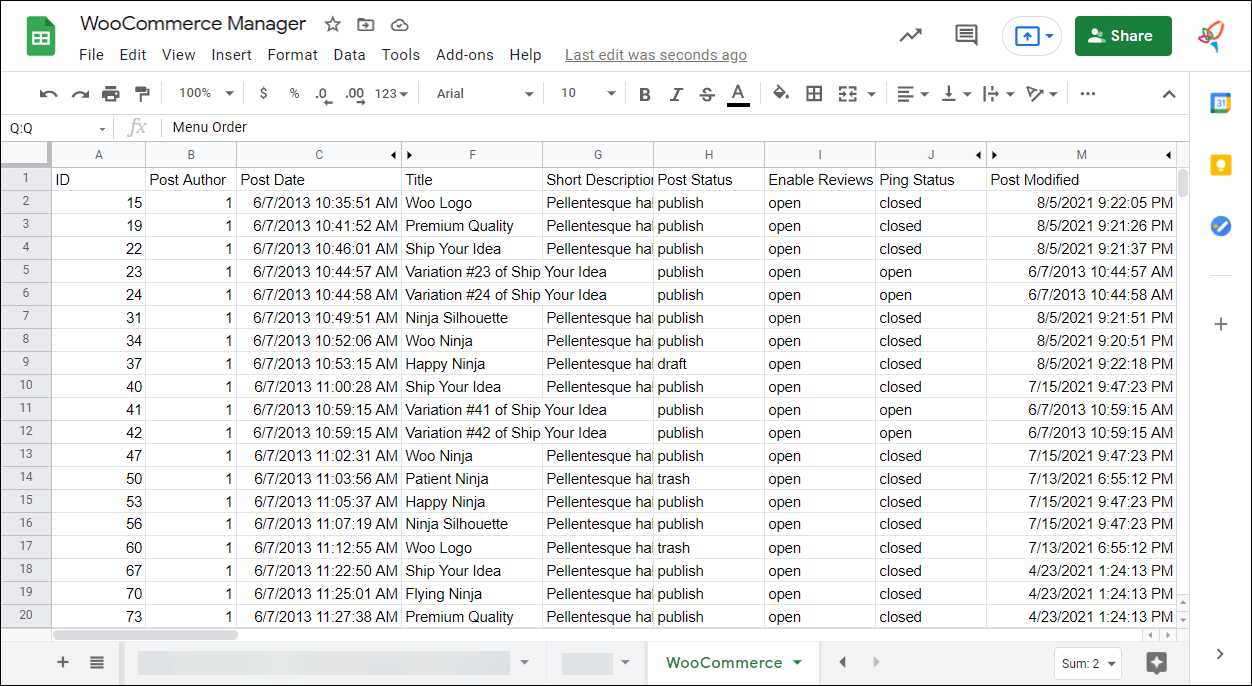
Let’s check the data. As you can see, the products with all their fields were successfully exported.
You can make the changes in the file and update existing products by importing them back via the import wizard.
Try Store Manager to integrate your WooCommerce store with Google Drive to speed up product management!
Add or update order information in bulk from .csvfile via export/import to save time with WooCommerce Store Manager. Read More...
Export WooCommerce orders to Google Sheets , provide quick access to the orders data to partner or supplier via Store Manager. Read More...
Learn how to edit WooCommerce orders manually and massively via the admin and external solution you can use to get the extra functionality. Read More...
Your supplier provides categories in Google Sheets format? There's an opportunity to import them directly to WooCommerce with Store Manager application. Read More...