One of the most convenient WooCommerce features is that, it comes with native media data storage, called Media Library. WooCommerce Media Library holds all the images, audios, video files and documents you have uploaded to WooCommerce and facilitates their accurate arrangement respectively.
Store Manager for WooCommerce comes with Media Library implemented and makes media details handling more sophisticated. Below in this post we are going to outline how to upload WooCommerce product images to Media Library and assign them to necessary items.
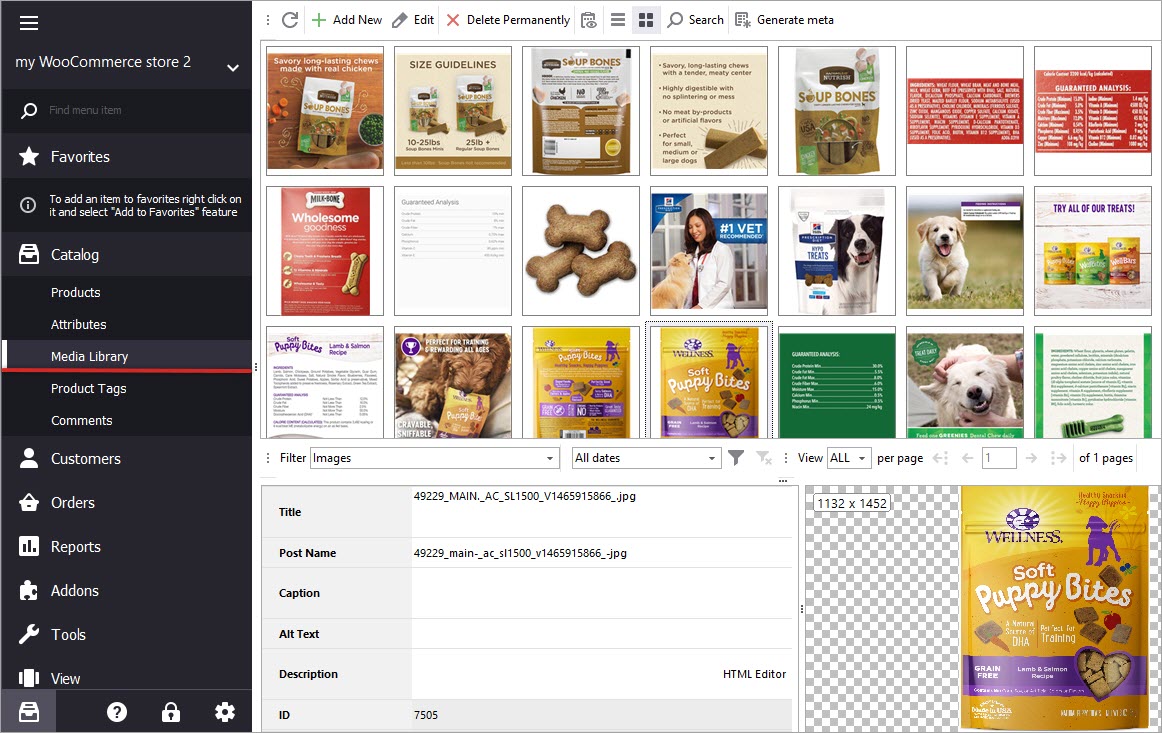
Media Library with all WooCommerce product images, you have ever appended, is available under Store section of the application menu.
When you hit Media Library button, there will expand its window and by default it is structured in the way, the screenshot below shows.
Store Manager for WooCommerce supports dockable windows. They can be replaced and rearranged in the way you like. To roll back to default view, press Restore Default Layout button at the bottom.
Let’s have a tour over Media Library and see how details are arranged within this page.
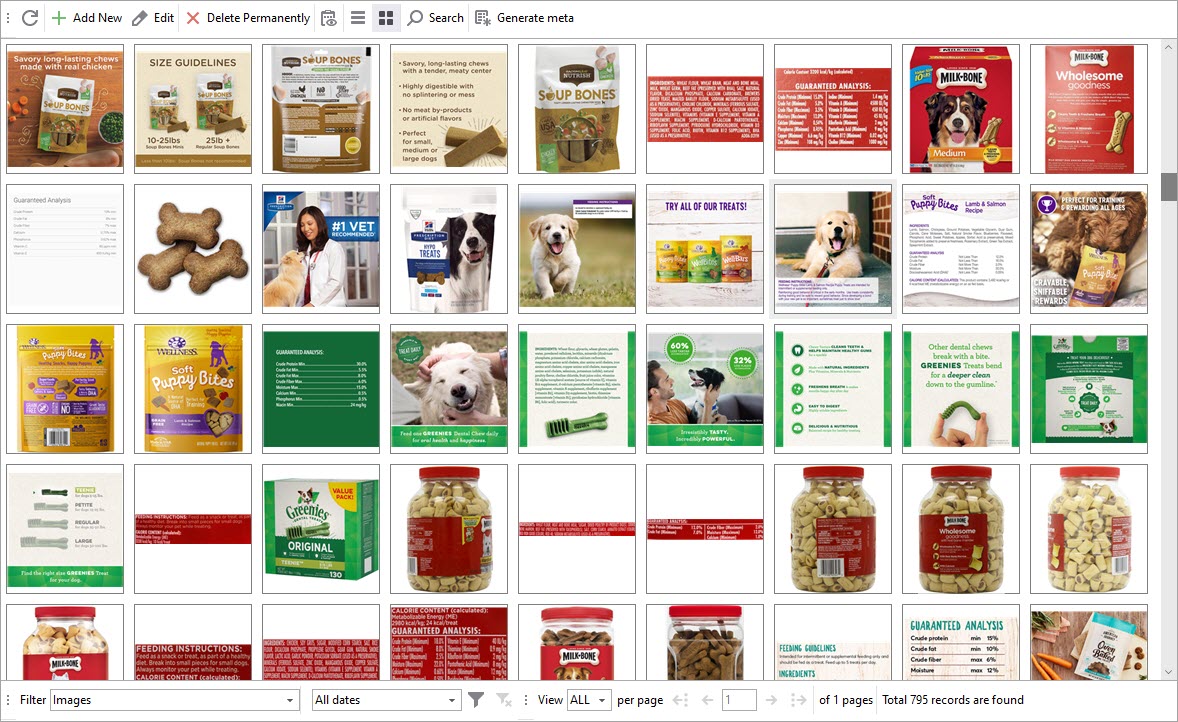
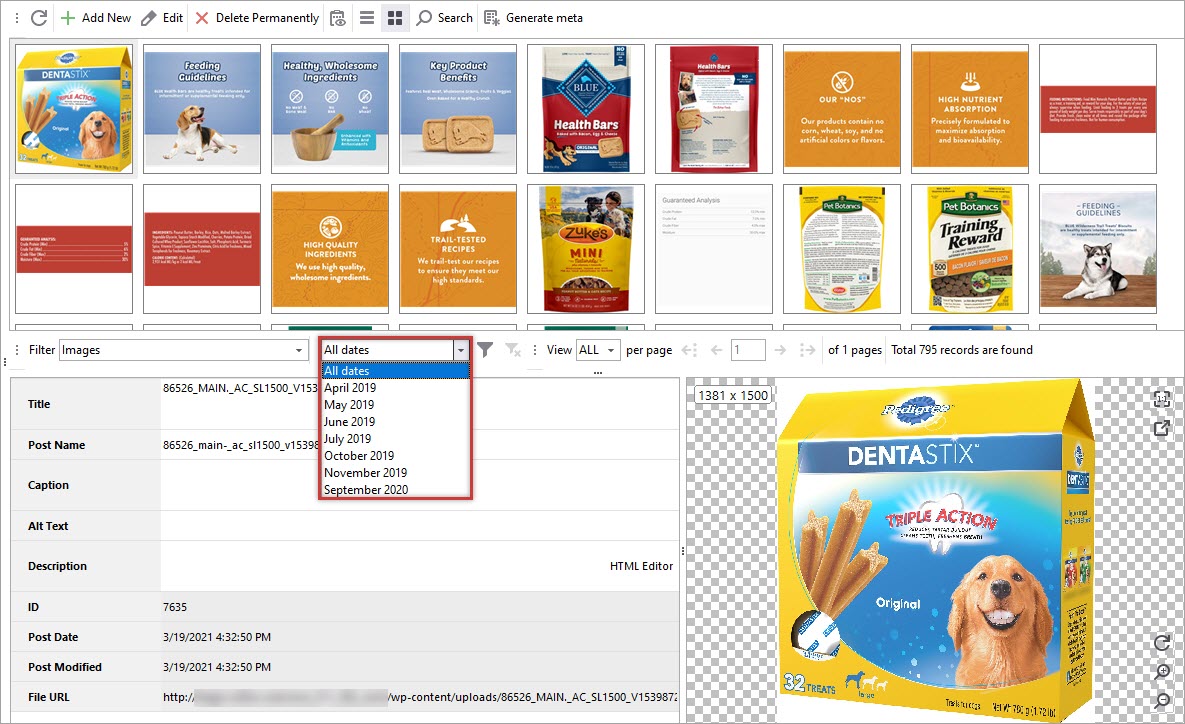
By default WooCommerce product images are displayed in a grid view. Scroll down the page to preview product photos.
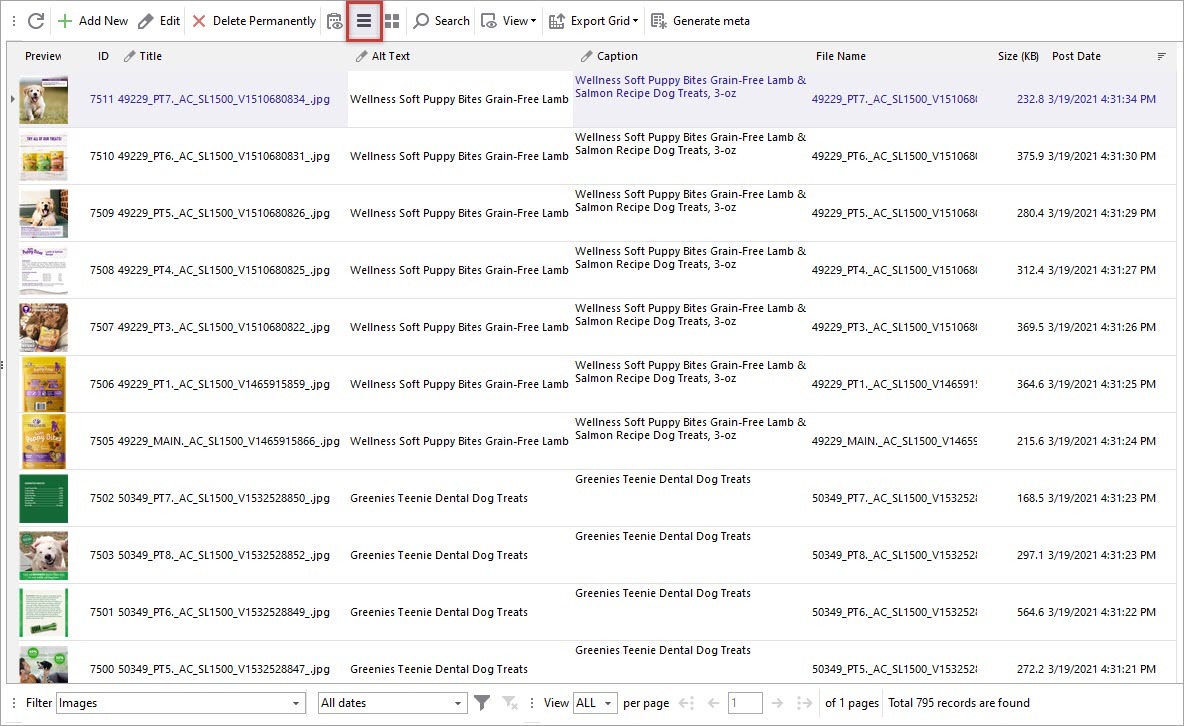
To enable List View, just press corresponding button on the toolbar. Display mode will change and will attain the list of images and their details, namely ID, Title, Alt Text, File Name, Post Date and Image Preview.
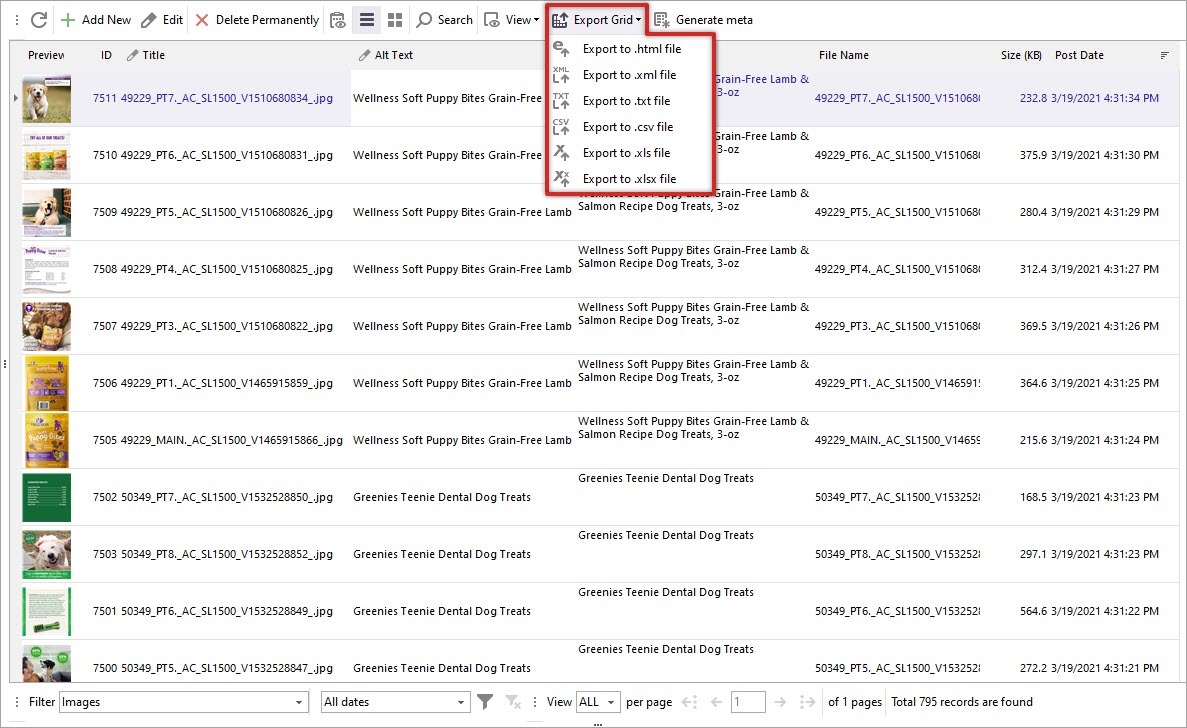
When List View is enabled, Export Grid option appears on the toolbar. You may have guessed that Store Manager for WooCommerce supports grid export. These image details can be instantaneously transferred to HTML, XML, TXT, CSV, XLS, XLSX files.
List View mode allows you to sort images by column headings, enable row filters or group box filter.
Store Manager greatly contributes to image filtering and instant search. As it has been mentioned above, image records can be rearranged clicking on this or that column heading. On the toolbar below filter by date option is disposed. To retrieve pictures, uploaded within certain month, simply select this month from the dropdown.
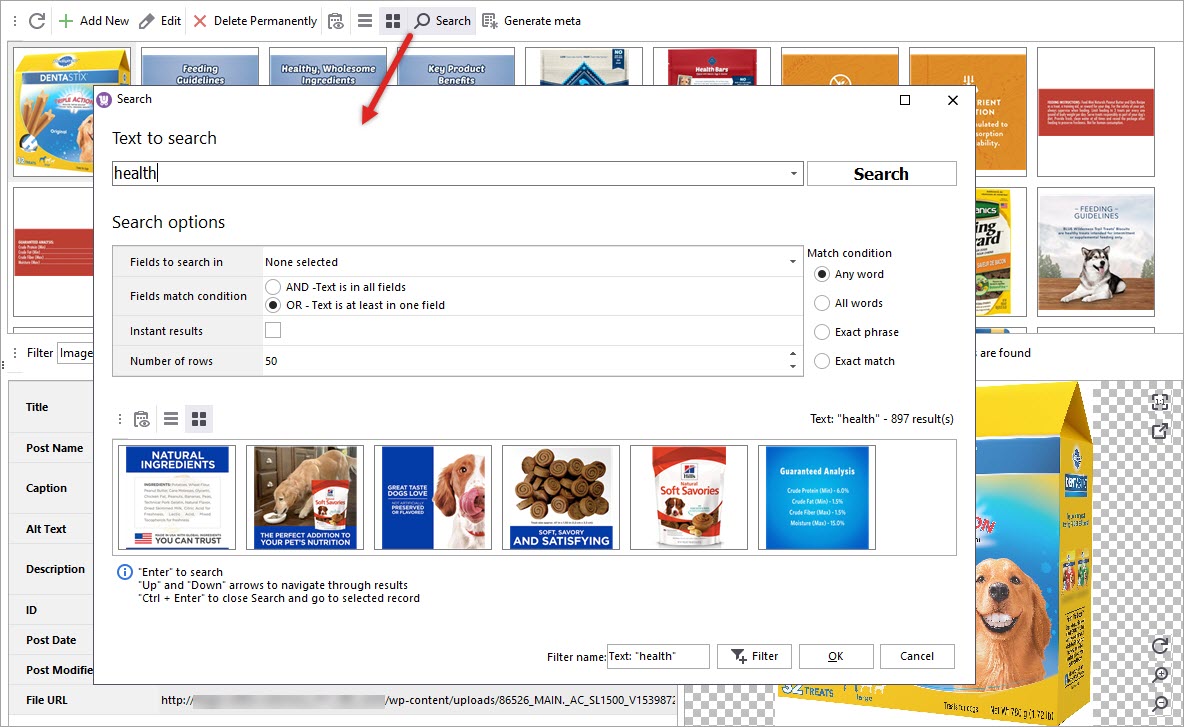
Moreover, the application offers image search functionality. When you click on search icon, available on the toolbar, search form will come out. In order to find some image, you need to paste text to search for and fields, inputted text occurs in (ID, Title, Alt Text, Attached File, Post Date, Description, Caption, Post Name). Determine match conditions and confirm search.
WooCommerce product images matching search conditions, will instantly display in the field below. You may also experiment with display mode - enable List or Grid view.
It is possible to create filter with specified settings. Below in image search form you can see Create Filter button. Configure filter name or leave the one added automatically and press Create Filter. It will be added to the filter list, available on the menu under image list.
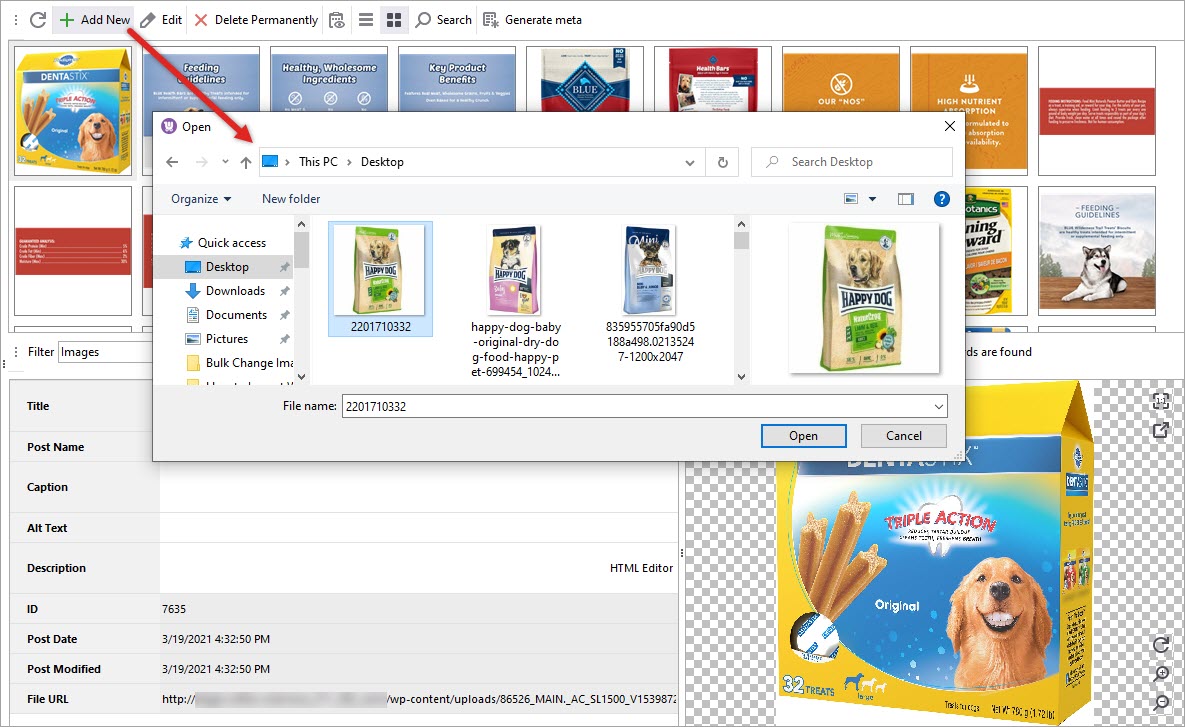
Photos are added to Media Library in the following way:
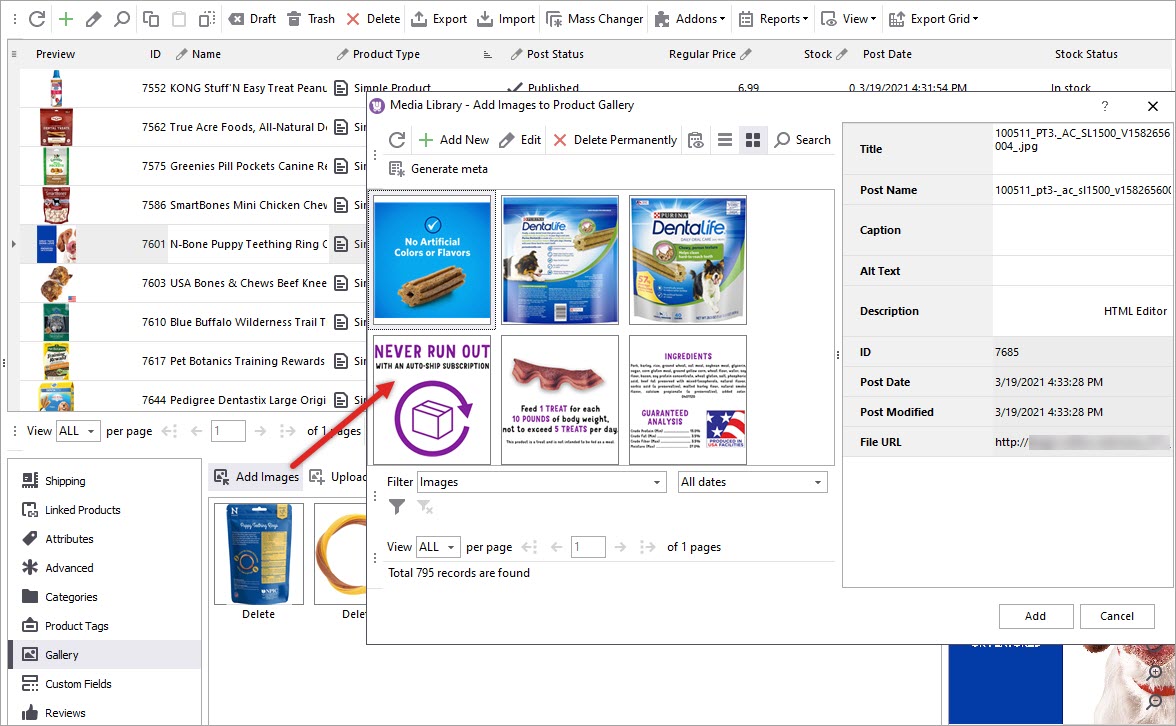
Images have been uploaded and now are displayed in the Library. When you select this or that image, image preview and edit form with image details will display to the right. Change the details if necessary, namely Title, Post Name, Alt Text, Caption, etc.
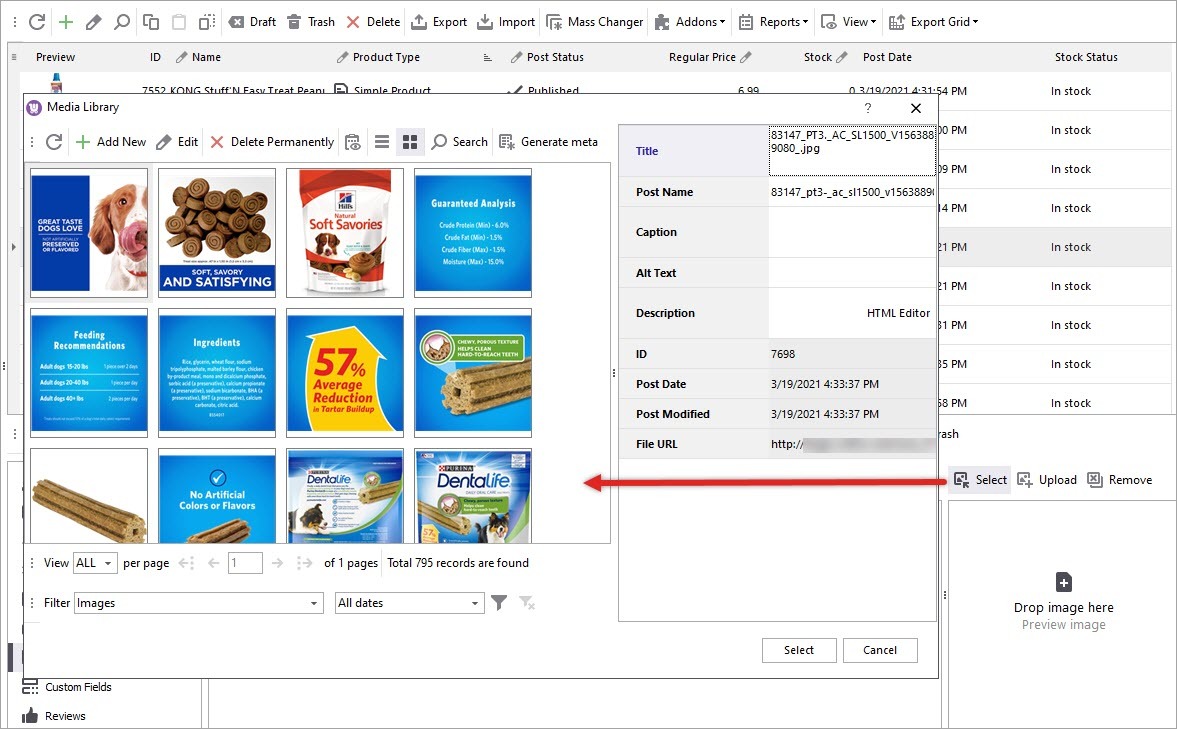
Before assigning pictures to WooCommerce products we would like to clarify that WooCommerce allows to add Feature image to products and Gallery images. Featured image is the main image, displayed at product details page, in the category, etc. Pictures added to Gallery will be shown as additional at the front end.
This way you can upload image from the Media Library. If you want to add the one from the local folder, click on Upload button on the toolbar, browse the local folder and select necessary image.
Featured images has already been assigned to selected product.
Store Manager for WooCommerce represents simple and quick way of WooCommerce product images upload to Media Gallery. Enrich your shop with pictures and make your catalog presentable with this comprehensive WooCommerce extension.
Drag&drop WooCommerce images stored locally or directly from the browser to your WooCommerce products with Store Manager. Read More...
Generate image title, caption, alt text and description for WooCommerce images automatically to add or overwrite the existing details. Read More...
Add images to Media Library in bulk uploading local or remote images to your WooCommerce merchandise. Read More...
Import images from HTTP URLs using links to the external location to your WooCommerce catalog with Store Manager advanced Import Wizard. Read More...