Managing your store, you may have tasks that can’t be solved via the native admin panel. In this article, we’ll show you how you can solve some of the typical tasks by applying a MySQL expression for WooCommerce during import.
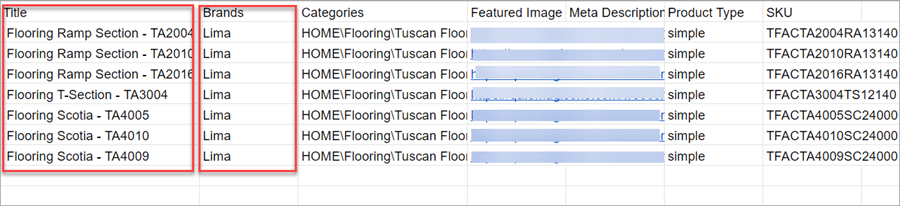
Below you can see a sample file where product title and brands are located in separate columns. It is a typical file that you may receive from your supplier. What if you want a brand name to be added to a title so it looks like Lima Flooring Ramp Section, for example?
This task can be solved by applying an SQL expression during import via Store Manager for WooCommerce.
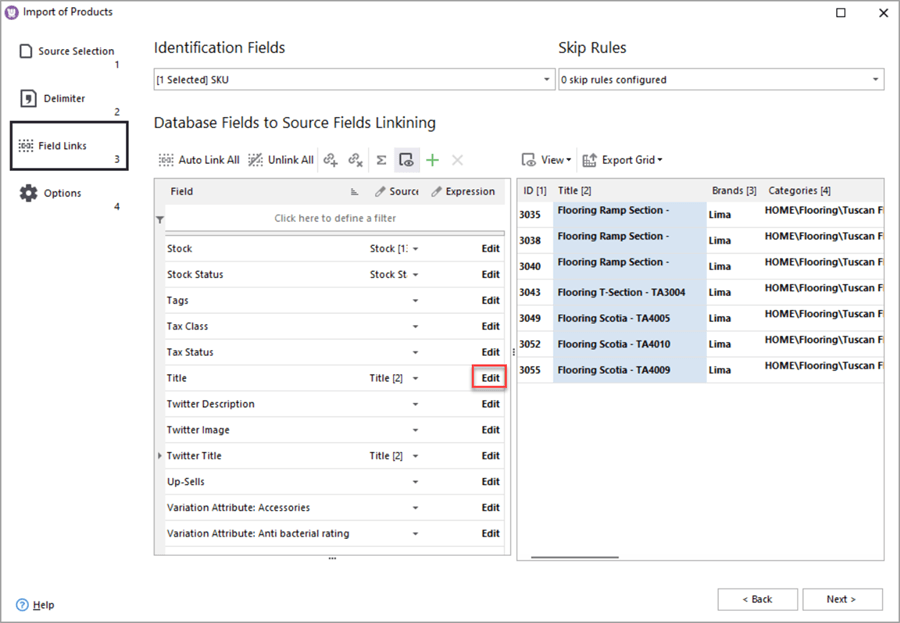
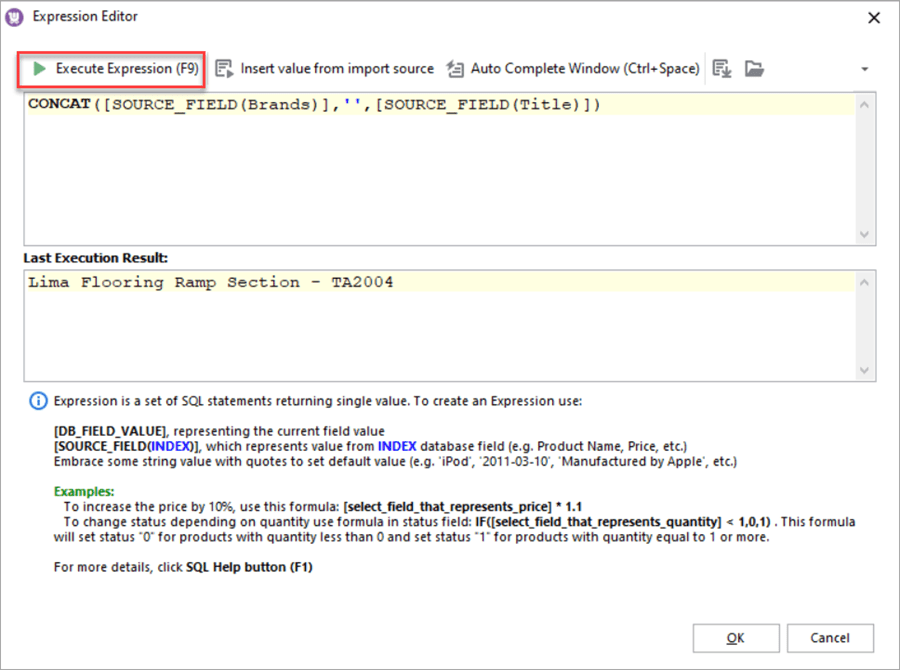
Here are the steps to add a brand to a product title.
See the detailed guide on importing products via Store Manager for WooCommerce.
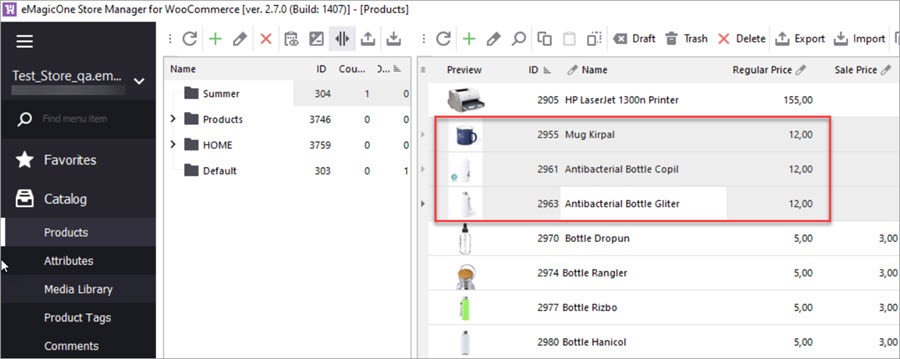
CONCAT([SOURCE_FIELD(Brands)],' ',[SOURCE_FIELD(Title)]) You may need to increase prices by a certain percentage to add price markup or apply an exchange rate. Below is a sample file with products and prices.
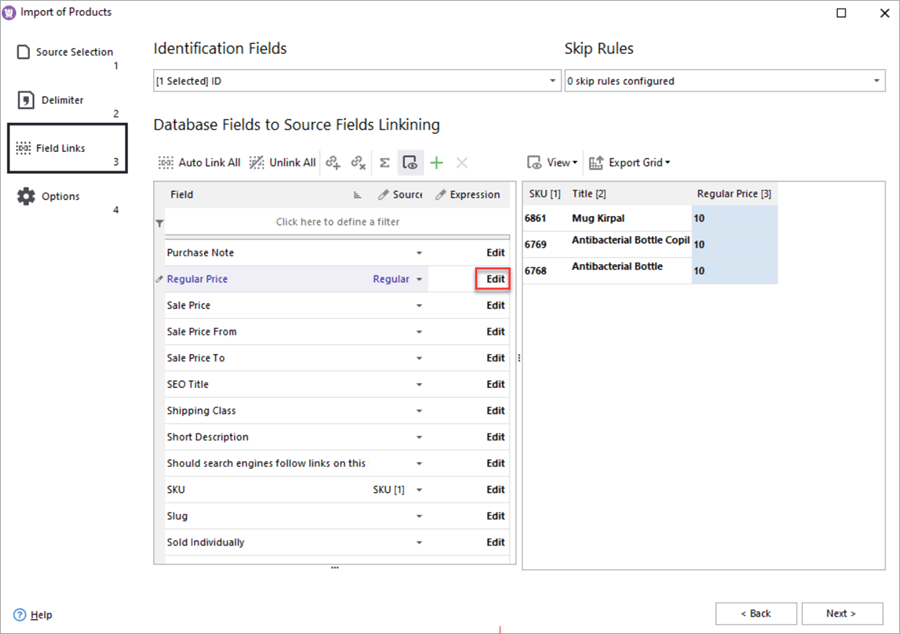
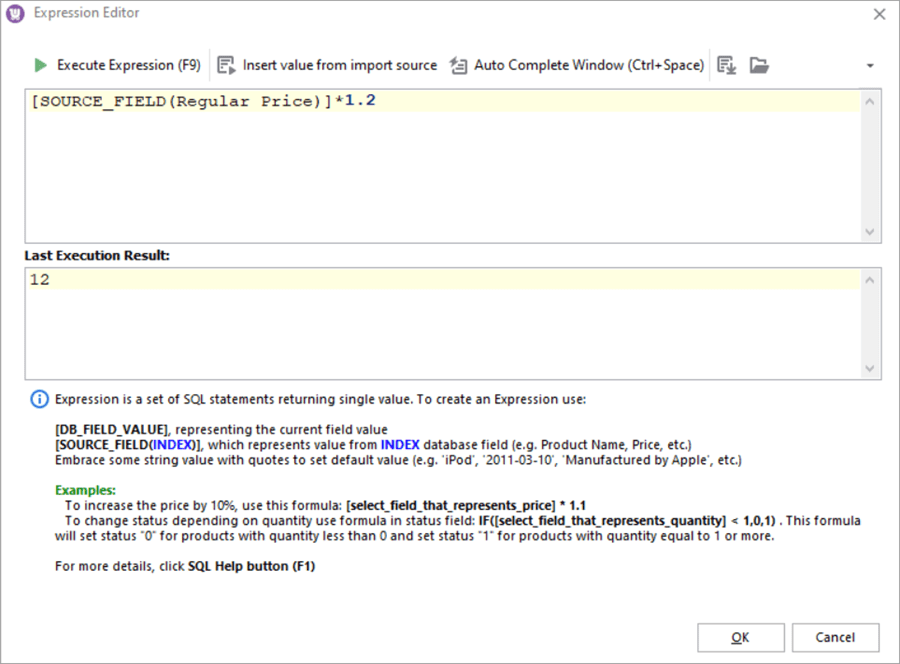
Let’s increase the price by 20% in the course of import. Here are the steps to follow.
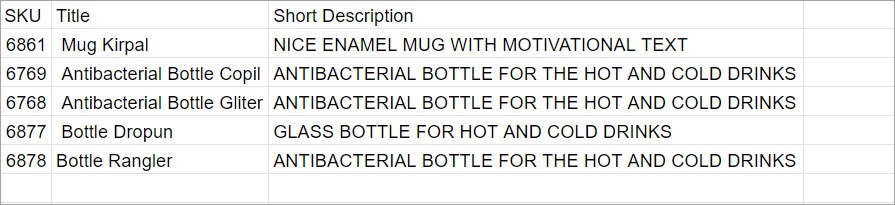
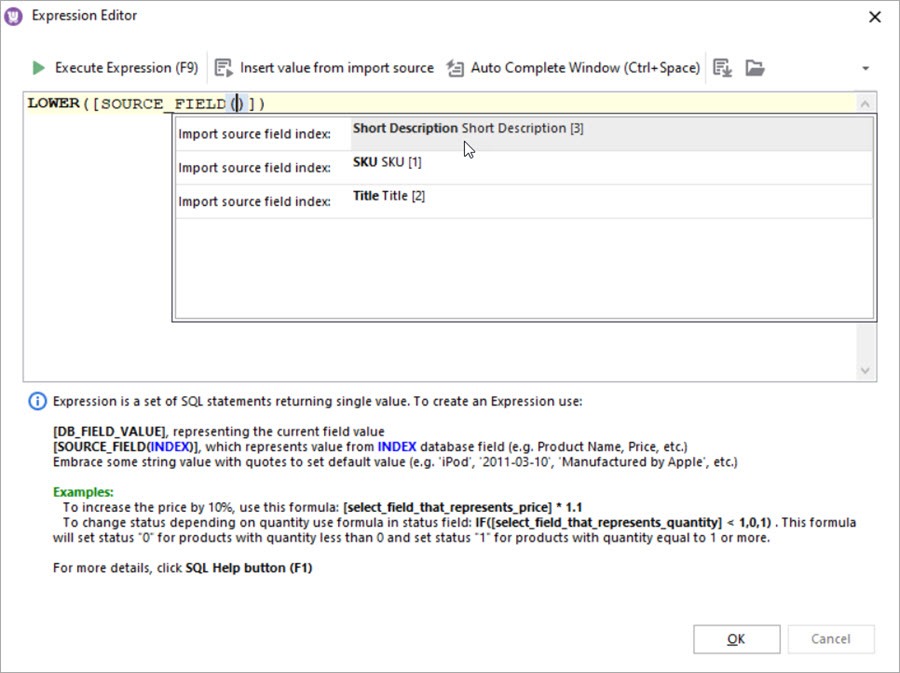
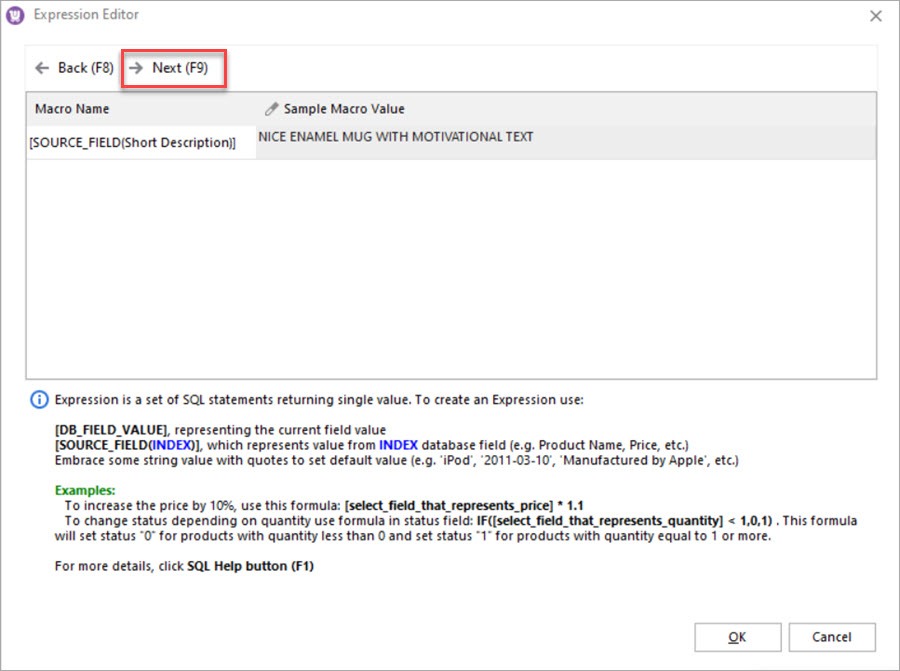
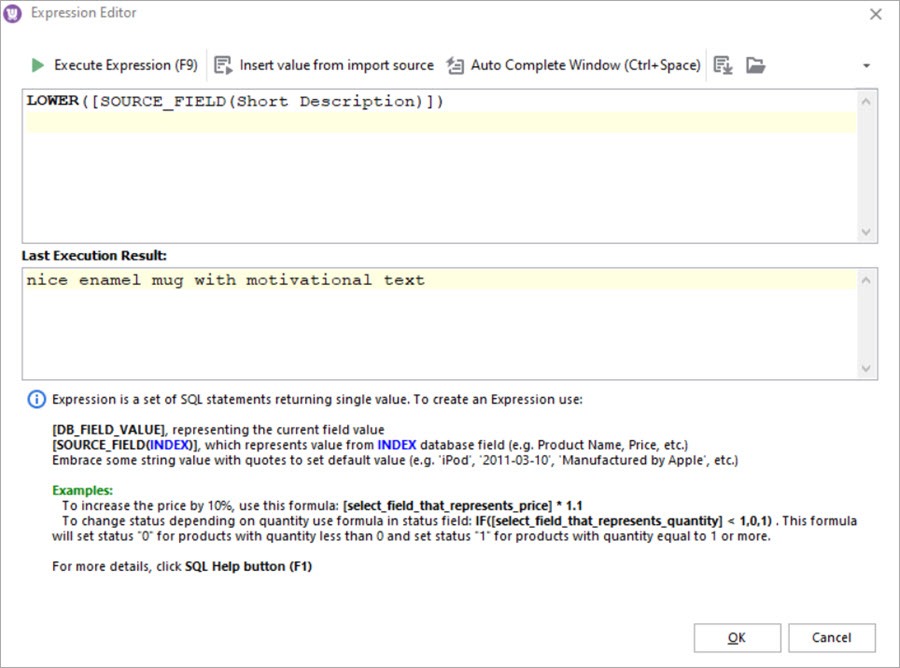
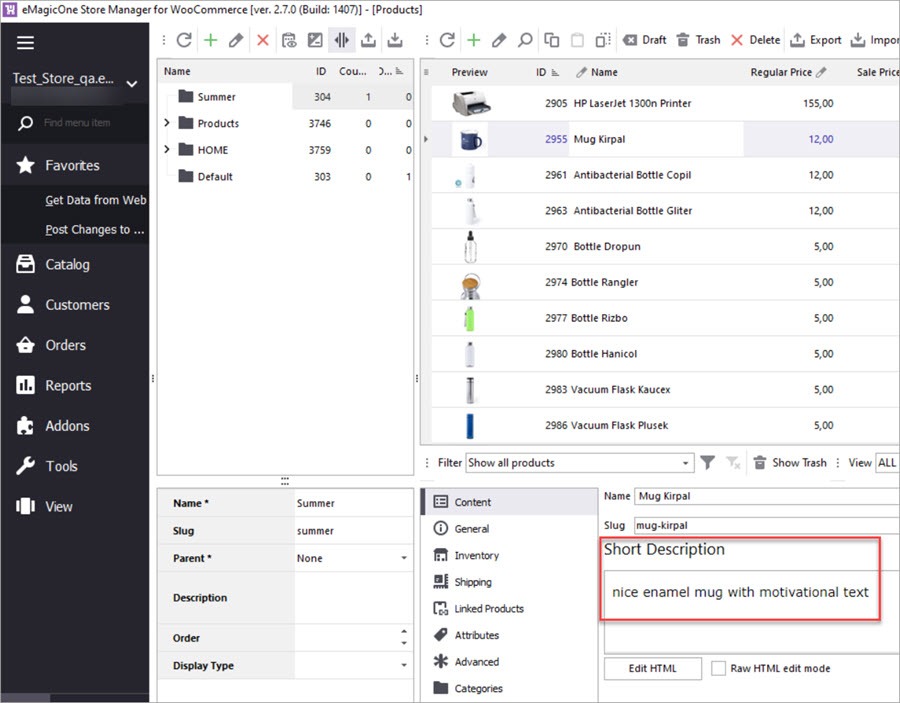
[_regular_price]*1.2 (the coefficient increases the price by 20%)Suppose you have a file where all product short descriptions are uppercase and you want them to be lowercase:
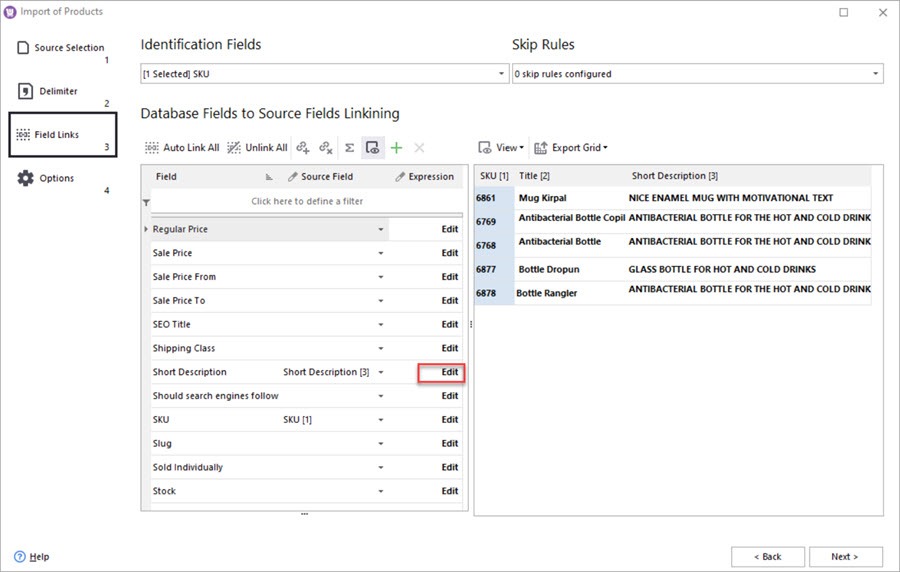
To change short descriptions to lowercase, follow these steps:
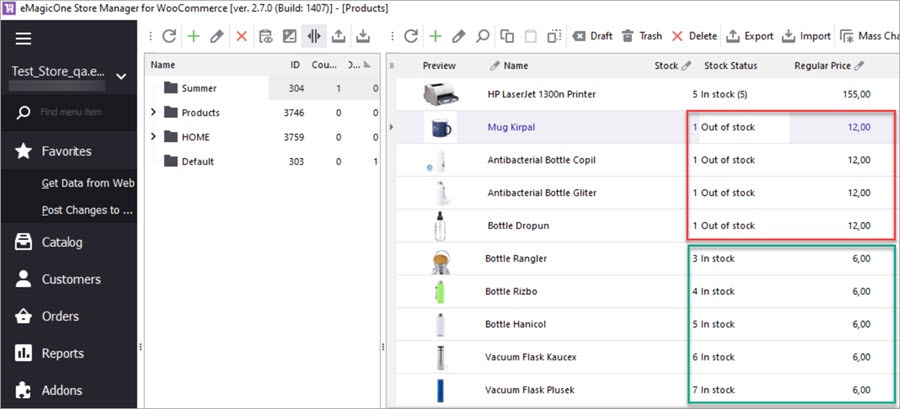
A typical kind of task is to update products on a certain condition. Thus you may want to update prices only for the products with the Out of Stock status.
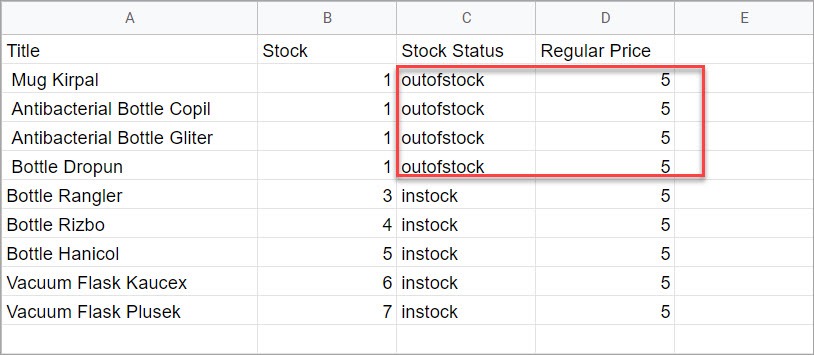
Here we have a file that contains new prices for the existing products. We’ll show you how to import this file and update prices only for the “outofstock” products.
To update prices via import, follow these steps:
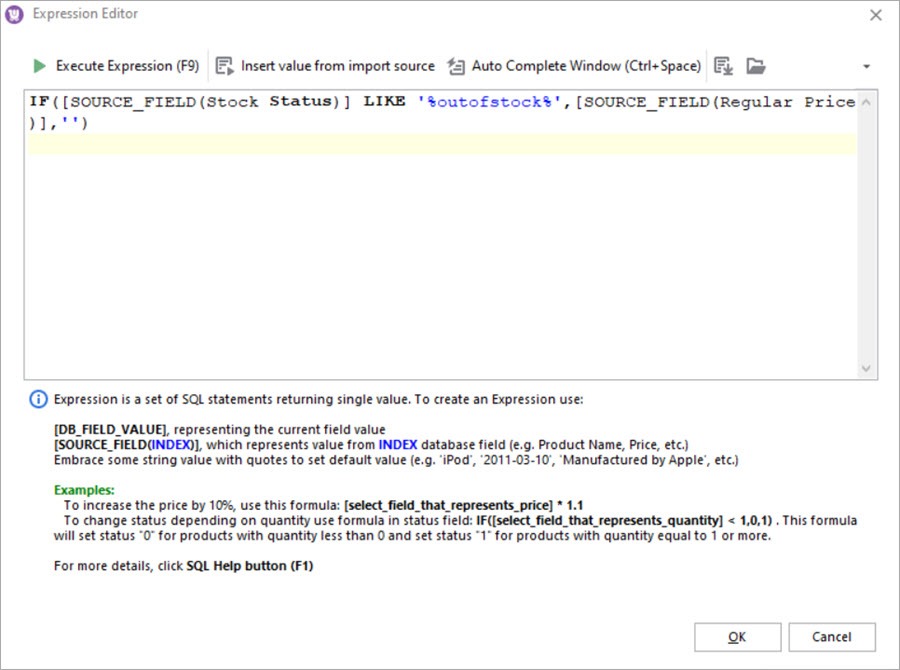
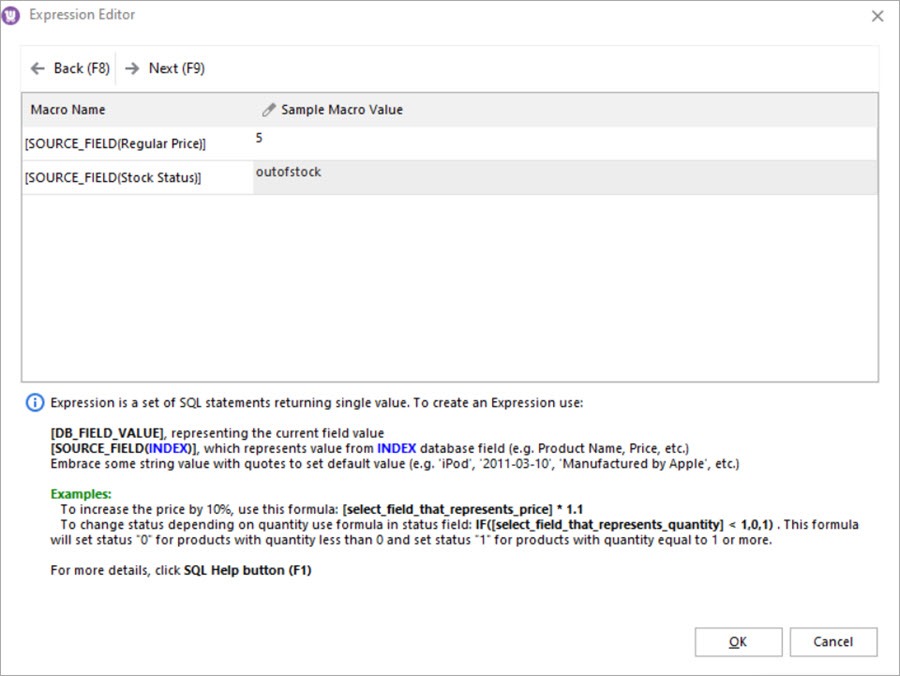
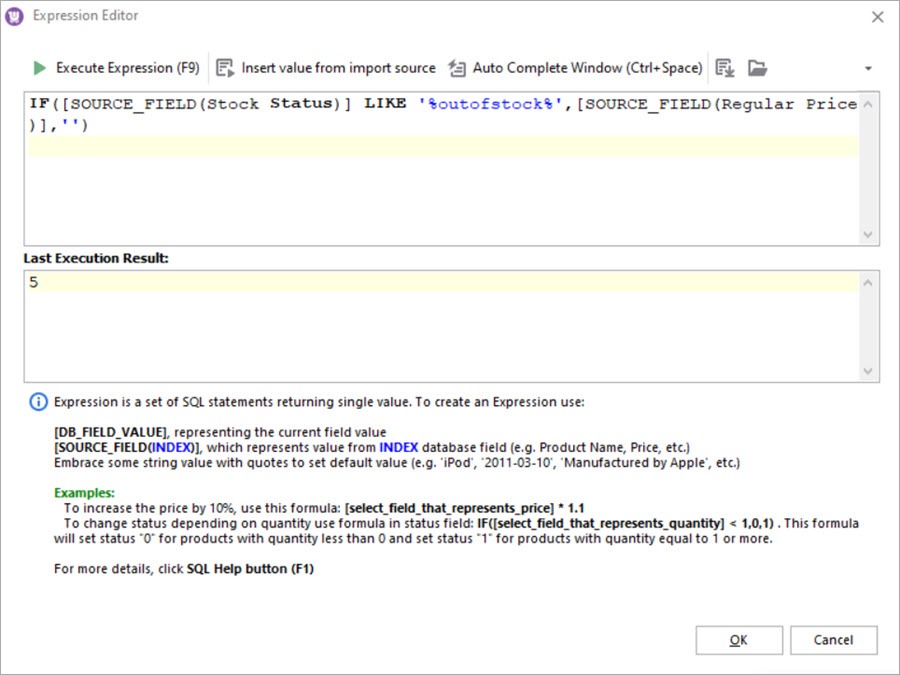
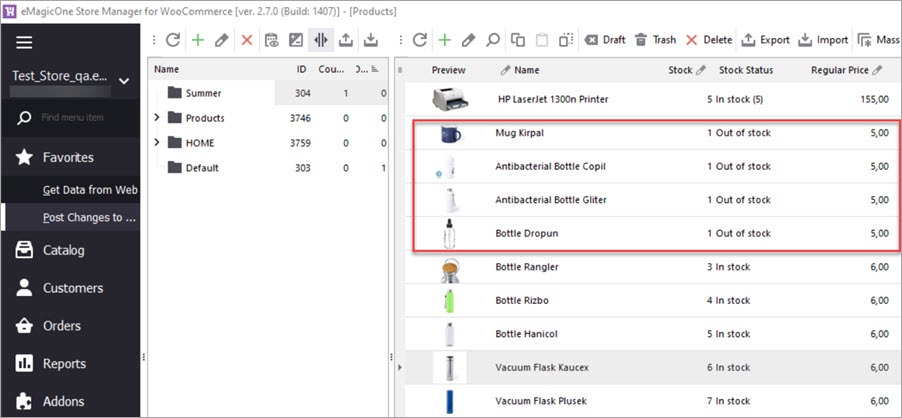
IF([SOURCE_FIELD(Stock Status)] LIKE '%outofstock%',[SOURCE_FIELD(Regular Price)],'') Press OK to close the Expression Editor and return to the import wizard. Complete the import and check the result in Store Manager. As you can see, the prices for the Out-of-Stock products were updated, and prices for other products from the file are unchanged.
You can use the Expression Editor with the Import Wizard to update data on the go on your own. The steps should be as follows:
Using the expression editor with Store Manager for WooCommerce, you can perform a lot of different updates on the go. If you’re hesitant about which formula to use, write in the comments below and we’ll try to help you.
Learn how to import WooCommerce products via Store Manager.Read More...
Perform bulk WooCommerce product updates via Mass Changer tool. Read More...
How to add a brand name to a product title in WooCommerce via import. Read More...
How to update WooCommerce product tags in mass using WooCommerce Product Tags Mass Changer.Read More...